Understanding app security and compliance
Reduce risk and ensure security for your SaaS app portfolio
Get visibility for app security and compliance to help make decisions about app approval and to simplify the research for projects to place applications behind single sign-on (SSO).
Determine which SSO protocols an app supports, and which SSO protocols are being used to log in, as well as the compliance certifications identified for the app. Plus, you can view these details for a specific application or across your entire app portfolio.
App Security & compliance
To view security and compliance for a specific app, open the app Overview page. The Security & compliance section on the right side of the page includes the following information:
- The Okta SSO protocol enabled with the enabled date
- The Google or other SSO login protocol(s) detected over the last 90 days with the last login detected date
- The SSO protocols that are supported by the app
- The compliance certifications supported by the app

The details for the detected SSO method come from the log in data provided by the SSO platform connector.
If the app does not use either Okta or Google as the SSO platform, the information for the enabled or detected SSO protocol is not available, but the supported protocol information for those apps is still available.
When working with multiple instances, the SSO protocols detected are identified at the instance level and a summary can be viewed at the application level. Hover over the enabled or detected SSO protocols for more information.
For suite applications, the security and compliance information is available at the suite level.
App Portfolio security & compliance
Preset views on the App Portfolio page allow you to get to data specific to renewals, compliance, security, app ownership and licenses, as well as an overview for the portfolio.

Select the preset view tab for Compliance to view the following information:
- The compliance certifications supported by the app
Select the preset view tab for Security to view the following information:
- The Okta SSO protocol enabled with the enabled date
- The Google or other SSO login protocol(s) detected over the last 90 days with the last login detected date
- The SSO protocols that are supported by the app
The details for the detected SSO method come from the log in data provided by the SSO platform connector.
If the app does not use either Okta nor Google as the SSO platform, the information for the enabled or detected SSO protocol is not available, but the supported protocol information for those apps is still available.
Customize columns
To customize which columns display in the current view, complete the following steps:
- Select Change columns at the top right of the table on the App list page.
- In the list of columns, check the box(es) next to the fields you want to view. Uncheck the fields you want to hide.
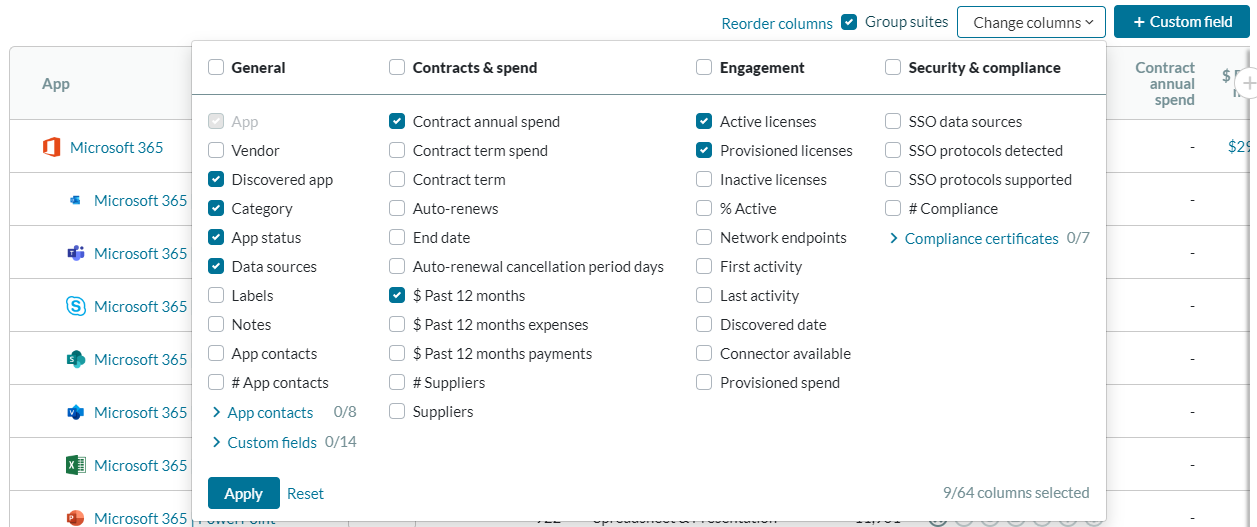
- Do one of the following:
To view the selected column, click Apply;
To return the view to the default columns for your selected preset view, click Reset; OR
To close the list of columns, click outside the list.
NOTE: If you have selected more columns than fit in the view, use the scroll bar at the bottom of the table to scroll through the additional columns.

Multiple instances and application suites
When working with multiple instances, the SSO protocols detected are identified at the instance level and a summary can be viewed at the application level. Hover over the enabled or detected SSO protocols for more information.
For suite applications, the security and compliance information is available at the suite level.