Unmapped supplier spend
Unmapped supplier spend is spend that is attributed to a either a vendor or a reseller; that for some reason cannot be directly attributed to a particular application.
Productiv displays unmapped supplier spend in order to provide complete statistics and all supplier-related spend, and to help users identify and resolve that spend to a specific application.
How unmapped supplier spend happens
Unmapped supplier spend can happen for a number of reasons. The two most common are:
The supplier offers a mix of SaaS and non-SaaS services
Plenty of suppliers offer both SaaS applications and other goods and services that are not related to SaaS. Productiv might encounter spend against a contract that bundles licenses for Google AdWords, Google Calendar, and Google Drive, even though Google AdWords is not a valid SaaS application.
The spend hasn't been processed in a way that explicitly maps to an application
Sometimes spend data doesn't provide enough information to identify the SaaS application it is associated with. For example, the wording of a contract might track spend against Atlassian (the vendor) instead of Confluence (the application).
Curing unmapped spend
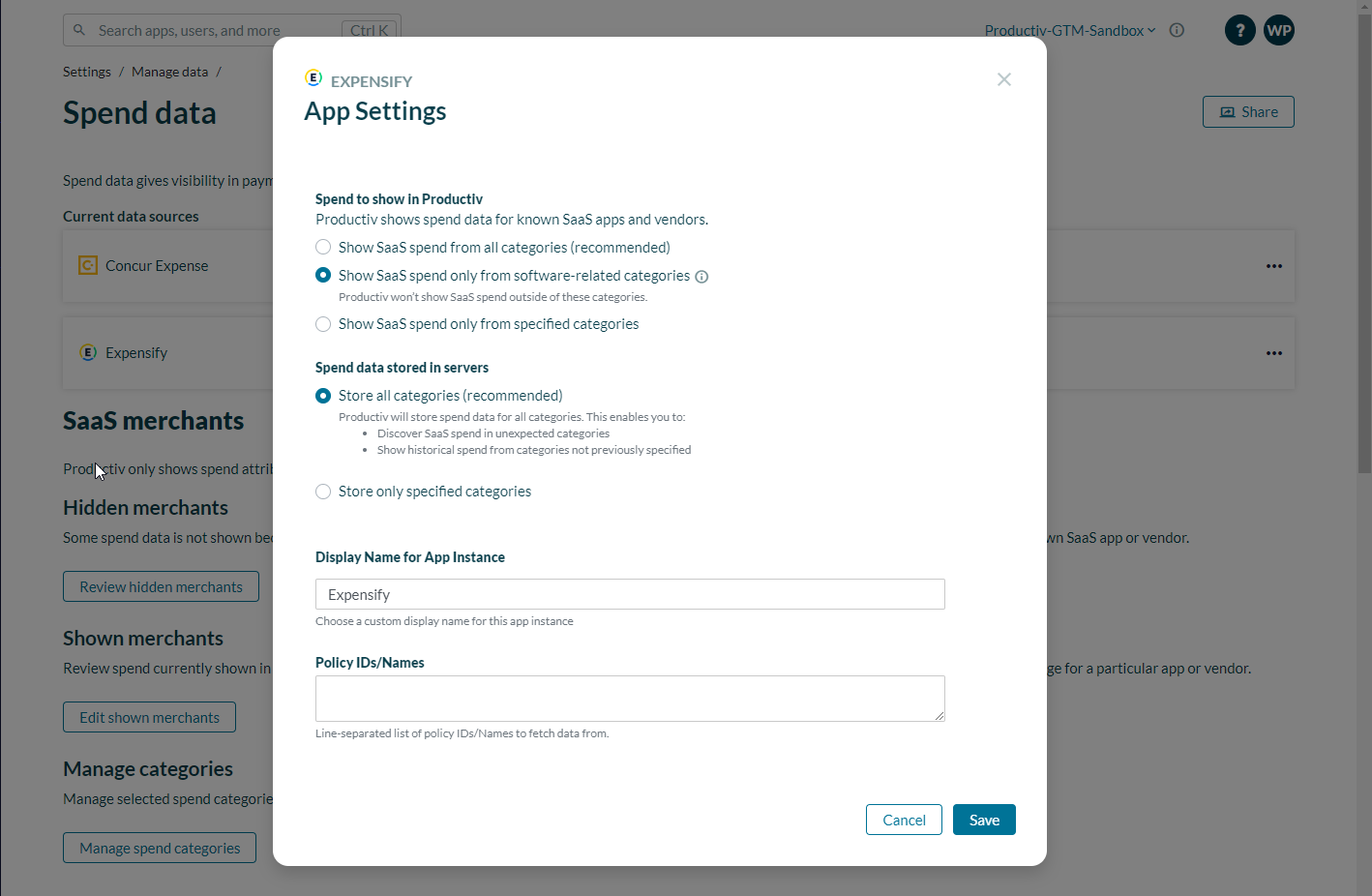
It may take a few rounds of adjustment to tune this set up to get SaaS spend mapped appropriately, so that it doesn't include non-SaaS spend. You may need to do some troubleshooting to identify the source of the issue. Try any or all of the following:
- Review and adjust which spend categories are selected to import data from your spend platform. Use this to exclude non-SaaS spend from Productiv.
(a) Go to Settings > Manage data > Platform data > Spend.
(b) Click >.
Productiv displays a table showing your current data sources for Spend data.
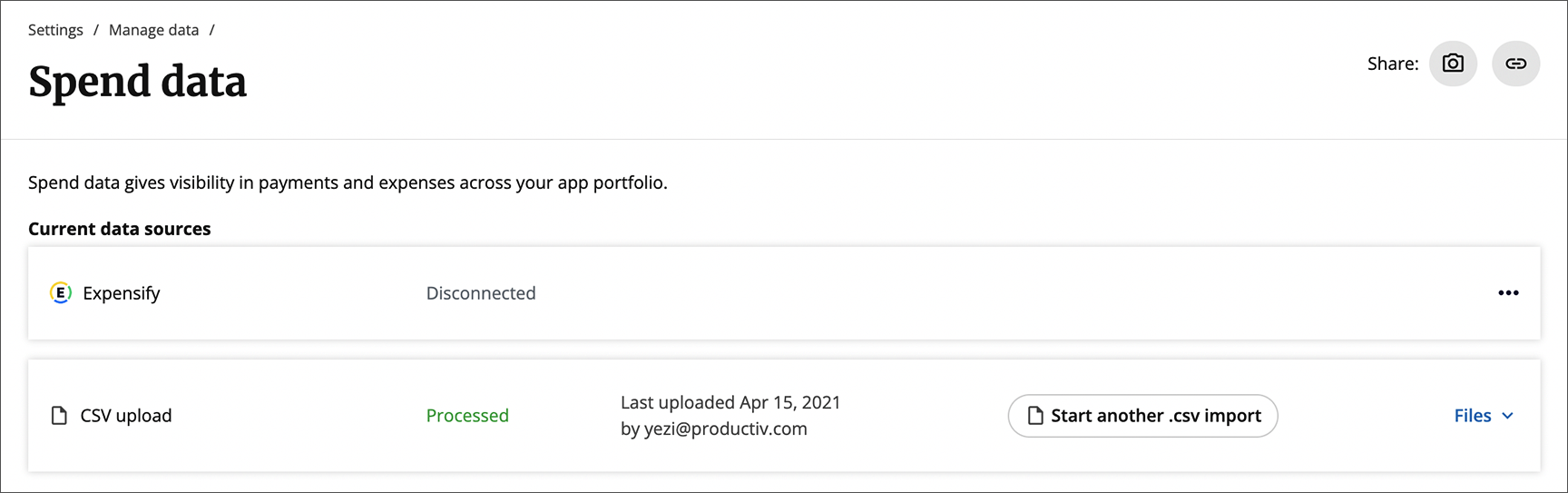
(c) At the right side of the row representing the Spend data source of interest, click the More icon (...). A drop-down list displays data source settings you can examine.
(d) Click App settings to view and adjust the settings as needed.
- Use Expense rules (Link) to create rules that map supplier unmapped spend to the specific app the spend belongs to.
