Track app approval status and rationale
This article discusses the app approval process and shows how to update app status and rationale.
As applications move through your company's internal review process, it's valuable to track that status by updating the app's Status and Rationale fields. This provides transparency to the whole organization about app oversight, app rationale, and what person or department is managing that app.
Status and rationale can be set at both the suite level and the application level. If the app is part of a suite it inherits its status and rationale from the entire suite.
Managing app status and rationale
Productiv super admins or Application admins can add or edit the app status and rationale from next to the app information icon. App contacts are notified of updates to changes in app status and rationale.
To add or change the app status:
- Navigate to the app's Overview page.
- Locate App status and rationale.
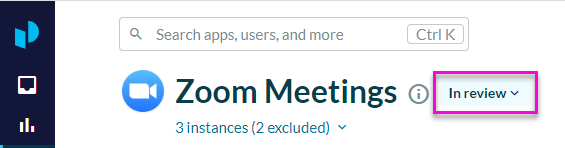
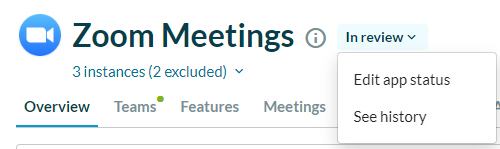
- Click Edit app status.
- Select the new status from the drop down list, then -- if desired -- enter up to 250 characters to explain the rationale for the app introduction or the change in app status.
- Click Save changes.
Review app status and rationale history
To track changes in app status and rationale, click See history.
Review all apps with similar status
To see all apps with the same status as this one, click the status entry. Productiv opens the App list, filtered to show all apps with that status.