Conduct User Surveys
Measure employee satisfaction with an app
The Productiv User surveys function sends an industry-standard NPS survey to help identify what employees think about an app. This enables the SaaS management team to encourage and improve employee productivity. Once at least five employees have responded to the survey, you can easily review survey results.
Surveys can be sent out as a periodic baseline check or when you’re considering renewing an app. Used with engagement analytics, surveys can also help you make a determination when you’re rationalizing between different apps.
To access the User surveys page, open the app you want to view, go to the app details, and click User surveys.

Creating a new survey
A new survey enables you to start collecting sentiment about a selected application.
To create a new survey:
- On the User surveys page, click Create new survey.
Productiv displays the Start new NPS survey popup.
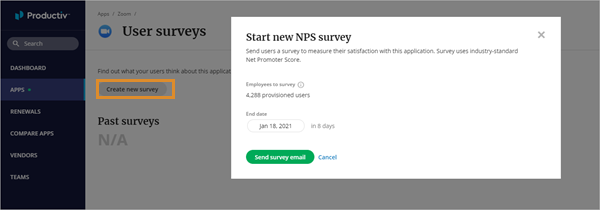
- Select an End date to indicate when you want the current survey to end.
Productiv displays the number of days the survey will be active. - Click Send survey email.
A preset survey is emailed to all currently provisioned users of the app. The survey is sent from surveys@productiv.com. Survey responders can rate the app and provide feedback.
Reviewing survey results
Once at least five employees have responded to the survey, the User surveys page displays a summary of the anonymous results, including the following details:
- The active dates the survey started and ended (or is scheduled to end)
- The response rate, with the number of responses and the number of surveys sent
- The Net Promoter Score with the percentage of promoters and detractors
- A pill chart to help visualize the number of promoters and detractors
Survey responders are classified as promoters by providing a positive rating or detractors by providing a negative rating. The Net Promoter Score is the percentage of promoters minus the percentage of detractors.
To further work with the survey responses, you can download them in .csv file format. Click Details with individual ratings and open-ended responses.

Changing the end date
To change the date the survey ends, click Change end date.
To end the survey now, click End now.