Slack notification settings for your organization
Stay informed and take action faster by sending real-time notifications from Productiv directly to a Slack channel. Whether it's key alerts or critical events, you can seamlessly integrate Productiv with Slack to ensure your team is always in the loop.
Enabling Slack notifications
- In the navigation bar, click Settings. Productiv displays the Settings page.
- Select the Organization tab.

- Scroll down to the Slack notifications header.
- Click Add to Slack. Slack displays a form that enables you to specify the Slack channel where Productiv should post messages to Slack.
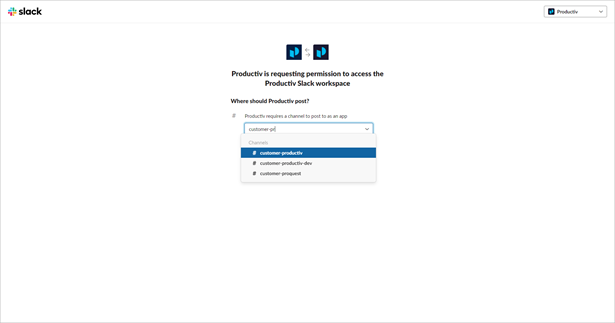
- Select the channel where you want notifications posted from the drop down list.
- Click Allow.
Changing the channel for Slack notifications
If you need to change the selected channel in Slack, you must first remove the current channel, then add a new one.
- In the navigation bar, click Settings. Productiv displays the Settings page.
- Select the Organization tab.
- Scroll down to the Slack notifications header. Notice that the channel that is currently set as the notification channel is listed, and the Add to Slack button has been replaced by a Remove from Slack button.
- Click Remove from Slack.
- When the channel is removed, the Add to Slack button is restored.
- Begin the selection process all over again.
Notifications across all applications:
Under Slack notifications on the Settings page, check the boxes to indicate which notifications you want posted to the chosen Slack channel for all applications.
Available Notifications
| App updates and alerts |
App adoption updates Unusual activity alerts Low remaining license count alerts |
| Contract renewal approaching | Get notified of all upcoming contract renewals. |
| Contract validation emails | Get notified when a processed contract requires review |
| Contract files not ingested | Be notified when a contract is not ingested into Productiv because it was not a SaaS contract |
| New app discovered |
Find out when new apps are discovered in your portfolio |
| Operations: License provisioning batches | Get updated on provisioning batch statuses |
| Operations: Overall | Get updated on general operations such as custom segments being made available |
| Data ready to view | New engagement and activity data ready to view in product |
| Suggestions for License Management workflows | Get notified when there are suggested license management workflows available |
| Connector updates | Get notified of connector status changes |
Customizing specific app notifications:

To customize how notifications are sent for a specific app:
- Under Slack notifications on the Settings page, select from the drop down list the consolidated app (recommended) or a specific instance of the app for which you want to receive notifications.
- Check the boxes to indicate which notifications you want to post to Slack for that app/instance of the app.