Define rules for automation workflows
This article describes how App Admins or Productiv Super Admins can set up rules to trigger provisioning workflows for any app connected behind SSO via a user access management connector, or an app that has its own provisioning connector.
We assume that you are already familiar with what a provisioning workflow is, and have a bit of experience with creating provisioning workflows.
____________
Procedure
To define a rule for an existing provisioning workflow:
- Open the app page.
- Click the Automation tab.
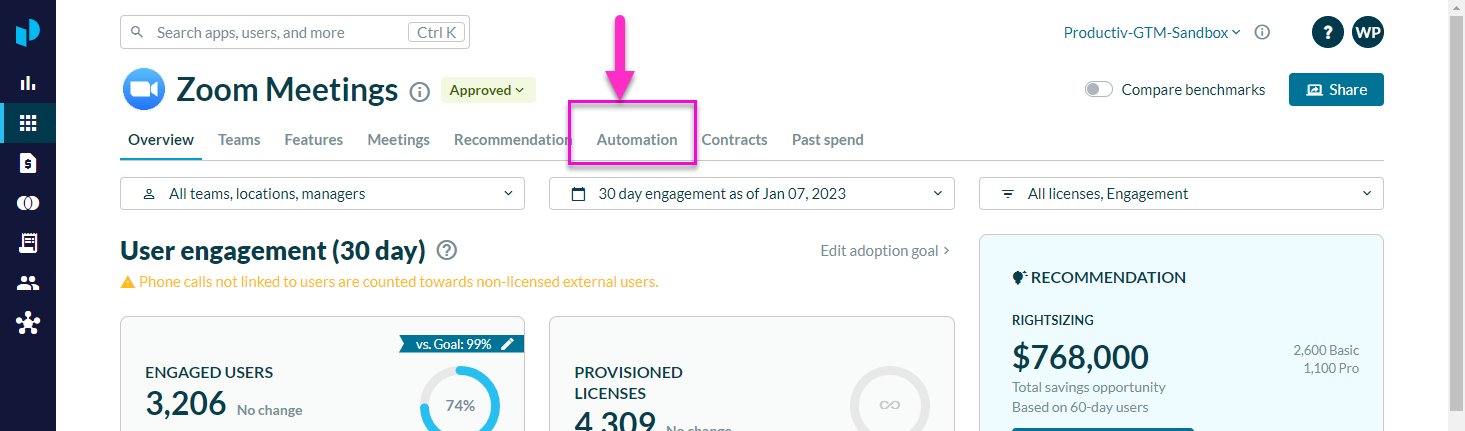
Productiv displays the app's Automation page, which provides access to all configuration data related to the setup of provisioning workflows.
If no provisioning workflows exist yet for this app, the page looks like this:
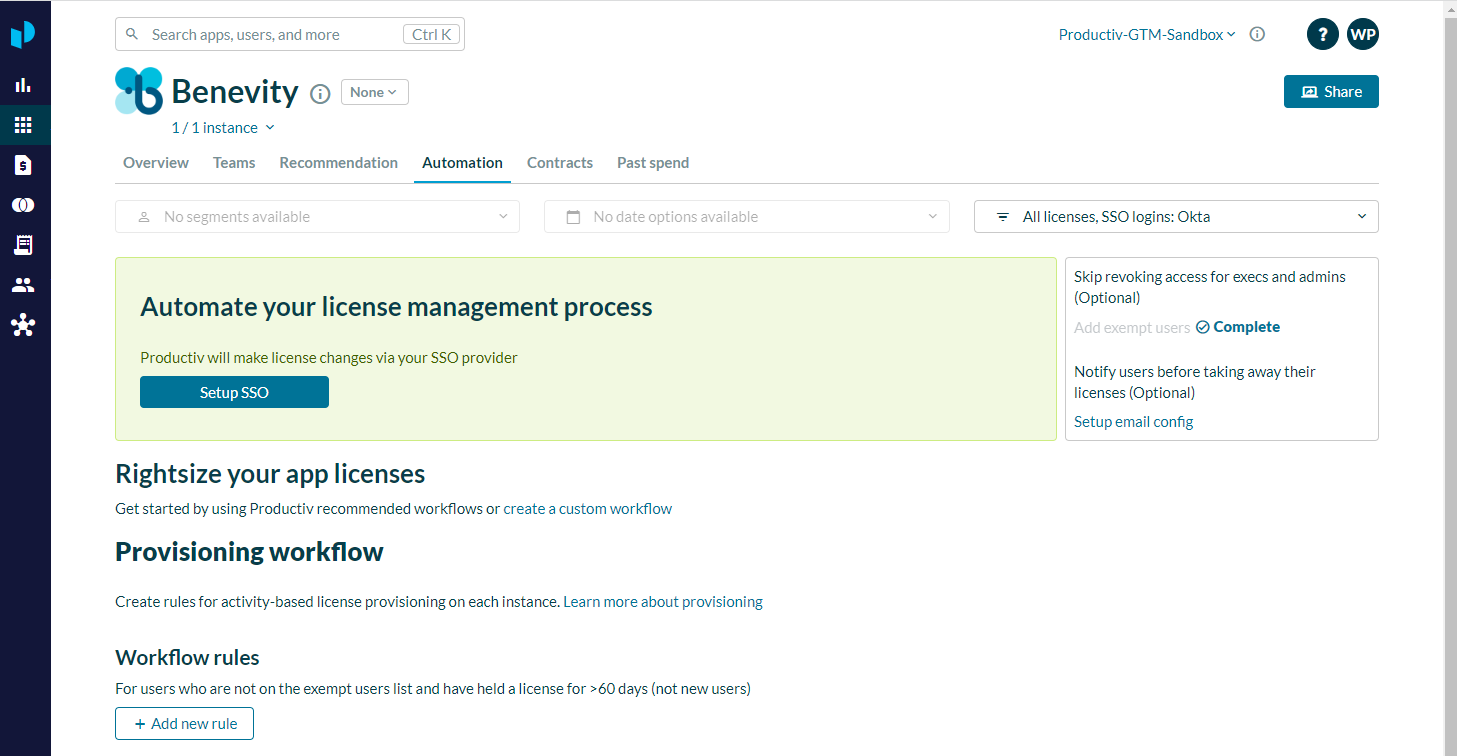
- Click +Add new rule. Productiv displays the first page of the Add New Provisioning Rule wizard.
If this is an app that has its own provisioning connector, the first page looks like this:
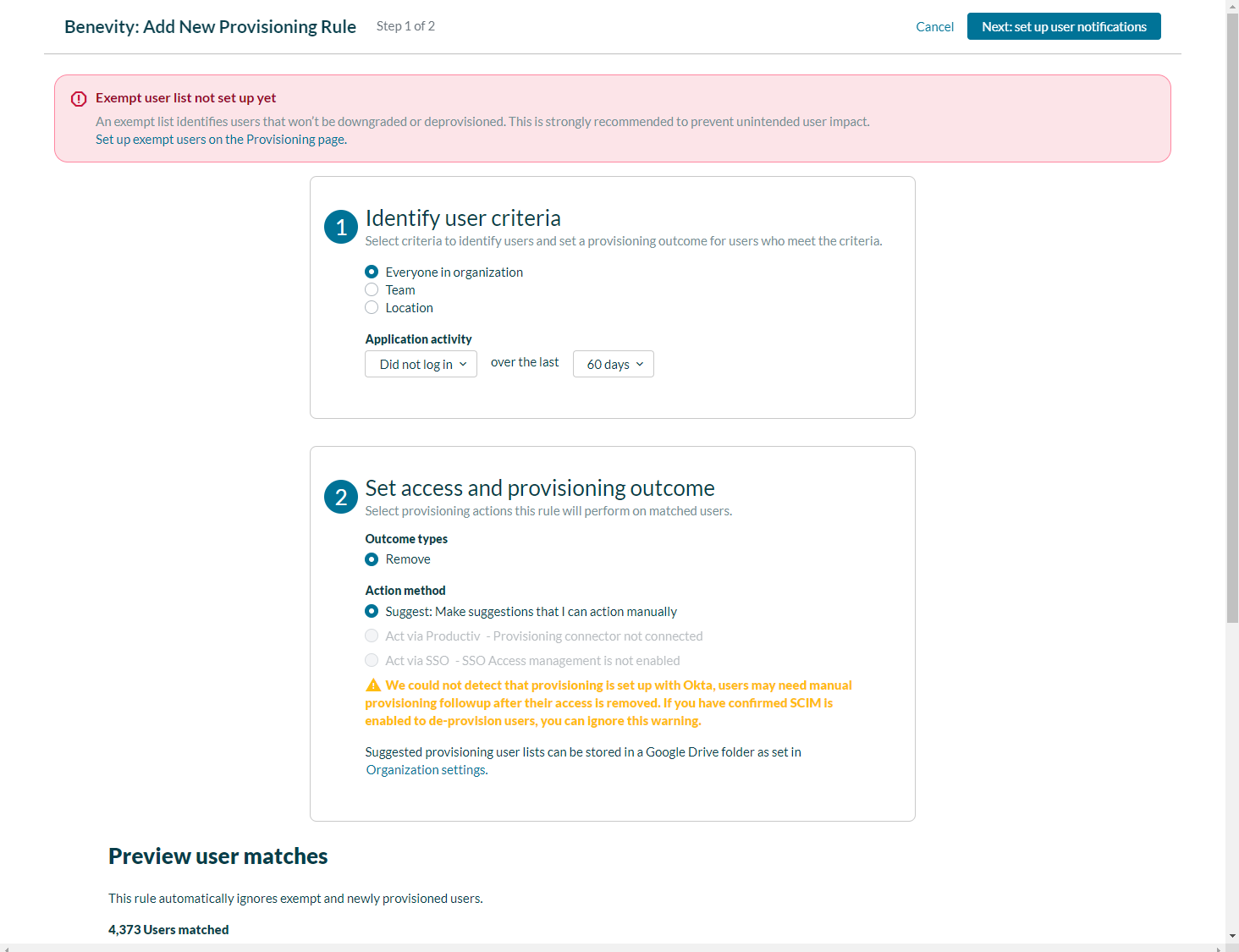
If the app is one that is connected via Okta SSO, the first page looks like this:
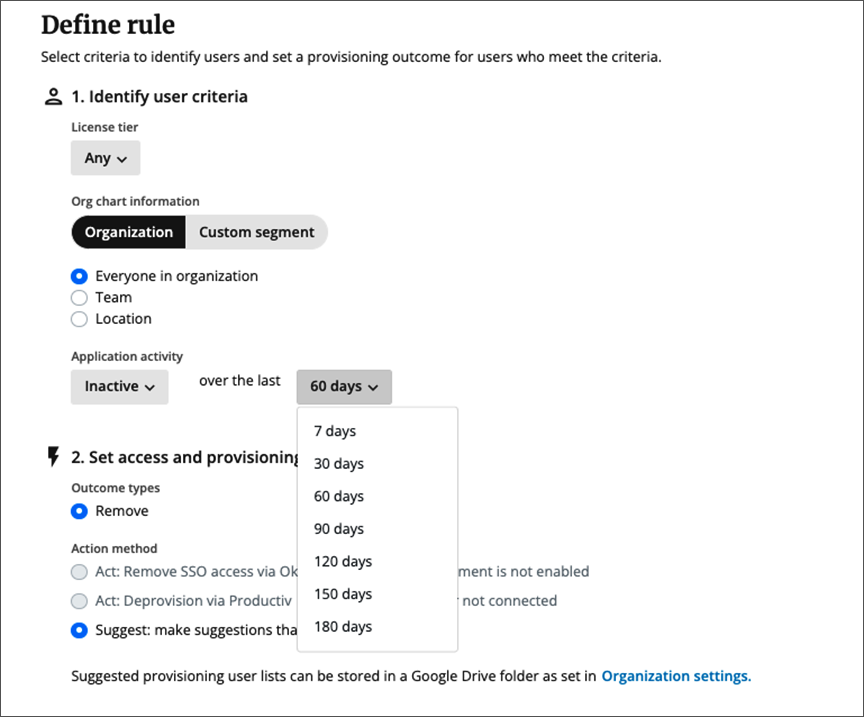
If no exempt users list has yet been set up for this app, the wizard directs you to set one up before proceeding. For details, see Exempting users from Automation workflows.
- Complete the steps in the Define rule section:
(a) Identify user criteria -- Specify the users whose license usage will be affected by this rule, and the specific application activity that will trigger deprovisioning.
Note that if the app is accessible behind SSO there is a wider range of inactivity windows you can specify.
The users who meet your criteria appear in the Preview user matches section.
(b) Set access and provisioning outcome -- Specify what action you want to rule to take, once activated. If the rule is for an app that sits behind Okta, For more about the two types of recommended outcomes, see the following section. - Examine the users listed under Preview user matches. Note that any rule you define for provisioning workflows automatically excludes exempt and newly-provisioned users.
- In the upper right corner, click Next: set up user notifications.
Productiv displays the second page of the Add New Provisioning Rule wizard.
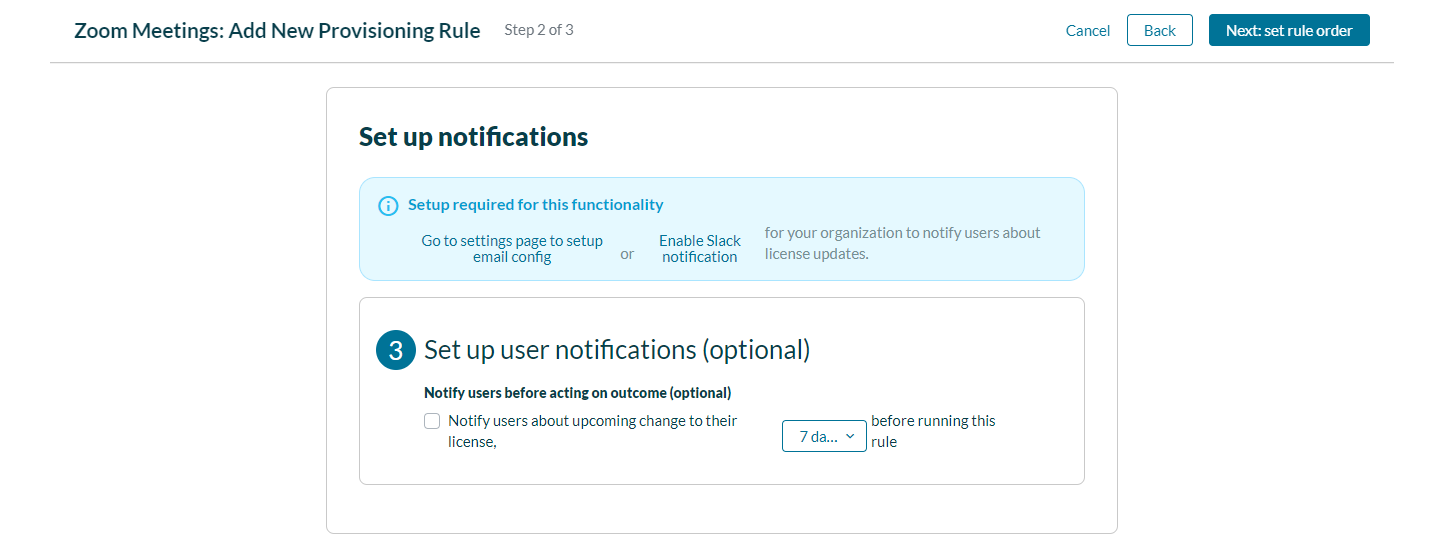
- If desired, specify an advance interval when users affected by a provisioning workflow will be warned.
- In the upper right corner, click Add rule and save workflow.
The new workflow is listed in the app's Automation page.
Workflow outcomes
Suggest
For all engagement or SSO-connected apps without a provisioning connector (see below), the workflow rules make suggestions for licensing changes. You can export the list of suggested users as a .csv file to use with your current provisioning method outside of Productive, or to make the changes manually.
Note: If the application is accessed behind Okta and you specify a Suggest outcome, users will need manual provisioning followup after their access is removed.
Act
For apps connected to Okta via the Okta access management connector, Act outcomes remove SSO access via Okta.
Read more
- Provisioning workflow overview
- Create provisioning workflows
- Okta user access management connector overview