Sharing Productiv insights
Collaborate with an image or shared link
Ensure visibility on insights with two sharing options: copy or download a visualization to use in reports and presentations, and/or share a link to an exact view of your data.
The sharing options are available throughout Productiv.

Sharing an image
Enrich conversations with others outside Productiv about your findings with a highlighted screenshot. Copy the image to use immediately in communications and presentations, or download the image as a PNG file.
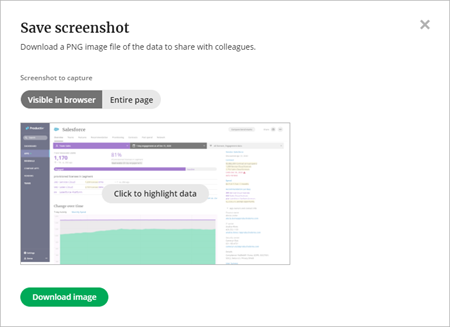
To copy or download a PNG image file of the data to share with colleagues, complete the following steps:
- Navigate to the desired page and use any filters to find the data you want to share.
- Select the camera icon.
- In the Save screenshot popup, choose what to include in the image. Select Visible in browser if you want to limit the image to what you currently have visible in your browser. Select Entire page to include all of the visualizations on the current page in the image.
- Select Click to highlight data to open the image in a new window, where you can draw rectangular highlights. Select Undo to remove each highlight. Select Done to close the highlight window.
- Select Download image to save the PNG file to your computer.
Sharing a link
Make sure other Productiv users are looking at the same data by guiding them to your exact view with a shared link. Invite collaborators to Productiv if they don’t have access yet.
To share a link with colleagues, complete the following steps:
- Navigate to the desired page and use any filters to find the data you want to share.
- Select the link icon.
- Select Copy to get the URL.