Viewing team apps
Get details for apps used by a selected team
The top of the Apps for this team chart shows the number of apps up for renewal in the next 90 days. Select the link to open the Renewals page filtered to renewals relevant for that team.
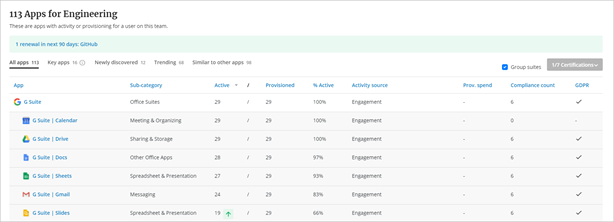
The Apps table includes apps with an engagement or SSO connector that show activity by a user on the selected team for the selected date/window of time.
If the team uses multiple instances of an app, the app row indicates how many instances of the app there are across the organization.
The table shows the following information to help you understand usage, provisioning, spend and compliance:
- App - the name of the application
- Sub-category - the type of application
- Active - the number of users from this team identified as active in the app in the selected time window; numbers in italics are unique logins from SSO login data if engagement data is not available for that app
- Provisioned - the number of users from this team identified as provisioned in the app in the selected time window or estimated based on past 120 days activity; numbers in italics are estimated from unique logins over the last 120 days
- % Active - the active users as a percentage of provisioned users for this team
- Activity source - whether the app engagement information comes from an engagement connector or a SSO source
- Provisioned spend - for apps with uploaded contract data, the annualized spend in USD, based on the number of provisioned licenses multiplied by the annual contract amount per license (an * denotes that there is spend in other currencies not included)
- Compliance count - of the number of compliance certifications Productiv tracks, the certifications that apply for this app
The apps table can be sorted by clicking any table column header.
Filter the apps table by selecting the tabs at the top of the table:
- All apps - shows all apps for the team, whether managed or discovered
- Key apps - shows apps significant to this team, based on higher activity or provisioning than the organization average
- Newly discovered - shows new apps for this team
- Trending - shows apps with increased or decreased activity for this team
- Similar to other apps - shows apps for this team that are similar to other apps
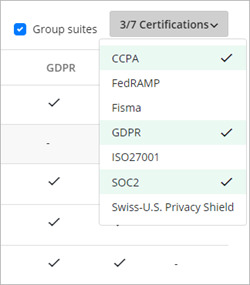
Stay on top of compliance coverage and find non-compliant apps for this team using the Certifications filter. To view compliance certification details for this team’s apps, select a certification type from the Certifications filter. The certification(s) you select will be shown with a checkmark and the certification selected will be shown as a column in the table.
If you’ve selected a certification, the button indicates how many certifications you have selected.
Select Download apps as .csv to send data to a .csv file.
Select an app name to open the details for that app, filtered to the selected team.