Viewing team spending

The table shows the following information to help you understand activity, provisioning and allocated contract value across the team's applications.
- App - the name of the application
- Active - number of active users
- Provisioned - number of provisioned users
- % Active - Pill chart of number of active users versus inactive users
- Activity source - whether the app spending information comes from engagement or Okta
- Allocated contract value - Annualized contract value allocated to the team
Additionally, you can customize the columns to include other relevant information.
Customize Allocated contract value for teams and users
Understanding how your application contract value is allocated across teams and users can help you optimize resource utilization and budget planning. Let's explore the different allocation methods available in Productiv.
Understanding allocated contract value
You can allocate contract values in the following ways:
- Based on provisioning information (Default method): This method allocates contract value based on individual user licenses. If a user is provisioned with a specific license, the corresponding cost is allocated to them and their team. For this method to work accurately, you must have either an engagement or provisioning connector connected for said application.
- Evenly across employees: This method distributes the total contract value equally among all employees in the company, regardless of individual usage.
- Custom by team: You can customize the allocation percentage for each team. For instance, if Team A is allocated 30%, and Team B is allocated 70%, the total contract value will be divided accordingly. The total allocation for the team is further divided across all users of that team evenly.
⚠️ Note: Ensure you have provided HR data that includes team information for your organization and uploaded contracts for an application to allocate contract value.
Customizing Allocated Contract Value
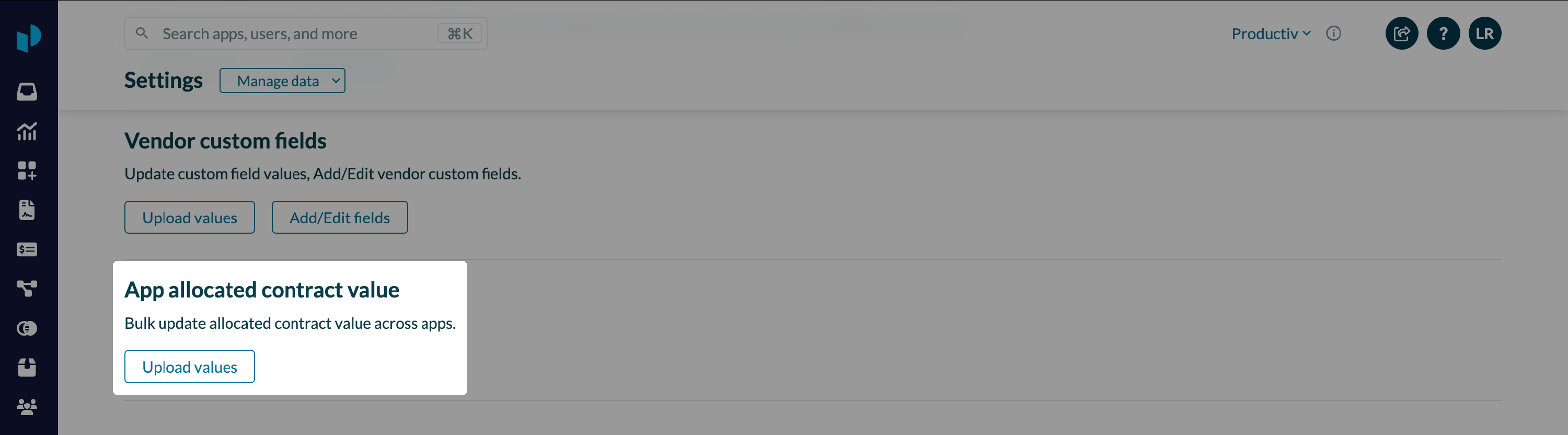
- Navigate to Settings > Manage data > App allocated contract value
- Click Upload values
- Productiv launches a wizard that walks you through the process of configuring the allocation of contract value. It provides you with a csv file with the existing allocation configuration across all applications and teams.
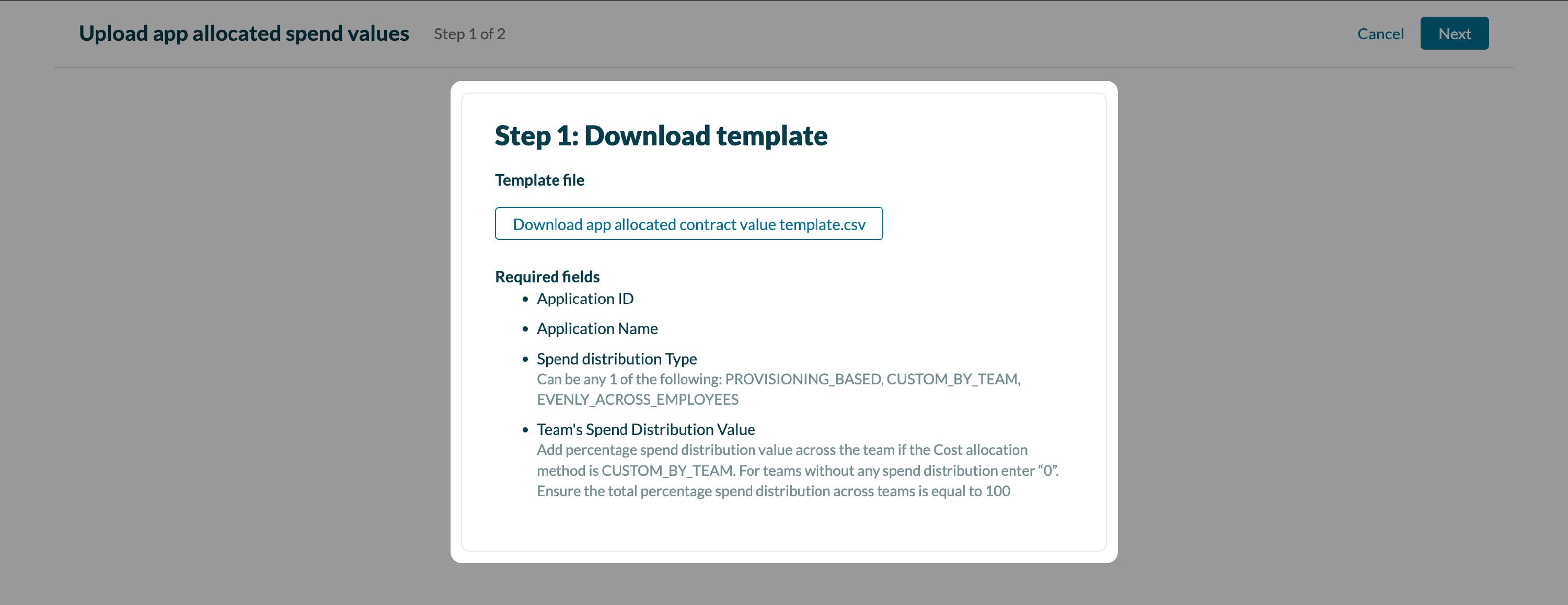
- Once you have updated the csv file with the new configuration, upload it to update the configuration. This will update the corresponding allocated contract value numbers across all teams and users.
