SaaS Visibility
Identify # of SaaS to put behind SSO
Realize the # of unknown SaaS Acted upon
Track Security & Compliance Risk
Measure SaaS Usage - Engagement and Spend
Discover Shadow IT
- From the left navigation menu, select Apps.
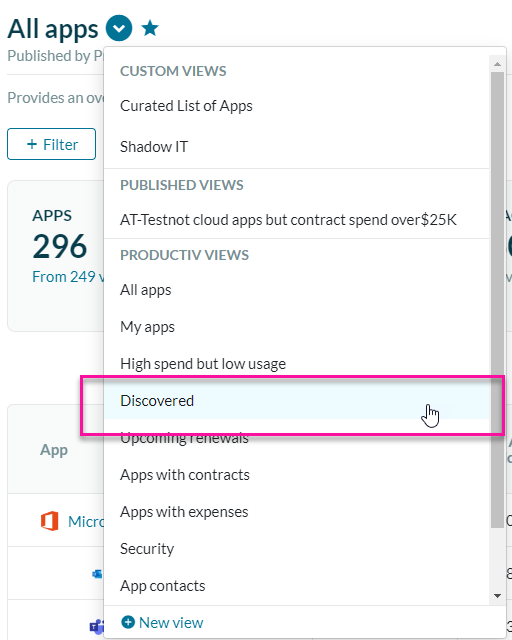
- From views, select Discovered.

Identify # of unknown SaaS
- From the left navigation menu, select Apps.
- From views, select Discovered.
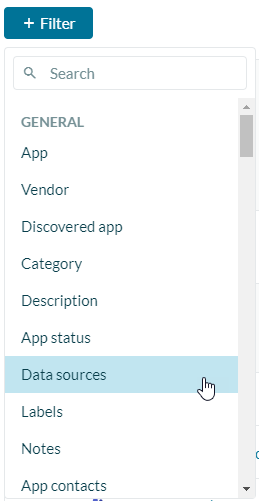
- From the Filter menu, select Data Sources.
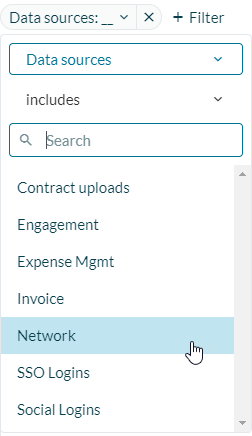
- Select includes Network.
Identify # of SaaS to put behind SSO
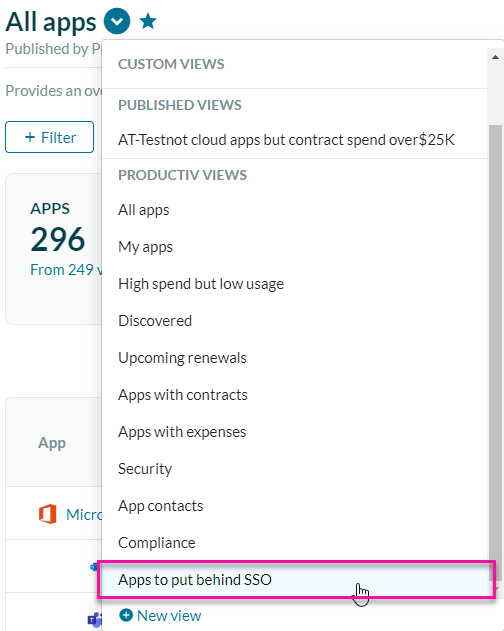
- From the left navigation menu, select Apps.
- From views, select Apps to put behind SSO.
Realize the # of unknown SaaS Acted upon
You must use labels to track ShadowIT and what was acted upon.
To add a label, do the following:
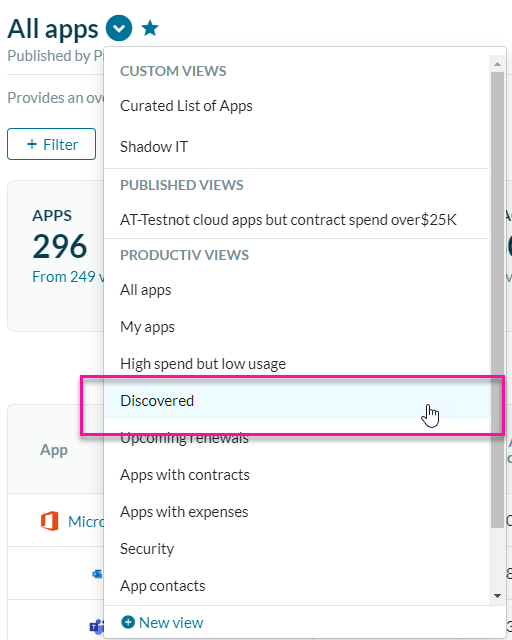
- From the left navigation menu, select Apps.
- From views, select Discovered.
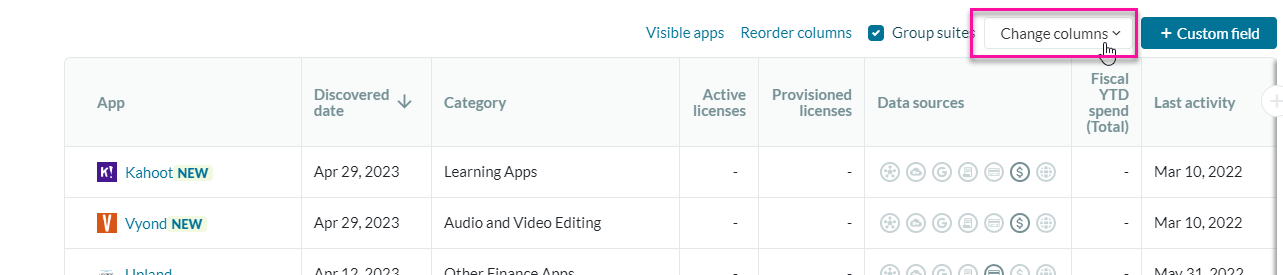
- Select Change Columns.
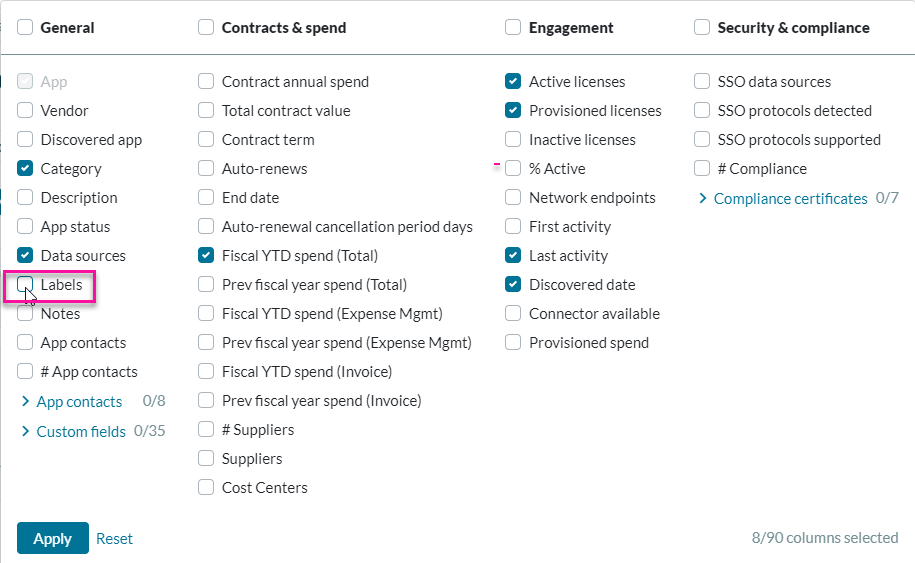
- Select the Labels checkbox and click Apply.
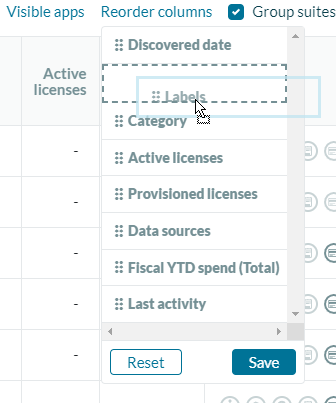
- Click Reorder columns.

- Reorder labels by dragging it toward the top of the list and click Save.
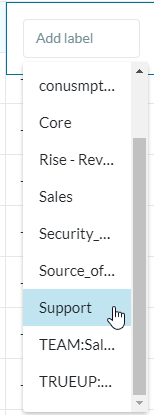
- Select a Label from the drop-down menu.
Track Security & Compliance Risk
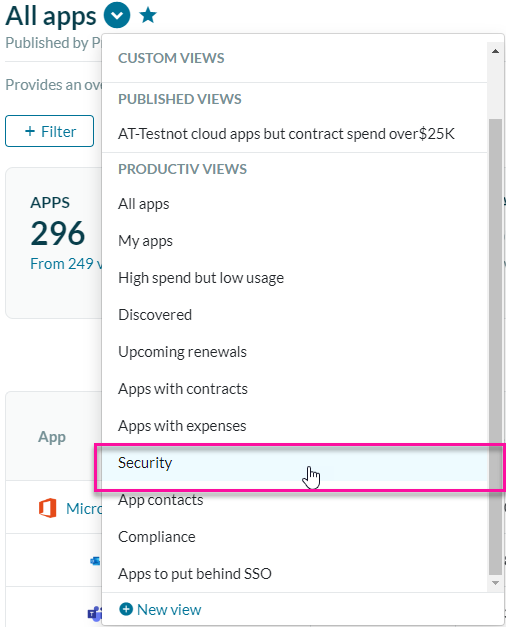
- From the left navigation menu, select Apps.
- From views, select Security.
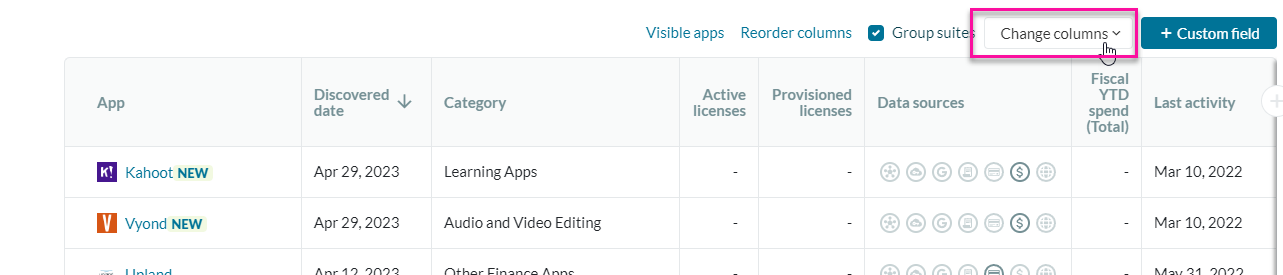
- Select Change Columns.
- Select Compliance Certificates and choose the certificate(s) you want to view.
- Click Apply.
Apps Behind SSO
- From the left navigation menu, select Apps.
- From views, select Discovered.
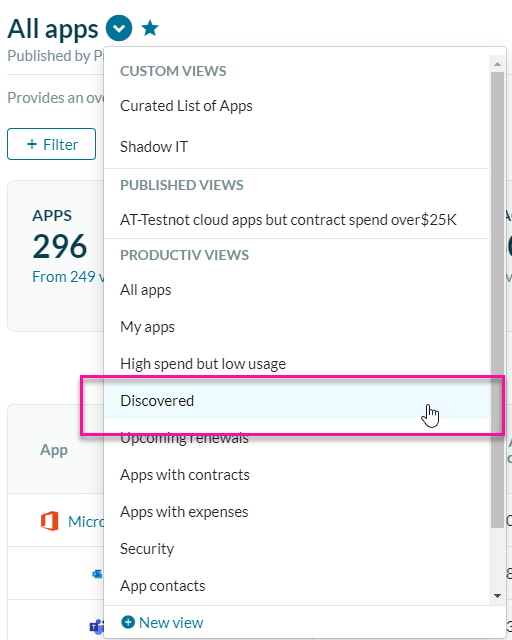
- From the Filter menu, select Data Sources.
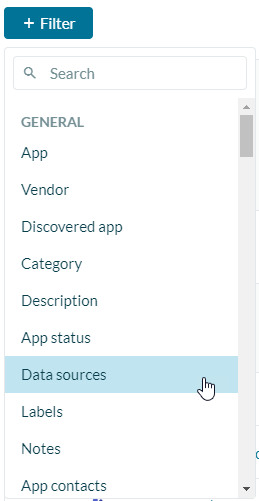
- Select includes SSO Logins.
Track SaaS Compliance Posture
- From the left navigation menu, select Apps.
- From views, select Compliance.
- Select Change Columns.
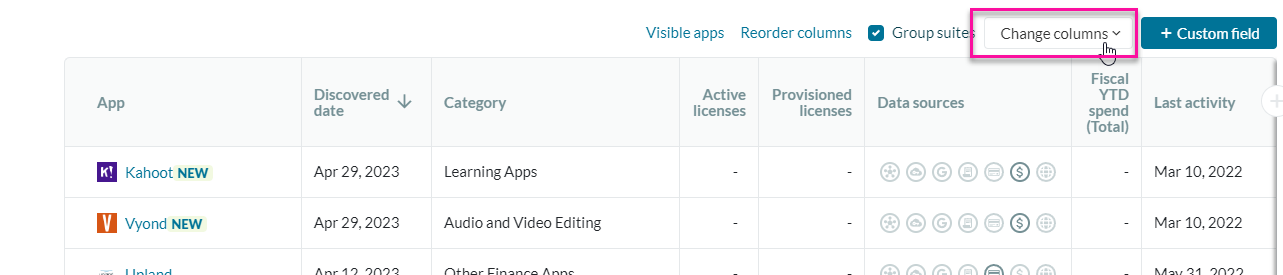
- Select Compliance Certificates and choose SOC2.
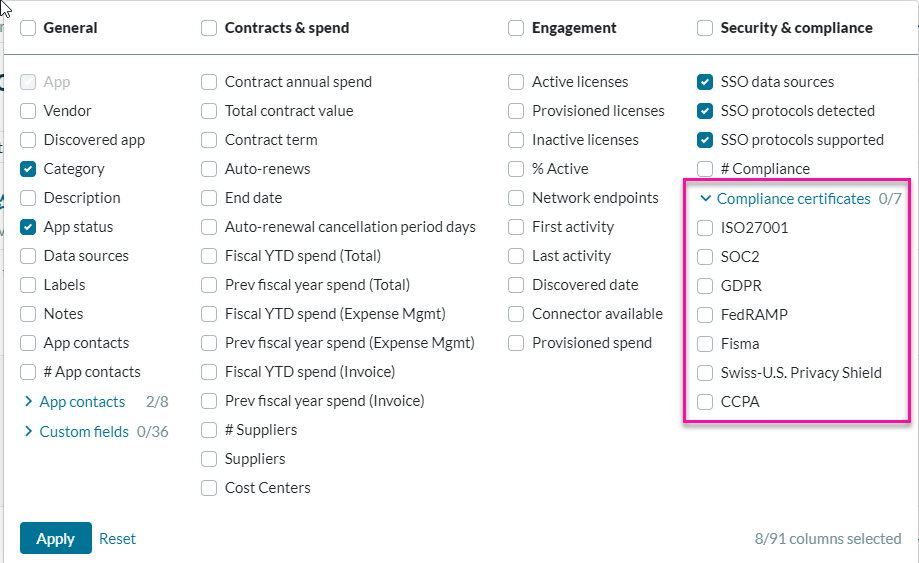
- Click Apply.
Measure SaaS Usage - Engagement and Spend
- From the left navigation menu, select Apps.
- From views, All Apps.
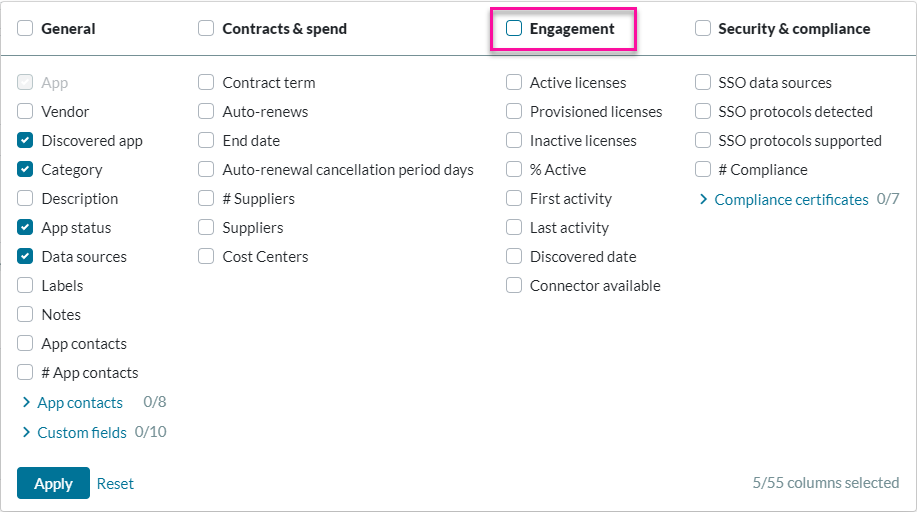
- Select Change Columns.
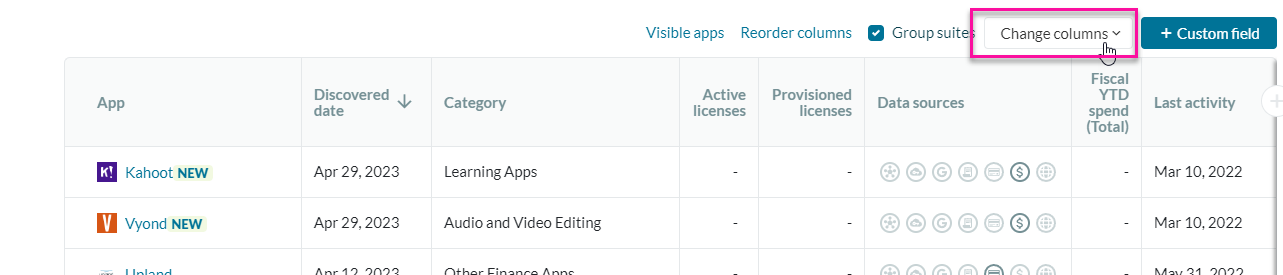
- Select the Engagement checkbox and click Apply.
Track $ Spend
- From the left navigation menu, select Apps.
- From views, All Apps.
- Select Change Columns.
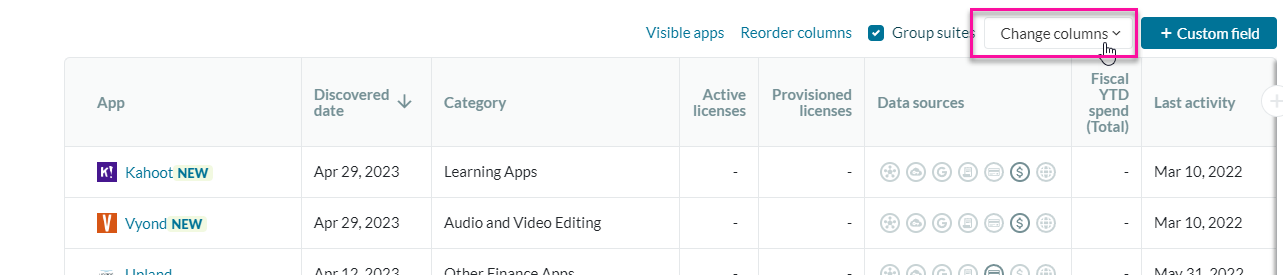
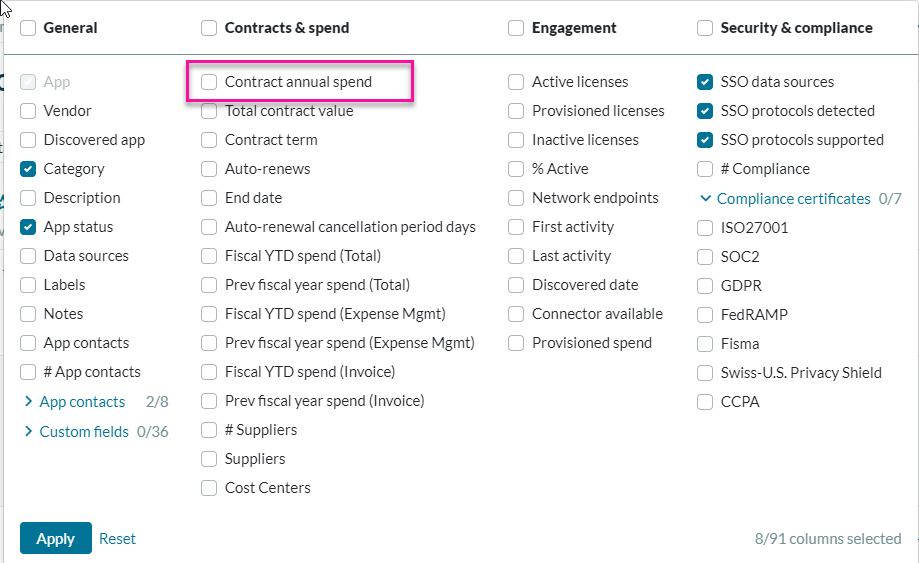
- Select Contract annual spend.