Custom Notes Field
Easily create, add, and modify notes directly from the Apps List. The metrics table on the App Portfolio page now features an editable inline for customizable notes.
For more information about this feature, follow the below steps.
Steps
1. Select Apps on the left sidebar once you log into your Productiv account.
2. Click the Change columns button towards the bottom right on the screen.
3. In the General section on the left side, click the checkbox corresponding to Notes.
4. Click Apply.
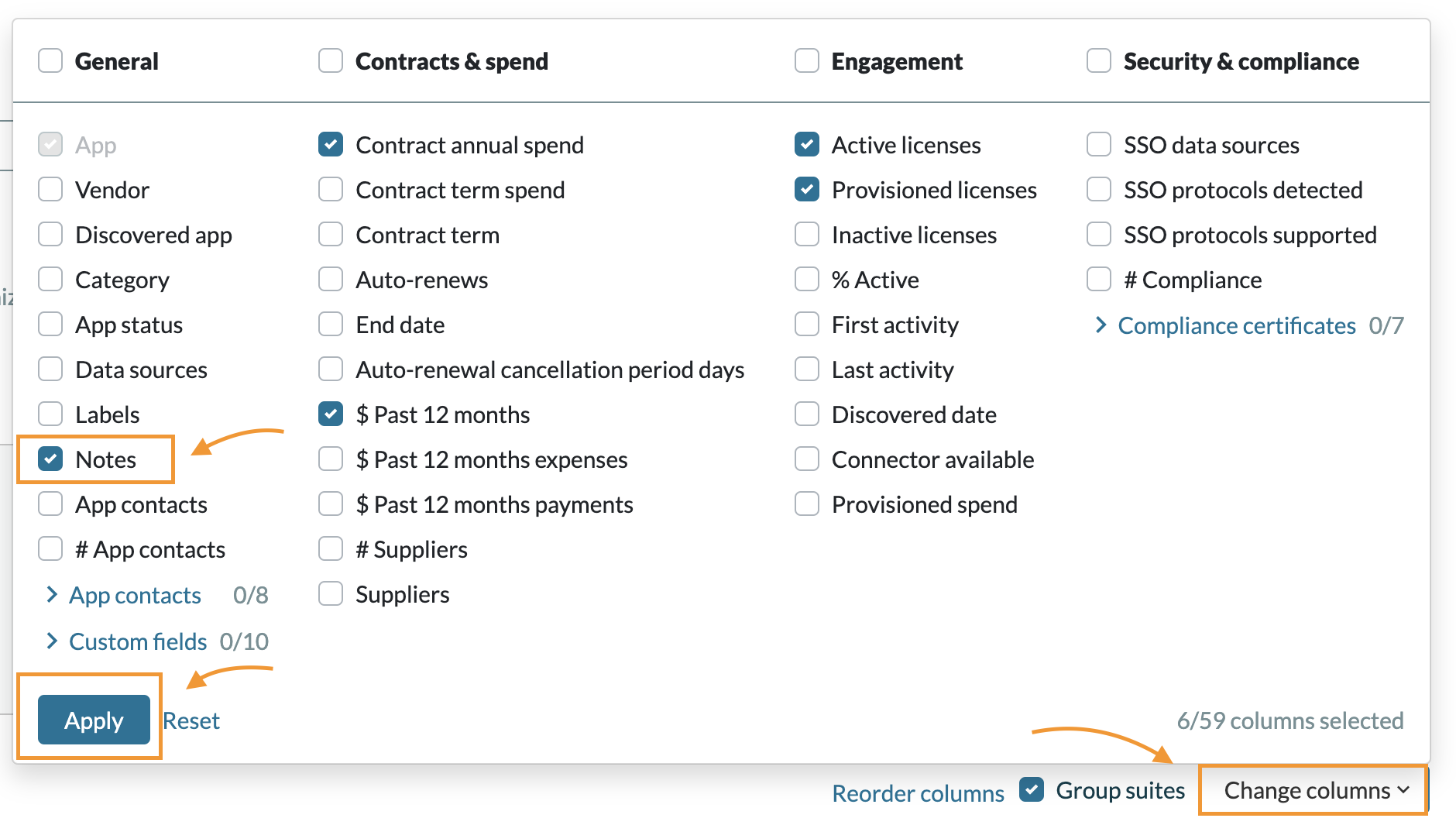
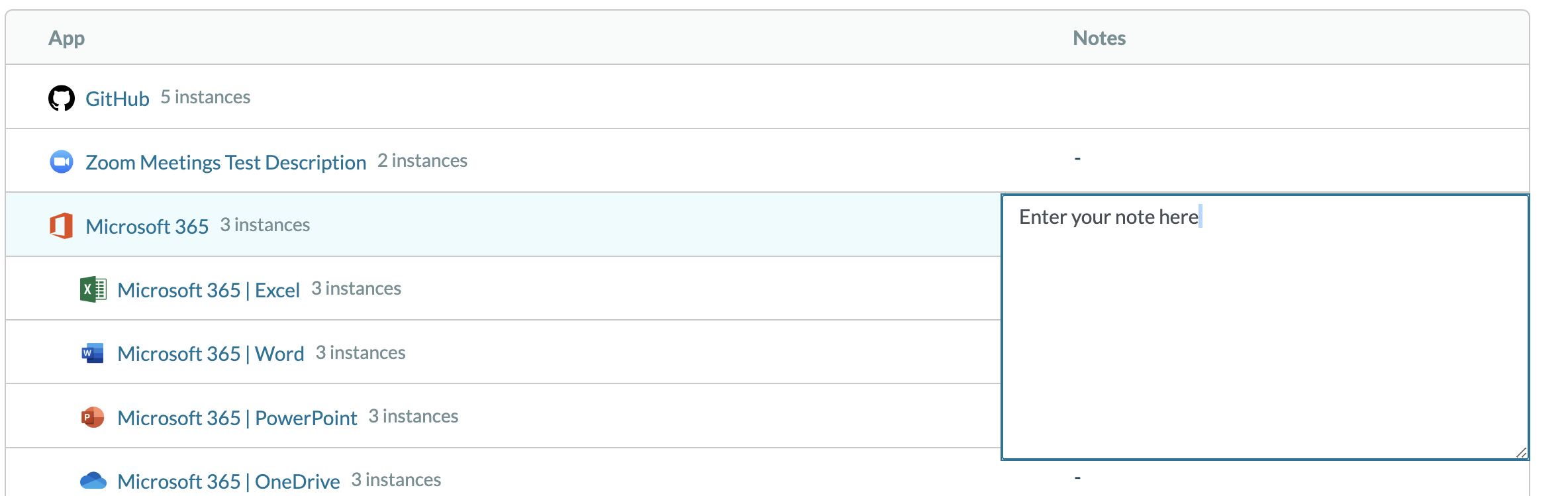
5. For each application on the list, click into the Notes field.
6. Enter a note of your choosing > click out of the field once you're finished.
Changes History
The Audit Log: Notes provides a comprehensive history on who made changes to the notes field.
To view the notes field, do the following:
- Load an app.
- Hover over the Notes section and click the history icon.
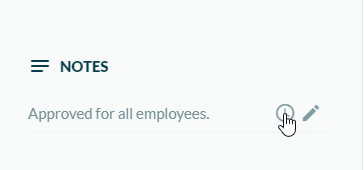
The Audit Log appears.
