Filtering the Portfolio to Preferred Apps
To filter your App Portfolio to a preferred list of apps you want to focus on and that are more relevant to you, follow the below steps:
Selecting a Set of Apps to Review
1. Hover your mouse over the sidebar on your Productiv account.
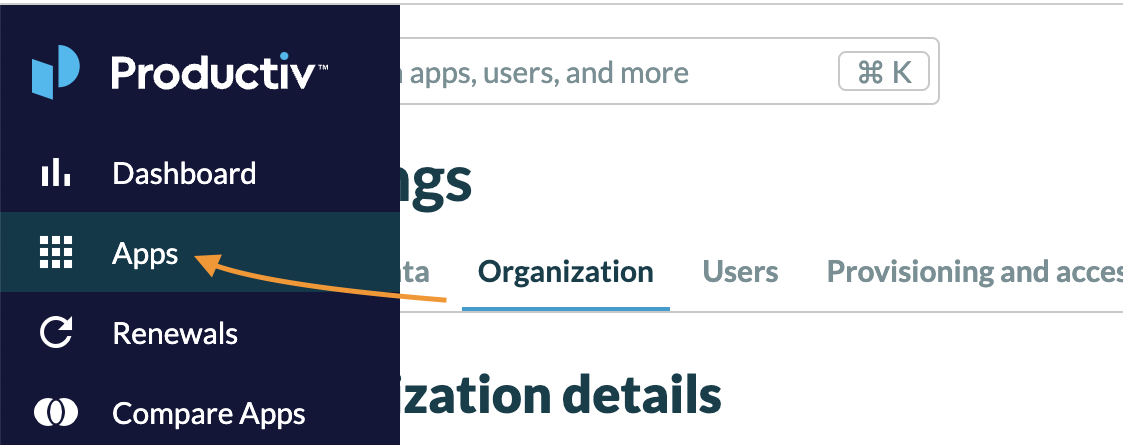
2. Select Apps.
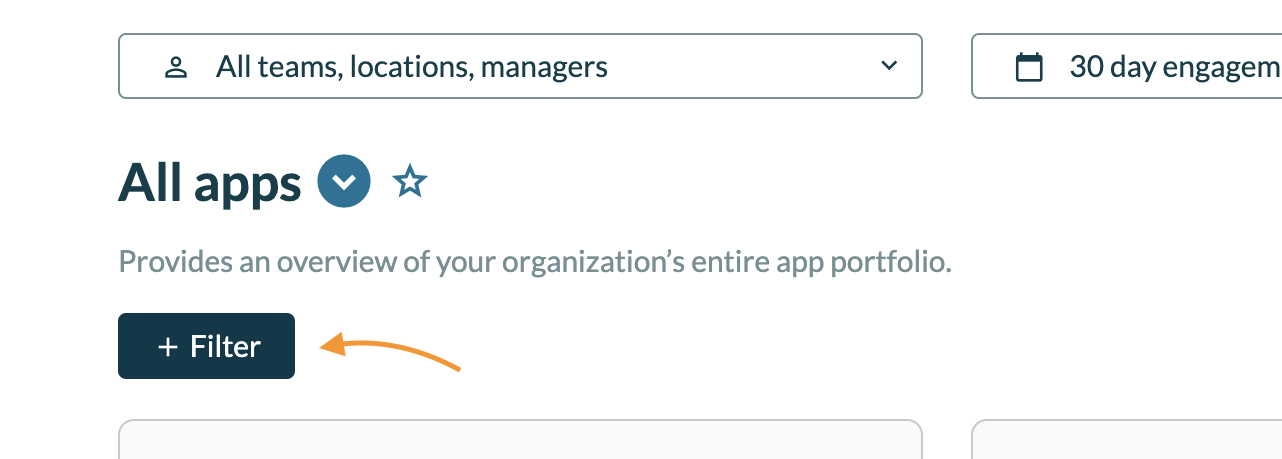
3. Click the Filter button near the top of the screen.
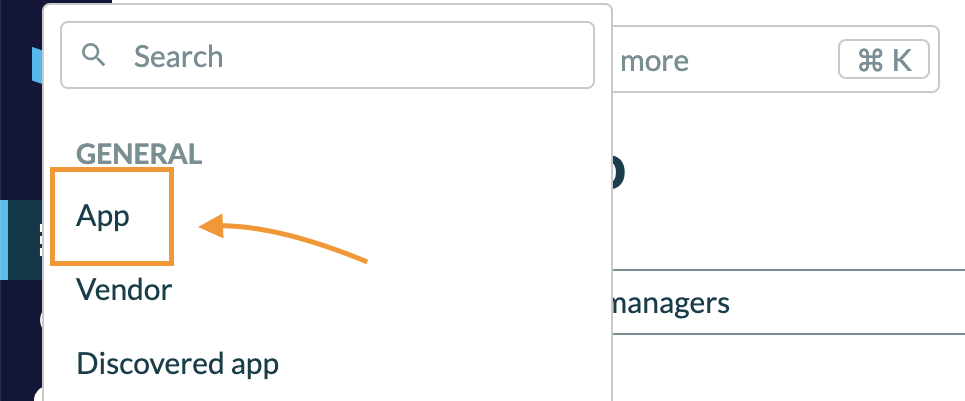
4. In the General category, select App.
5. Select the apps you want to view from the list.
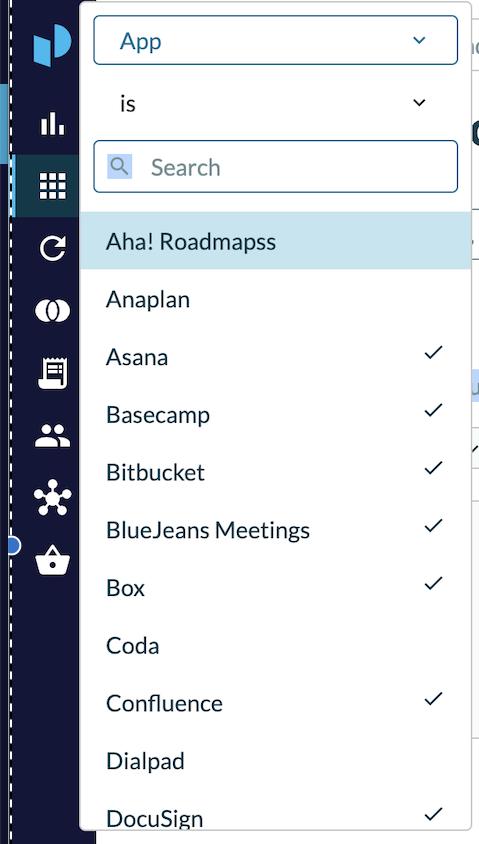
6. Now, you can see the apps you want to focus on or that you manage.
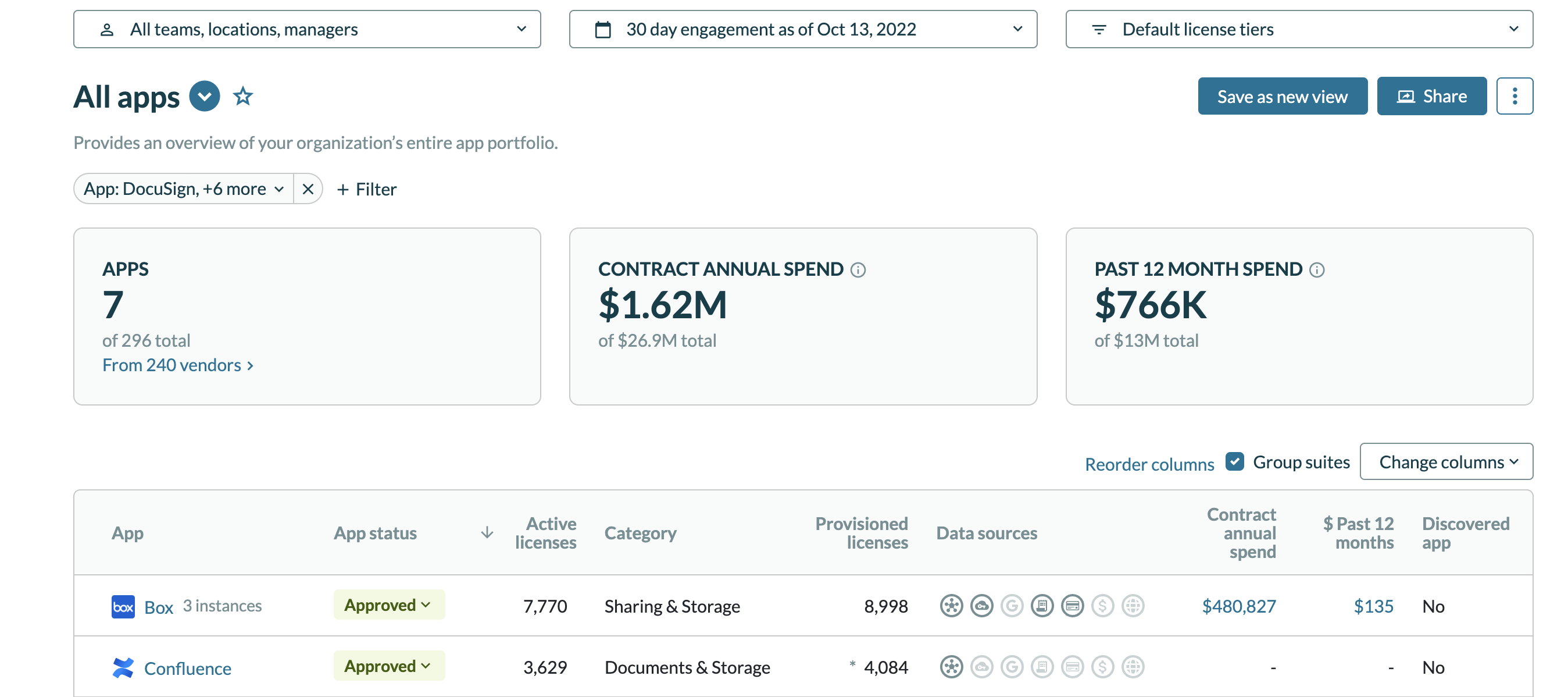
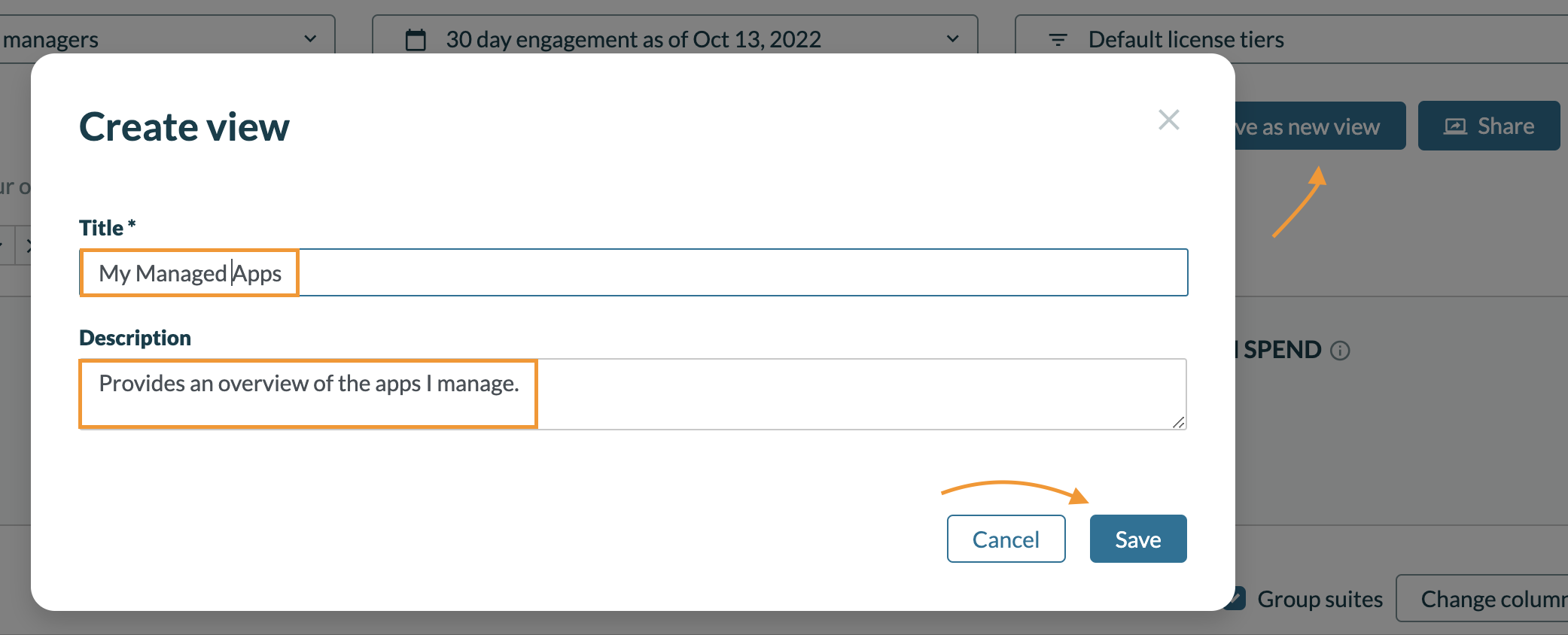
7. To save the view, do the following:
- Click the Save as new view button on the right side.
- Enter a Title.
- Add a Description.
- Click Save when you're ready.
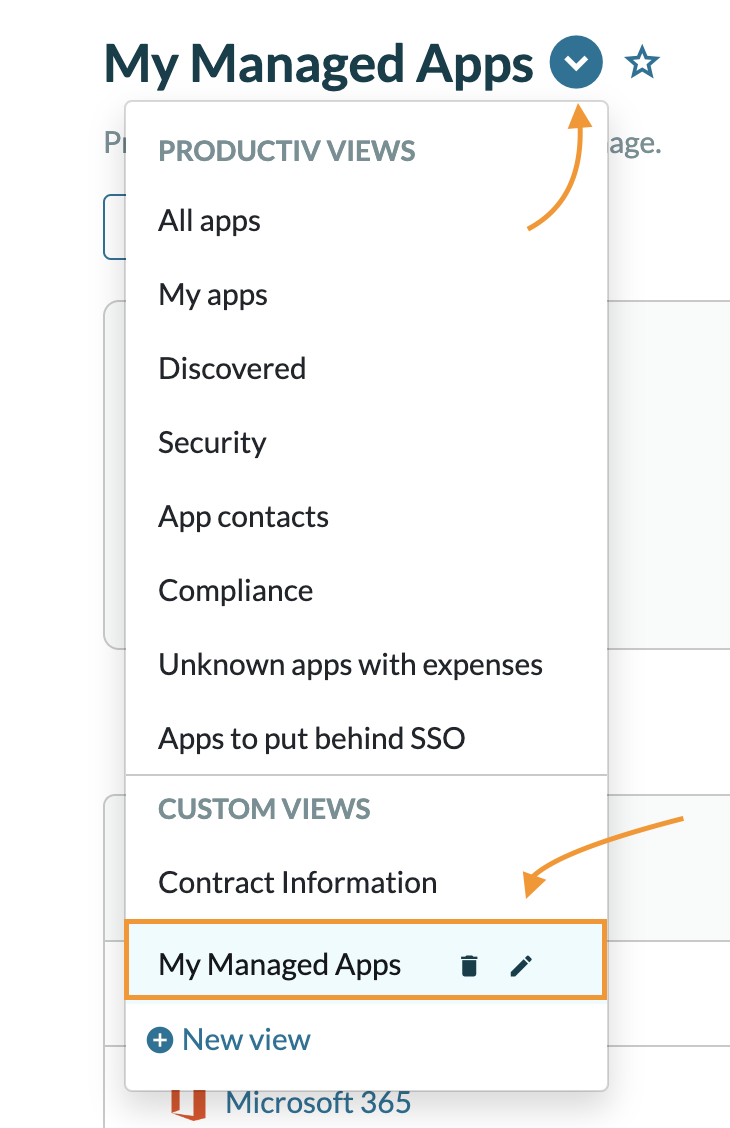
8. To view, manage, and edit your saved view, do the following:
- Click the views dropdown from the Apps page.
- In the Custom Views section below, you'll be able to view, delete, and edit the view.
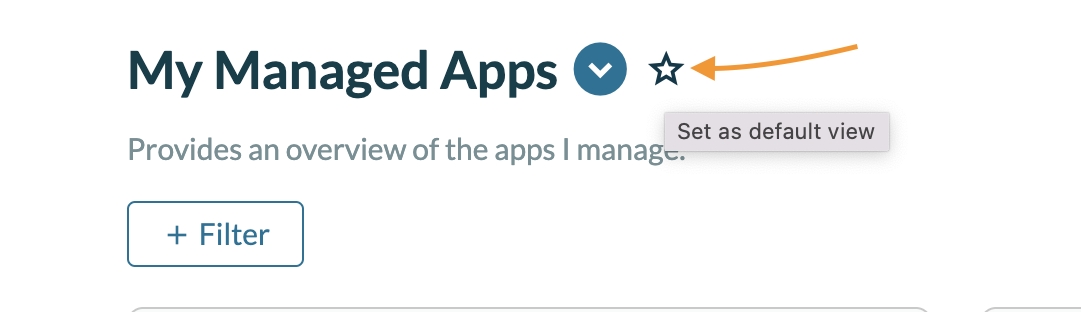
9. To set the view as your default view (automatically displaying when you get to the Apps page), select the star icon next to the view title.