Custom app fields and app attributes overview
This article provides an overview of app data you can customize in Productiv, and the differences between app attributes and app custom fields. It also summarizes how to add the new or updated fields to your existing apps.
____________
The Settings Bulk upload app data section houses two functions for enriching app data in Productiv.
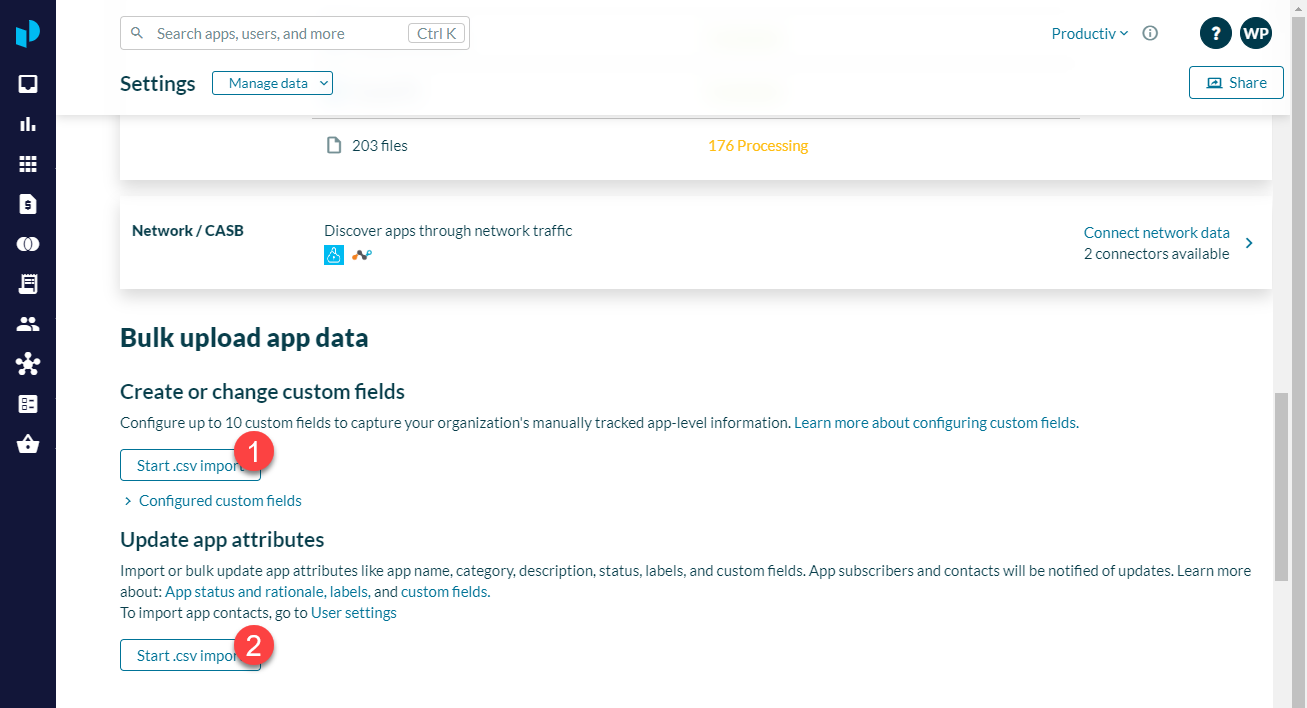
(1) Import custom fields configuration wizard
(2) Import app attributes wizard
Create or change custom fields enables app owners with App admin privileges to either create new fields of information for the apps in your portfolio, or improve those that you've already added.
You can add up to 100 new custom app attributes of the following data types:
- single select
- multi select
- text
- number
- date
Update app attributes enables app owners with Admin permissions to change the values of existing app attributes (such as app name, category, description, status, and other labels) without changing their inherent data types.
You can change the value of any attribute except app ID.
Process overview
Customizing app fields or updating app attributes requires defining the information you want to add or update, and then updating your apps to use or show that information. Broadly:
- Navigate to Settings > Manage data > Bulk upload app data.
- Click Configured custom fields to check the list of existing custom fields, and their data types. (Your additions or changes will show up here later.)
- Make sure you're in the right section for the action you want to take. (See the above figure.)
- Click Start .csv import.
Productiv launches a wizard that walks you through the process of creating the new fields or updating the existing fields. It provides you with a .csv file template you can use to ensure your fields are in the proper format. - When you're ready, upload your .csv file.
Read more
For details on how to create or modify custom fields and update apps to use them, see Create custom app fields and Update apps to use custom fields.
For details on how to update app attributes, see Update app attributes.