Working with app past spend
Understand app spend for budgeting and renewals
Learn how much your organization is spending on an app to make good rightsizing decisions and justify the app budget. Plan ahead by understanding if spend is trending up or down. Identify who is responsible for the spending if spend line items are attributed to users and teams.
Spend information comes from your connected or uploaded expense and payment information.
To open the Past spend page, open the app you want to view and select the Past spend tab.

The Past spend page presents a summary visualization and a table to show what your organization has spent on the selected application.
Viewing past spend summary information
Find out how popular or widespread an expensed app is with the Past spend summary, which combines any payment or expense information collected from finance data for the selected application. The summary includes the amount of money spent over the last 12 months with the number of payments, as well as the money expensed with the number of expenses filed and the number of users.
The Monthly spend tab of the All past spend chart plots payments and expenses for the app over the selected window of time, available for the last 6 months, the last 12 months or over the entire time period of available data for the app.
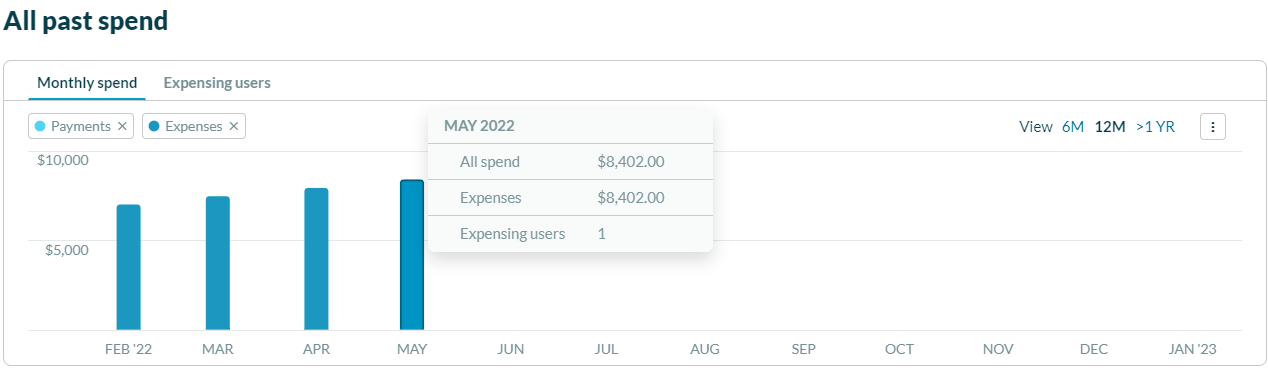
Filter the chart by type by selecting the Payments and Expenses labels at the bottom of the chart.
To see the spending over a different time period, select 6 months, 12 months or > 1 year.
Select the link at the top of the chart to switch to a view of the number of Expensing users, which shows the number of users and the amount of expenses they filed in the selected time period.
Select Download trends as .csv to send data to a .csv file.
Viewing Individual spend reports
The Individual spend reports table provides a detailed look at the spend information collected for the selected app to help you understand who is paying for the app, including the following information:
- Spend date - the date of the payment or expense information collected from finance data
- Merchant - the vendor to whom the payment is made
- Type - whether the money is a payment (spend against invoices) or expense (spend by employees)
- Source - the connected or uploaded finance data source
- Category - the category of payment or expense
- Expensing ID/Invoice number - the user ID for the person who filed the expense, with a link to the User page for that person, or the invoice number for payments
- Expensing name - the name of user
- Team - the user’s team, according to uploaded org chart data
- Amount - the amount of the payment or expense
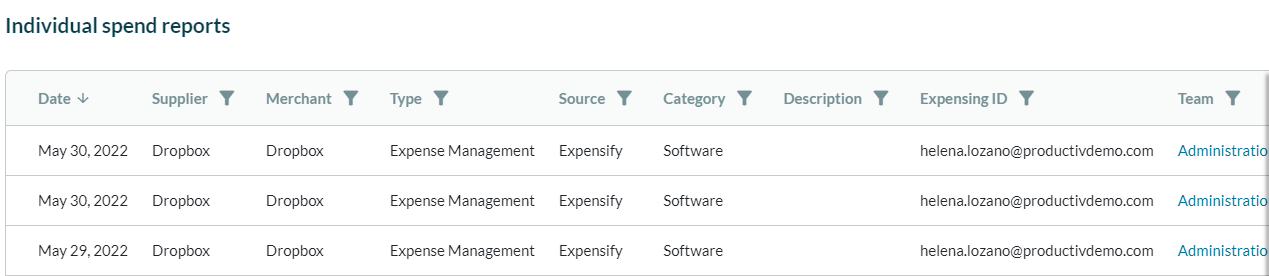
Filter the table by type by selecting the Payments and Expenses tabs at the top of the table.