Viewing unique logins for an app
Understanding usage for SSO connected apps
Quickly see an overview of your organization's usage of an app with an SSO connector on the App Overview page.

Find out how many people are using the application with the Unique logins count. This number is a count of everyone who was active in the selected window of time, with an indicator how activity has changed. Gray indicates a small change, while green or red changes that represent increased or decreased activity may warrant more attention.
When viewing an app with multiple instances, the unique login number includes every account that has logged into any of the instances.
The percentage indicates how much of your user population is using the app.
Note that benchmarks and adoption goals are not available for SSO-connected apps.
To help with tracking app usage, view the number of unique logins from SSO data as compared to the number of estimated total users for the selected window of time.
Estimated total users / Users with SSO / Users with SSO (estimated)
Get a view of how logins have changed with the Estimated total users table, which provides details on the number of unique logins for this app.
This data identifies the direction and percentage of change under the total number of unique logins. The pill chart indicates the organization’s number of unique logins and inactive users relative to the total number of estimated users. Hover over the chart to see details. Click the chart segment to open a list of users included in that segment.
- Estimated total users is based on past 120 day logins
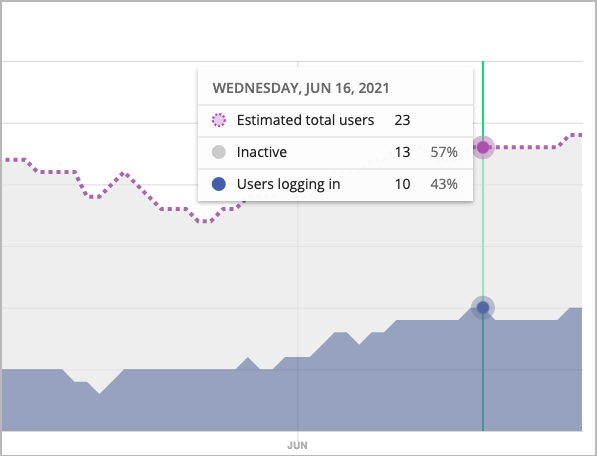
- Users with SSO access is based on actual number of users allowed access based on SSO settings
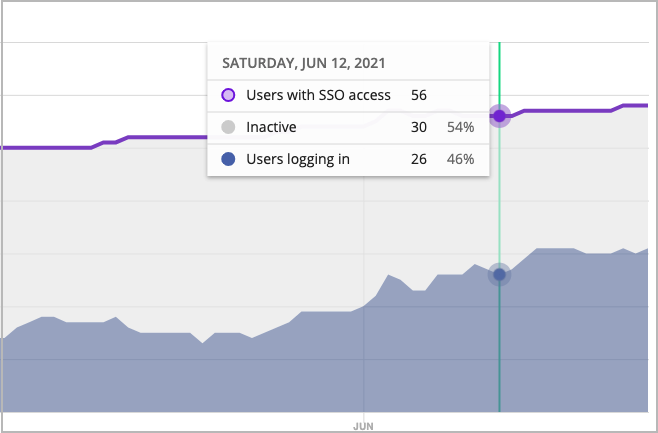
- Users with SSO access (estimated) is based on information about users allowed access, because the system was unable to get data for that day (for example, due to vendor-imposed throttling)
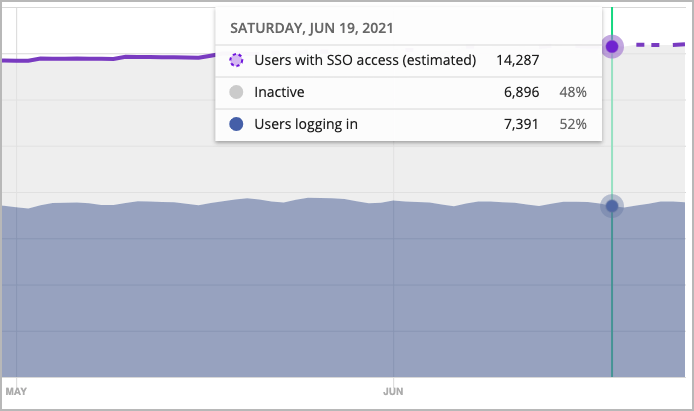
To keep an eye on any unusual changes, review the table to see the relative change in unique logins over the selected window of time. For apps with available contract data, alerts notify you if you run close to or exceed the contract amount of licenses. You can also subscribe to these notifications via email or Slack.
If provisioning data is available, the table shows provisioned licenses instead.
Select Download user engagement as .csv to send the unique login and inactive users data to a .csv file. The .csv file includes details on each user’s information and activity status.