Combine org chart teams for better insights
When you have a large number of teams or smaller teams that you’d like to group with each other, you can use Data mappings to get better insights. We recommend 50 or fewer teams to simplify segmenting data by team, although Productiv can accommodate up to 100 teams.
Team names are mapped as part of your org chart upload process. However, you can edit the team mapping to change the team names or to combine smaller teams at any time. Team changes are reflected in the data going forward, as of the date of the change. Note that past data maintains the previous groupings.
To open the team mapping options:
- Select the Settings icon from the left navigation.
- Select Org chart data from the Manage data tab.
- Under Data mappings, you’ll see the number of Teams uploaded. Select Edit to the right of the team count.
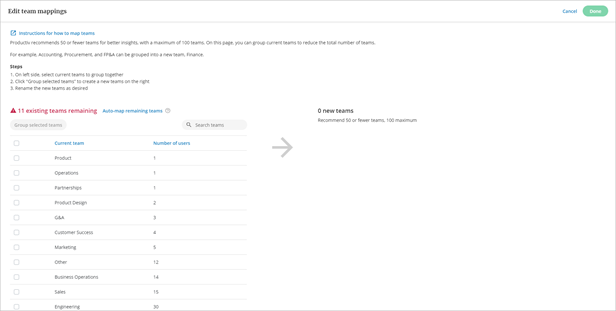
You can have Productiv automatically map your existing teams using their existing team names, by selecting Auto-map remaining items. If you have more than 100 teams, Productiv keeps the largest 99 teams as individual teams, and combines the remaining teams into one group.
To map one team or group multiple teams together manually:
- Check the box next to one or more team names.
- Select Group selected teams.
- Select Create new group or select an existing team name.
- Edit the name of the team for the new listing on the right column.
To start over, select Clear all and select Yes in the confirmation window.
When you have finished mapping teams, select Done in the upper right corner.
Note that changes to team mappings apply across Productiv, as of the date team mappings are changed. For example, if you combine Sales-west and Sales-east into a new Sales team on January 14, metrics for a selected window of time before that date will still show the two separate teams.
Comments
0 comments
Article is closed for comments.