Exempting users from automation workflows
Not all users who match your automation workflow criteria should have their licenses changed. For example, you don’t want to deprovision a VIP user or super admin who may not use an app as frequently, but who still needs access.
To protect such users from deprovisioning:
- add them to the exempt list for an individual app workflow OR
- add them to a global exempt list.
Users who are added to such lists are protected against being deprovisioned or downgraded, but they can still upgrade their licenses if need be.
Exempting users from an app provisioning workflow
You can exempt users from the provisioning workflow either one at a time, or in bulk, via a CSV file.
To add one user to the app provisioning workflow exempt list:
- Go to the app's Productiv home page and click its Automation tab.
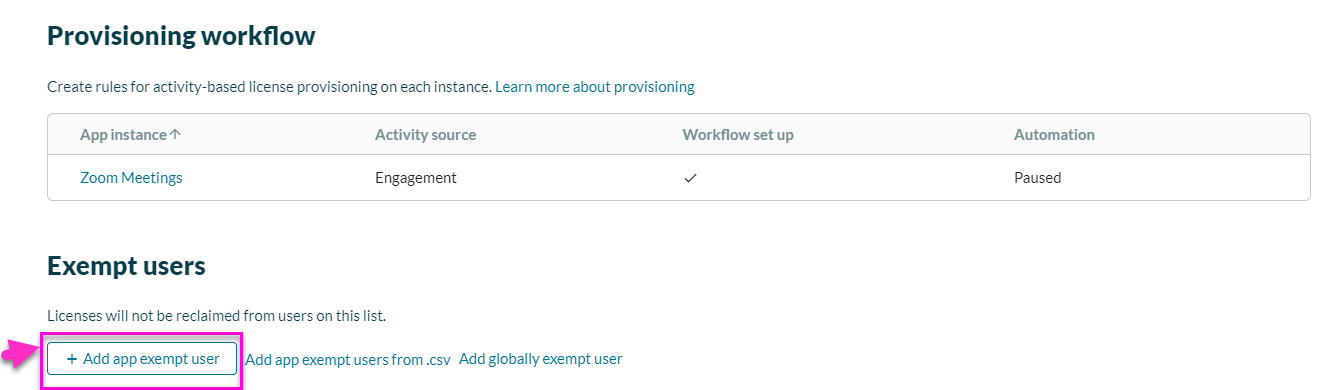
- Scroll down to the Exempt Users section.
- Click Add app exempt users.
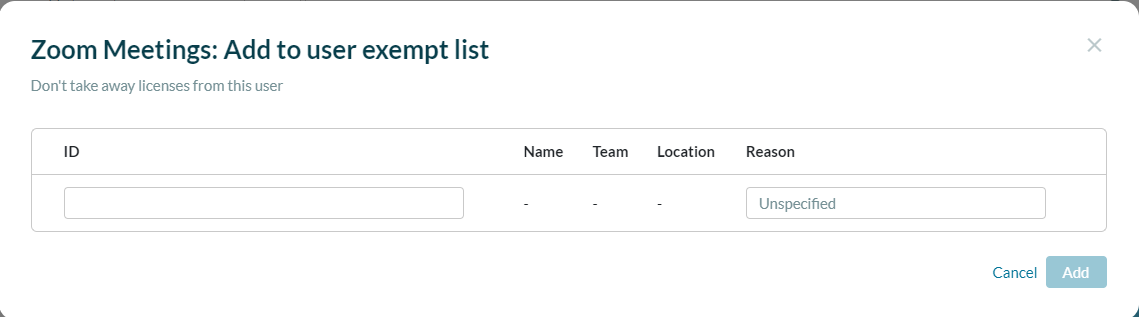
Productiv displays the Add user to exempt list pop-up.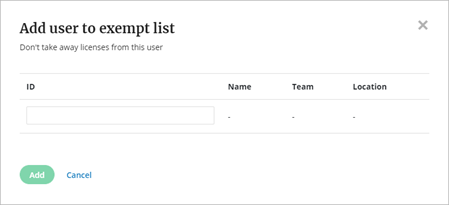
- At the ID field, enter the user’s email address or app ID.
- Click Add.
The user is added to the app workflow's exempt list.
To add users to the app deprovisioning workflow exempt list in in bulk
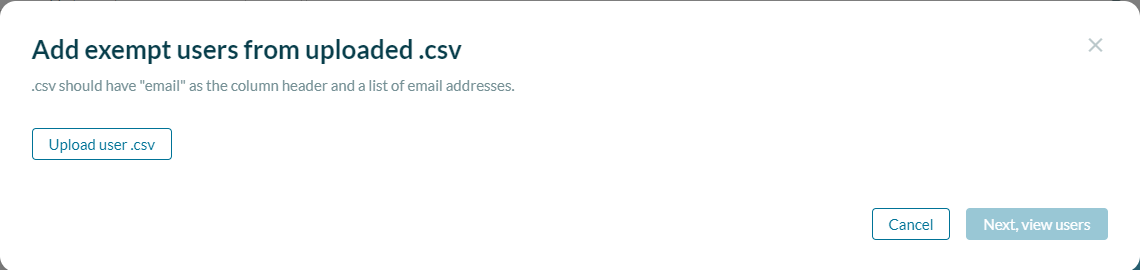
- Create a .csv file with a single column named “email”. Add the email addresses of all exempt users.
- Go to the app's Productiv home page and click its Provisioning tab.
- Scroll down to the Exempt Users section.
- Do one of the following:
- Click Add app exempt users from .csv. Productiv displays the following pop-up.
- Click Add Exempt users from .csv. Productiv displays the following pop-up.
- Click Add Globally Exempt user and do one of the following:
- Click Add User, or
- Click Add users from .csv
- Click Add app exempt users from .csv. Productiv displays the following pop-up.
- Once the file has finished processing, click Next, view users.
- Review the uploaded list of users who should be added to the exempt list. If you want to choose only some of the users on the list, click Select only specific users, then select the users you want.
- Click Add to exempt list.
Exempting users globally
You can exempt users from ALL provisioning workflows in Productiv, either one at a time, or in bulk, via a CSV file.
To add several users to the global exempt list via CSV file:
- Create a .csv file with a single column named “email”. Add the email addresses of all exempt users.
- At the Productiv navigation pane, click Settings. Productiv opens the Settings page.
- Click the Settings page's Provisioning tab.
- Scroll down to the Exempt Users section.
- Click Add users from .csv. Productiv displays the Add exempt users from uploaded .csv pop-up.
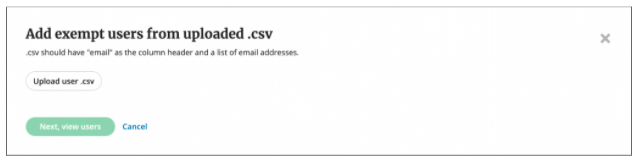
- Click Upload user .csv and navigate to the file you just prepared.
- Once the file has finished processing, click Next, view users.
- Review the uploaded list of users who should be added to the exempt list. If you want to choose only some of the users on the list, click Select only specific users, then select the users you want.
- Click Add to exempt list.
Note: You can also get to the Global exempt list by clicking Add globally exempt user from any App's Provisioning tab.
Viewing the exempt user list
The app provisioning workflow exempt list is found at the bottom of the app's Provisioning page, just below the buttons for adding users to the exempt list.
The global exempt list is found just below the buttons for adding users, in the System Provisioning page.
Removing someone from the exempt user list
To remove a user from either the global exempt list or an app provisioning workflow exempt list, find their listing in the Exempt Users list and click Remove.
Notes on exemptions
- Newly provisioned users are automatically exempted from provisioning workflows.
- When adding a user to the exempt list, make sure you use the same ID for this user that the app uses, and that the ID is also included in the org chart upload as either an email address or alternative email field. f the ID in Productiv does not match the app, the user may not be correctly exempted.
- To make sure your exempt list is appropriate, examine the provisioning workflow preview list, to see if anyone is included in the exempt list, who should not be. Correct as needed.