Viewing apps for a selected user
Learn from high performers and check for potential app overlap and risk issues by reviewing the User page for a selected user. To load a user, search for a user in the search bar or do the following:
- Select a Team from the Teams page.
- At the top of the page, select the Users tab.
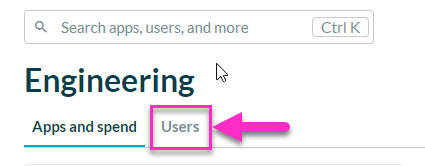
A list of Users appears. - Select a User.
The top of the User page for the selected person shows metrics that mirror the metrics available for the entire portfolio on the App List page.

- The Apps for this user table includes apps with activity, provisioned license or allocated contract value for this user.
- For apps with uploaded contract data, the Allocated contract value amount shows the annualized amount allocated to the user from the contract based on contract allocation configuration for the application.
- The About information shown for the user also includes the user’s name, email address, team, job title, location and manager as provided in uploaded org chart data. If the person is listed as an app contact for any apps, those apps are listed. If the user also has a Productiv account - administrators can see a link to this user's Productiv settings.
- The Apps table includes apps with activity, provisioning or allocated contract value.
If the user has engagement information or unique logins for multiple instances of an app, each instance is shown as a separate row in the table to help identify potential overlap or areas of concern.
The table shows the following information to help you understand usage, provisioning, spend and compliance:
- App - the name of the application
- Days active - the number of days with engagement and/or unique login data for this user for the the selected date/window of time
- Activity source - whether the app engagement information comes from an engagement connector or a SSO source
- License - the license associated with this person for the listed app, if known
- Allocated Contract Value - for apps with uploaded contract data, the annualized allocated contract value in USD (an * denotes that there is spend in other currencies)
Select Download apps as .csv to send data to a .csv file.
Select an app name to open the details for that app, filtered to the team of the selected user.