Unmapped spend is spend you are able to track to a Vendor, but not to an app under the Vendor. Want to see where you have unmapped spend?
- From the left hand navigation bar, select Suppliers.
- Sort in ascending order in the Unmapped Fiscal YTD expense (Total) column.
You are then able to assign unmapped spend to a vendor. Do the following:
1. Select Suppliers on the left sidebar of the Productiv account.
2. Select the Vendors tab to see unmapped spend for Vendors or select the Resellers tab to view unmapped spend for the resellers in your portfolio.
3. For each vendor or reseller, you can see unmapped spend on the right side column of the table > click the Unmapped past 12 month spend column title to reverse the order of how the data is presented.
4. Select the vendor or reseller with the corresponding unmapped spend on the left side.
5. Once you get to the individual vendor/reseller page, scroll down on the screen until you get to Individual spend reports.
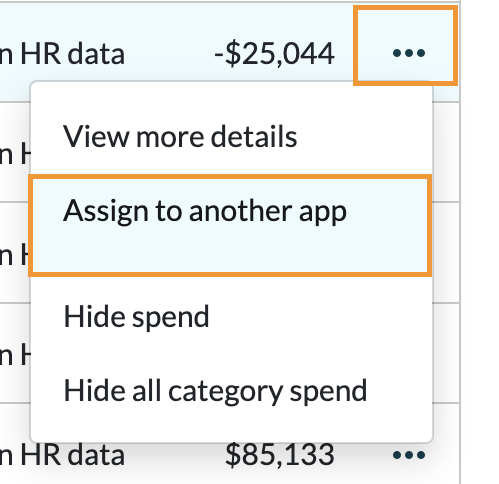
6. For each line item with unmapped spend > click the three dots on the right side > click Assign to another app to start the process.
7. In the field under App for this spend, search for the app you want to map the transaction to > select Save mapping.
Comments
0 comments
Please sign in to leave a comment.