Upload contract data directly from the keyboard
This article describes how to upload contract data from a single contract, directly from the keyboard. Once the data is entered, it is submitted for processing by Productiv personnel.
____________
If you want to attach information about your contract that may not exist on the actual contract page itself (such as buier name, supplier name, and notes about the contract itself), you can upload contract data directly from your own keyboard.
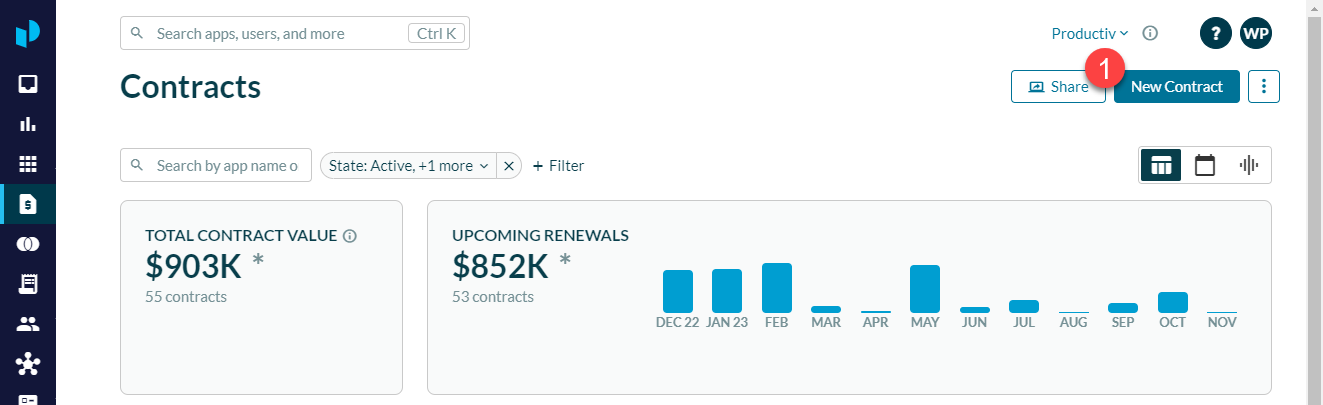
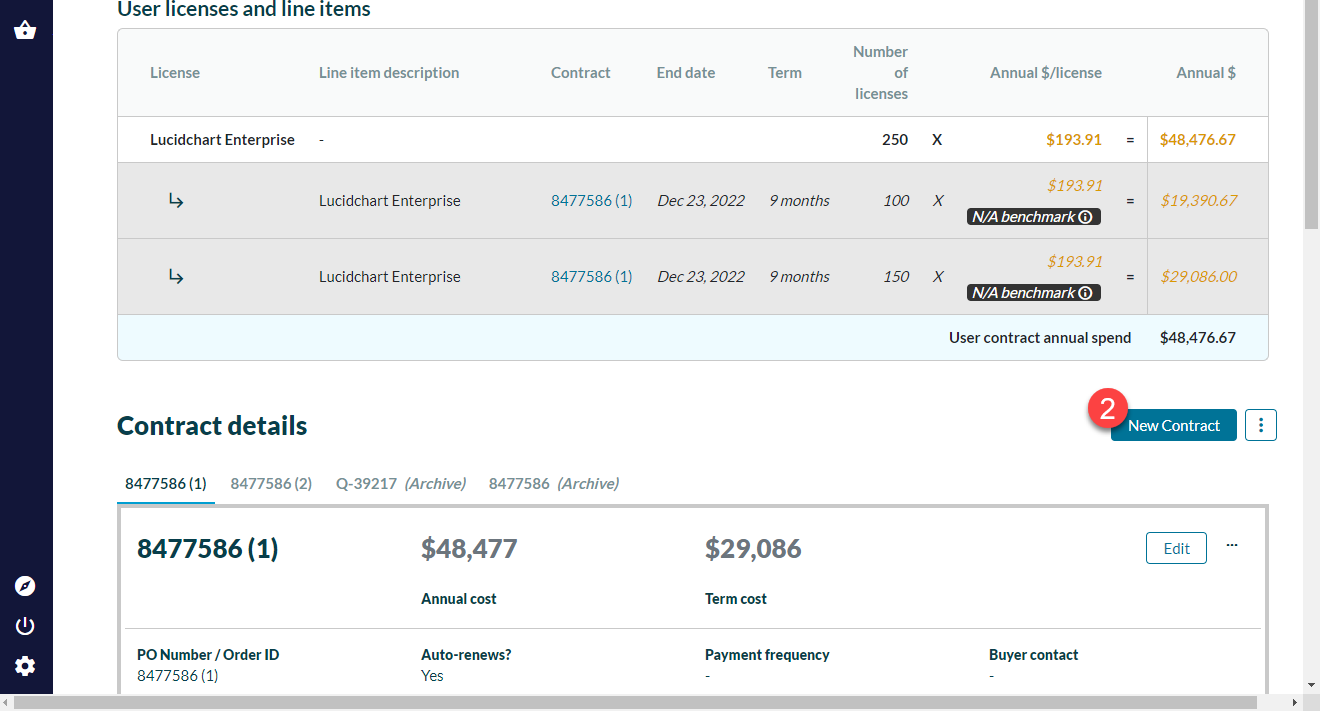
To begin, find the New Contract button on either the Contracts home page or the App contracts page.
(1). In the Contracts home page, the New Contract button is located at the upper right corner of the page.
(2). In the App contracts page, the New Contract button is located in the upper right corner of the app page Contracts tab's Contract details section.
Procedure
(1) Click New Contract. Productiv displays the Load New Contract modal.
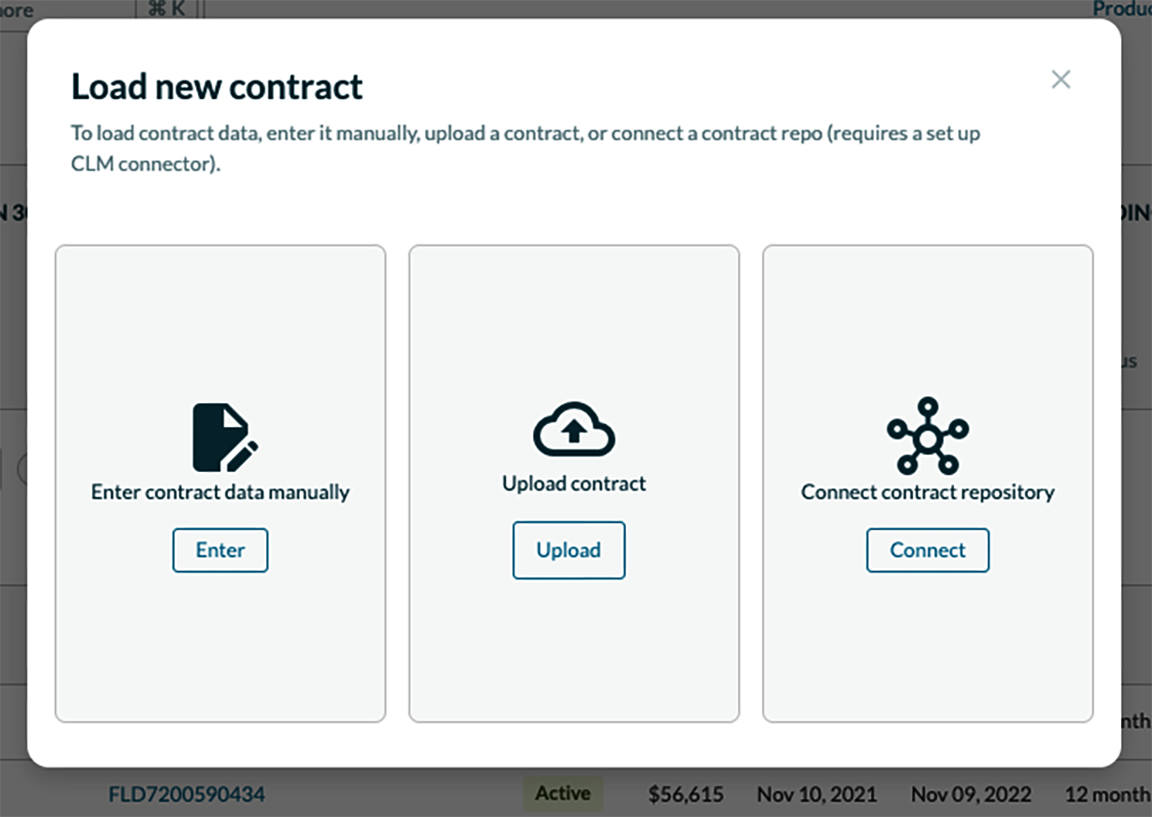
(2) To enter contract data manually, click Enter. Productiv displays the the manual contract editor.
(3) Search for your app, so the contract is properly associated. When you identify the app for this contract, Productiv pre-populates the contract editor with the correct currency type, and any other existing details inherited from previous contracts.
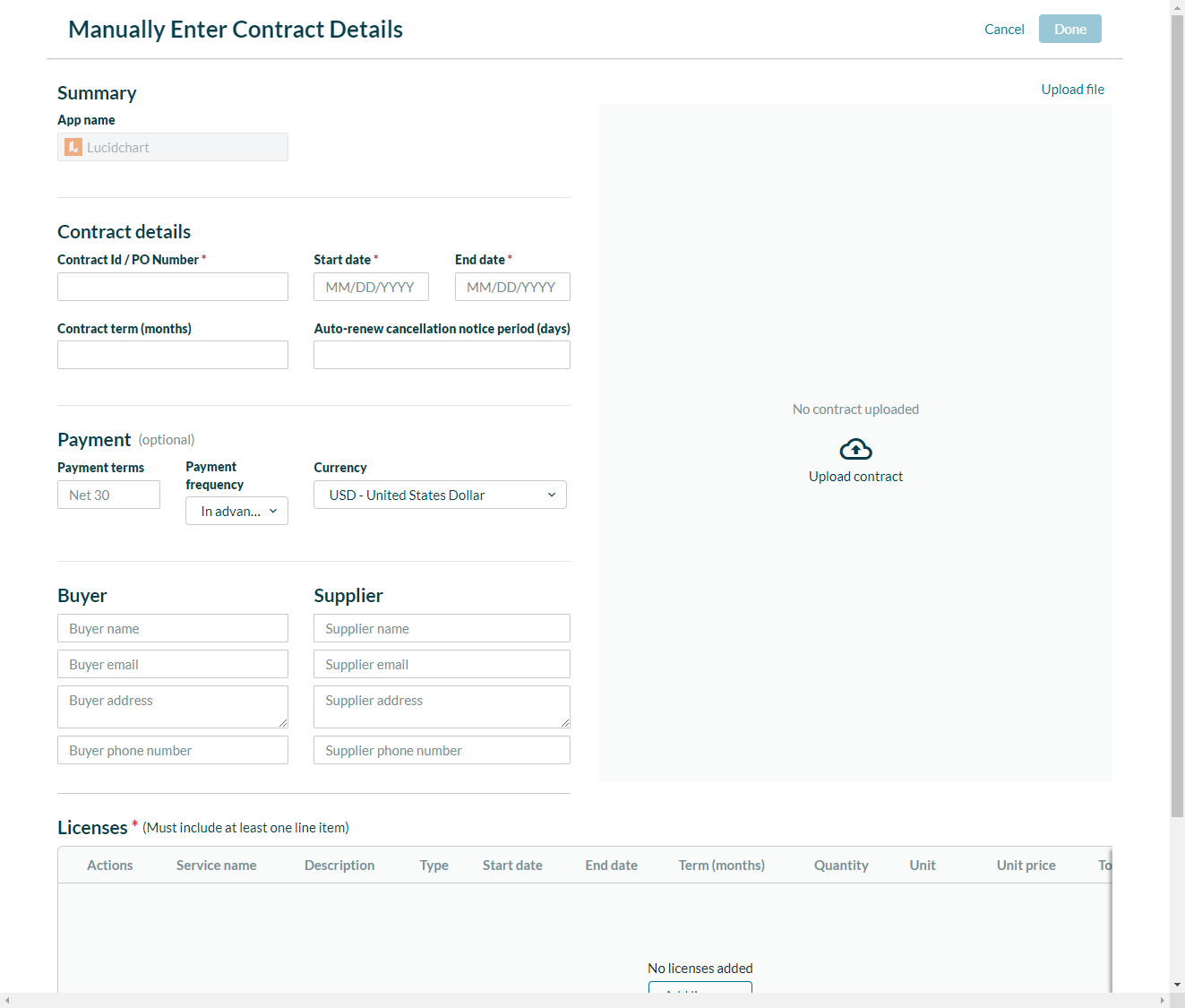
(4) Fill in as much information about the contract as you can. Required info:
- Contract ID/PO number
- Start date
- End date
- Licenses (minimum of 1)
(5) To navigate to and attach a PDF copy of your contract, click the Upload contract icon.
(6) To upload the contract and the information you just entered, click Done.
A timer spins while the contract is uploading. When upload is complete, a confirmation message flashes on the screen.
You can find your uploaded contract in the Documents section of your app's Contracts tab, with the status Processing.