This article discusses how Productiv deals with validating data from disparate sources.
____________
The information available in your SSO or app’s admin dashboard powers the activity (engagement and login) metrics for that app in Productiv. Although the data in Productiv might be different from the source system, it doesn’t necessarily mean it’s wrong.
Data in Productiv
Productiv’s data is multithreaded from different sources, and this leads to aggregated numbers that are intentionally different, Productiv is working to find the counts and edge cases your current systems may be missing.
Data is being automatically synced, and this streaming of data requires you think carefully about when and how you measure things comparatively with snapshots.
For these reasons it is important to put into perspective that we are validating data to ensure it is being properly imported and then aggregated, not to deliver a lock-step match with source systems.
Even with all of these caveats, it is possible to validate the data in Productiv and feel confident taking action on the insights found there.
Date selection
The selected date in Productiv may be different from the default date and time frame in your admin dashboard. Even by making sure you've selected the same dates and timeframes, because of asynchronous cadence in data updates, vendor-imposed data throttling, unforeseen data interruptions it can be impossible to confirm what data was truly available in each system at that specific time.
Engagement definition
Productiv goes beyond login activity to provide deep insights into how users are engaging with applications. Some apps may define users as active if they only log in or if they perform actions that are not considered engagement by Productiv.
To determine which actions are included in the definition of engagement for a particular application, open the app Features page and select the How are actions defined link to open the Category actions popup. For example, the actions at the bottom of the following illustration may be tracked by the app, but users who only perform these actions are not considered engaged in Productiv.
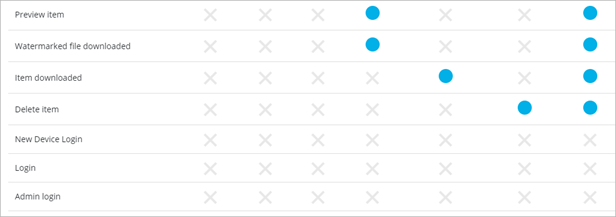
Also check the Setup guide for the connector. Some app set up guides answer additional frequently asked questions about that app, including why engagement metrics may differ from Productiv.
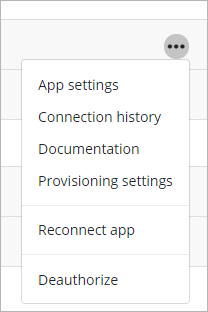
To return to an app’s Setup guide, open the Settings page. Select the menu to the right of the connected app, and select Documentation.
App Data collection
Cadence
When a connector is first connected, it fetches historical data. This initial data fetch can take a few hours to a few days, depending on the application and how much data there is. Once historical data has been fetched, the connector fetches data 3-4 times a day and only pulls incremental data since the last fetch.
API limits
In some cases, app connectors do not provide complete information about user activity, especially for actions like viewing items. For example, Jira and Asana only provide activity information if users have created, edited, deleted or commented on an item.
Complicating this is the fact that the pulls of data via API are often ‘throttled’ by the vendor in order to avoid overwhelming data servers and preventing catastrophic failures. For this reason, Productiv often aggregates jobs that can result in a delay of populating data in the dashboards.
What’s more, vendor APIs are not created equal… Some SaaS vendors provide access to many data points that Productiv delivers to you in the dashboards while other SaaS vendors have limited APIs that can result in having to estimate some data points, such as the number of provisioned licenses.
Further still, the counts for licenses and users are often different based on the vendor’s definitions of those terms. For example, most vendors don’t include service accounts in the number of system users, while Productiv includes them. Also, some vendors have unique stages for user accounts that impact the way they are counted, for instance, Google Workspace counts ‘soft-deleted’ user accounts in their total number of ‘active’ users.
How to validate data in Productiv
Based on the challenges of matching dates, time frames, and definitions for ‘active’ across vendor applications and Productiv the best way to validate that data in Productiv is to avoid total counts and overall numbers since they are likely to be a few annoying degrees off from each other. Instead, select three to five (3-5) data snapshots across the two systems to confirm, such as:
Seat-based licenses, such as:
- A specific user (by ID) was last active on x date
- A specific user (by ID) has been inactive since x date
Consumption/utility-based licenses, such as:
- # of envelopes sent within a day/week/month (small core sample)
- # of expense reports filed within a month
- # of sessions within a day/week/month (small core sample)
If you have suggestions for improving a connector’s engagement actions, please let us know.
Comments
0 comments
Please sign in to leave a comment.