Connecting detected apps
This article describes how to connect an app to Productiv.
____________
A "detected" app is one that Productiv has discovered in your company's ecosystem, but is not connected to Productiv via an engagement connector. When Productiv discovers apps in your company's ecosystem that are not connected to Productiv, these apps are labeled "Detected", and alerts display in four places:
- APPS > Discovered apps page
- Dashboard Connector coverage widget
- Settings > Manage data page > Engagement apps section
- The app's own Overview page, where -- if an engagement connector is available for this app -- a prompt displays asking you to Connect to engagement data
To access accurate feature-level usage and provisioning, connect the app to Productiv.
Note: If you want to connect an app that does not seem to have a Productiv engagement connector, contact Productiv Customer Support.
Procedure
From wherever you first encounter the Connect to engagement data or +Connect an app link:
- In the Settings > Manage data > Connect an app page, click the Not Connected tab.

Productiv displays the Productiv app engagement connectors that are available for detected/un-connected apps at your site.
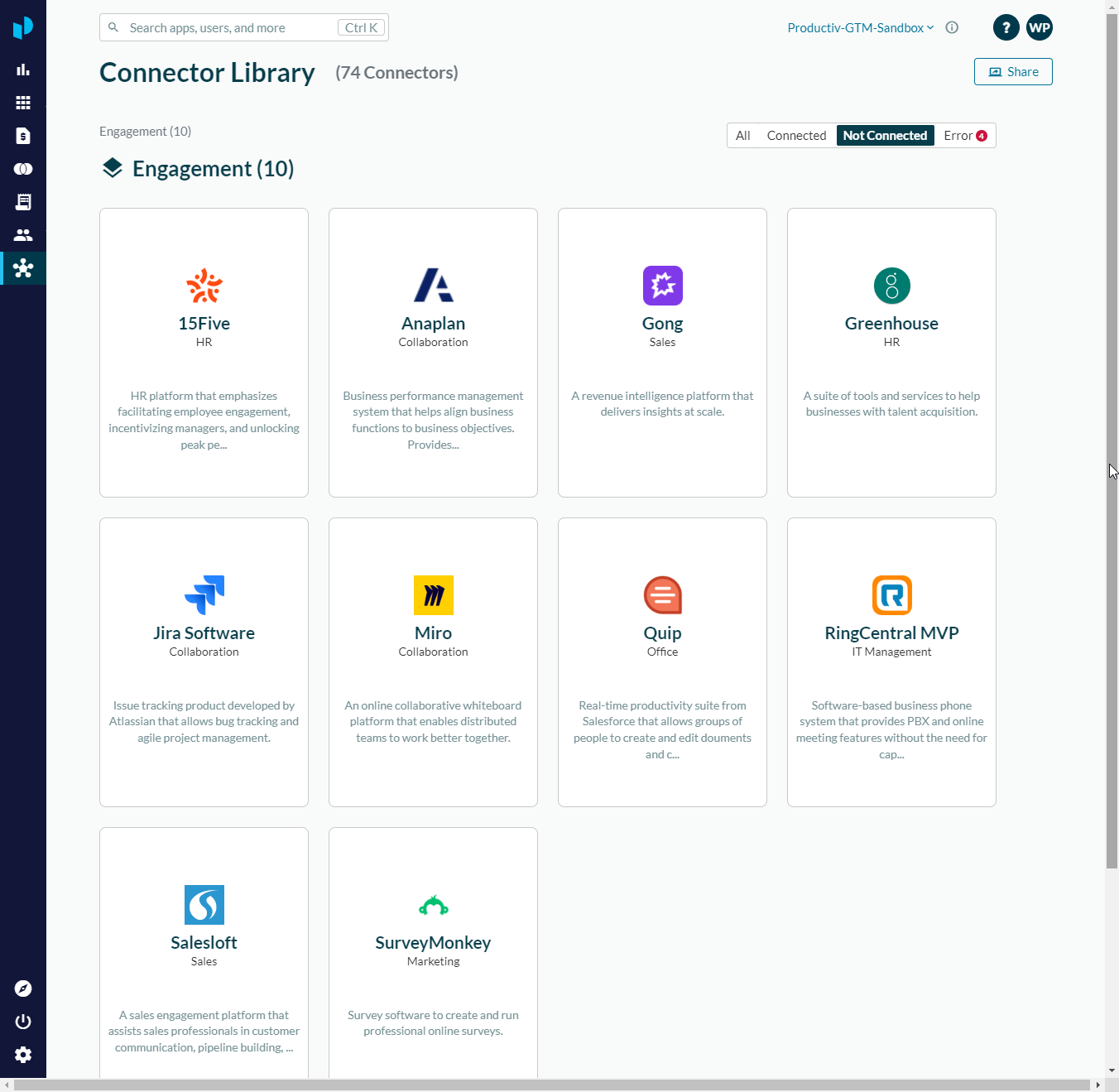
- Find the tile of interest, then click Connect. Productiv opens the setup page for that app, which guides you through the setup process for that app's Productiv engagement connector.
Completing Setup
Engagement connector setup pages vary, depending on the particular requirements of each app. However, app setup pages always provide:
- an estimate of how long it will take to complete setup
- required access and permissions for completing setup
- a way of recruiting a teammate to complete this process if you don't have the required permissions
- a setup guide, created by Productiv developers
- fields that must be filled out onscreen
Complete the setup procedure, and fill in the required information onscreen. When you are ready to finish the process, click Authorize.