Request fulfillment
This article describes how to set up a request fulfillment workflow for AppCenter.
____________
The AppCenter tab Request fulfillment section provides two ways to fulfill approved app requests: one for apps that are available via SSO, and one for apps that are not.

SSO fulfillment
For apps that are available via Okta Single Sign On, you can configure AppCenter to grant license access immediately.
- Click Go to SSO user access management. Productiv displays the Settings page, with the Provisioning and access tab active.
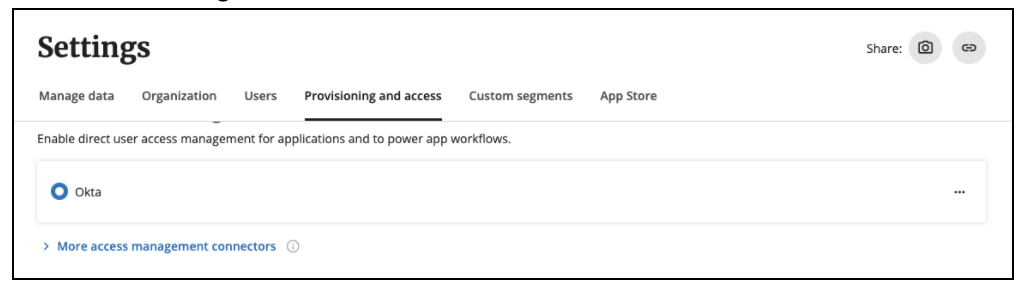
- Under Enable direct user access management for applications and to power app workflows, Productiv lists the access management connector for your SSO, currently empowered to connect users to managed apps.
For information on how to unlink the current connector and link a different one, see About Productiv user authentication.
Ticketing system fulfillment
For apps that are not available via Single Sign On, you can manage app fulfillment by integrating an existing ticketing system into the AppCenter. This routes approved employee app requests directly to your ticketing workflow.
Note: This integration is separate from the engagement connector you may have authorized to collect user activity data about the application.
If you use a ticketing system that already has it own Productiv connector integration, you can connect to it directly. Otherwise, you can set up AppCenter to send tickets to your ticketing system via email.
Direct connection to a supported ticketing system
The AppStore shows a tile for each application on site for which a Productiv connector integration is available.

To connect a ticketing system with the App store:
- At the tile for the desired ticketing system, click Connect. Productiv displays the Integrate ticketing system page for the selected ticketing system. This page provides the requirements for integrating the ticketing system with the AppCenter. It includes an option to invite a teammate with the correct access to complete the integration.
- Enter the required information for authorizing admin access to your ticketing system.
- Click Authorize.
Changing the ticketing system
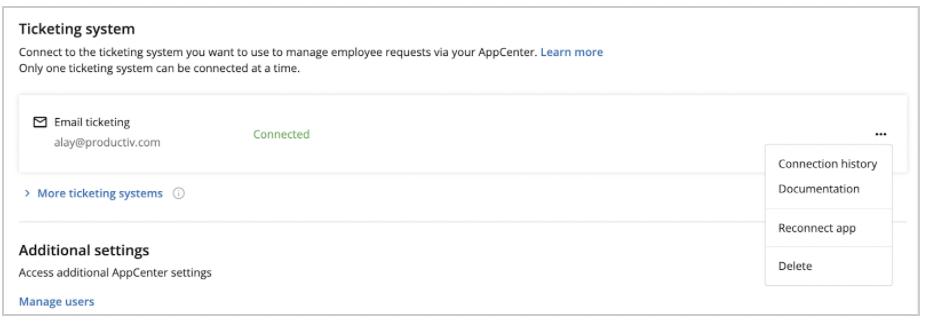
If a ticketing system is already connected to the AppCenter, you should see an entry identifying the active ticketing system, plus tiles for any other ticketing system Productiv has detected as being available in your network.
To expose what other ticketing systems are available at your site, click More ticketing systems. Productiv displays the tiles of all other ticketing systems at your site, for which there are Productiv connectors.

To connect one of those other ticketing systems to the AppCenter:
- Disconnect the current ticketing app:
At the end of the entry for the ticketing app, click the three dots. The AppStore displays a drop-down with entries to display connection history, view documentation, reconnect the app, or delete the connection. Select Delete.
- Follow the instructions in Connecting a ticketing system, above, to connect the new ticketing system.
Email ticket fulfillment
If you have a ticketing system that is not yet supported through a direct integration connector, you can configure the AppCenter to create fulfillment tickets through email ticketing:
- Set up your current ticketing system so that sending an email to a particular id, for example: it-help@sample.com, automatically creates a job ticket.
- Under More ticketing systems, click the Email ticketing tile. Productiv displays the Connect Email ticketing dialog.
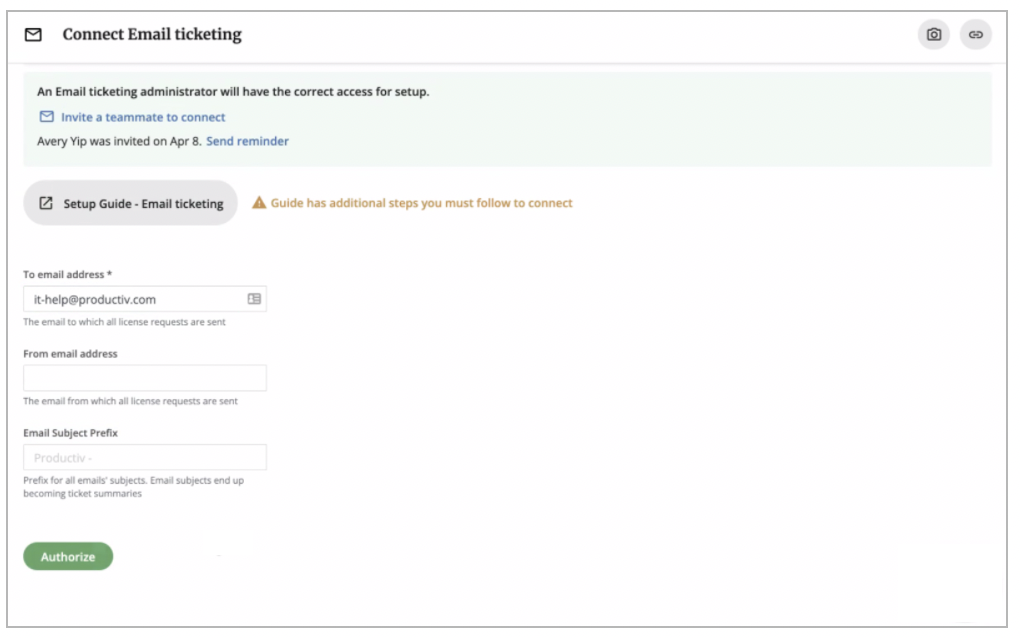
- Fill out the Connect Email ticketing dialog. Specify:
- To Email -- Specify the same email ID you assigned to receiving AppCenter tickets in Step 1.
- From Email -- Optional. If no From email is supplied, requests will be sent from no-reply@productiv.com.
- Email Subject Prefix -- Provide a prefix to be automatically inserted at the start of the email subject. Since your ticketing system uses the email subject as the ticket summary, adding a prefix for AppCenter tickets makes it easier to find them in search.
- Click Authorize.