Spend widget
This article describes the Dashboard's Spend widget.
For information on how to change this widget's location in the Dashboard, see Dashboard overview.
The Spend widget enables you to track expense spend, invoice spend, or both, for an interval tailored to your company’s own fiscal year.

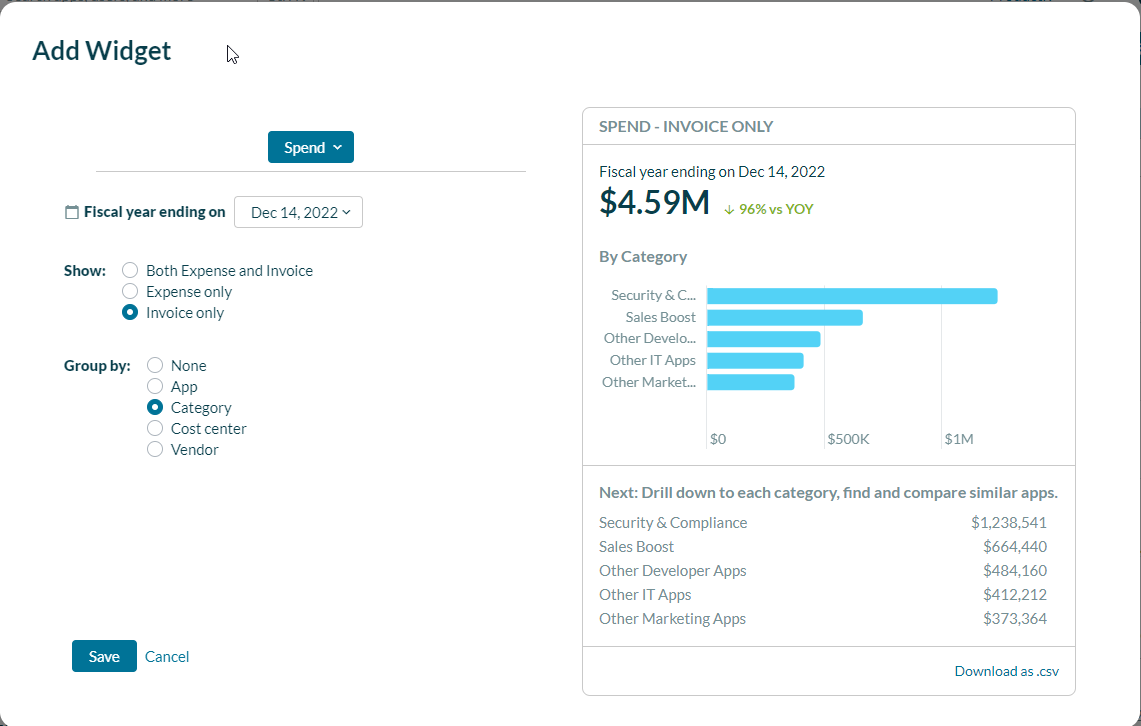
Spend widgets can be set up to show both expense and invoice expenditure, only expenses, or only invoice. The expenses can be ungrouped, or grouped by app, category, or vendor. (The categories correspond to the categories shown in the App list.)
Depending on how you set up your widget, the resulting display might be a line graph or a bar graph, which you can preview during widget setup.
You can configure multiple Spend widgets, for a quick view of several types of expenses over various fiscal years.
Just as in other areas of the Productiv app, you can download your spend widget data as a .csv file.
Configuring your spend widget
To edit a widget that's already present in your Dashboard:
- Click the ... in the widget's upper right corner. Choose Edit widget.
Productiv displays the Edit Widget modal with the Spend widget selected:
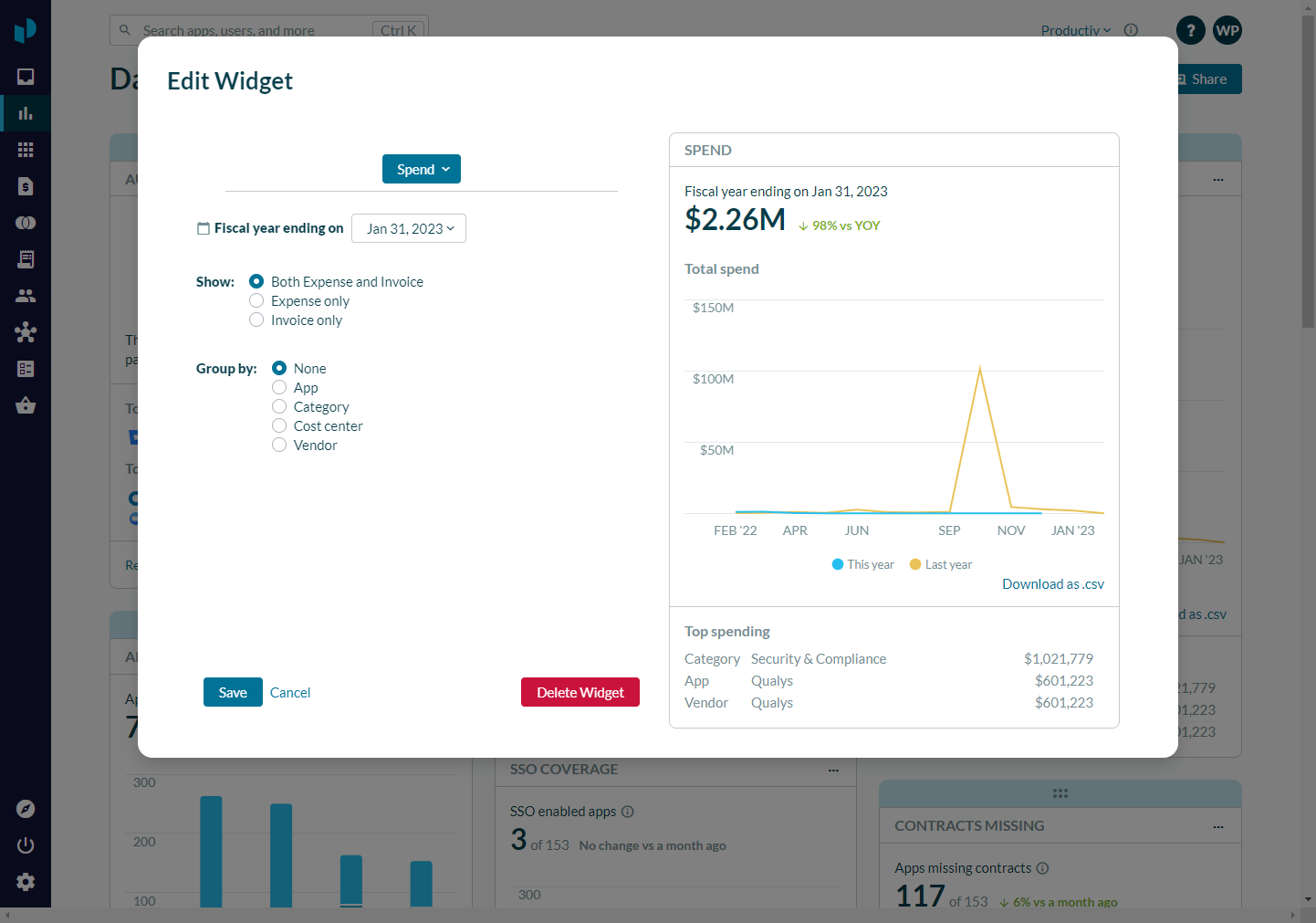
- Set the date of the fiscal year you want to examine in this widget.
- Specify your desired Show and Group by options. As you set your widget up, the display to the right changes dynamically to reflect how the widget will appear.
If you don’t choose to group your expenses (Group by = None), the display will be a graph showing the fiscal year expenses, compared with the year before if that data is available.
If you group by App, Category, or Vendor, the display will be a bar graph.
Note: Group By Cost Center is available by request from Productiv Support.
To save your widget configuration, click Save. The new widget appears, but your Dashboard is still in Edit mode.
If desired, use the “handle” at the top of your widget to reposition it in your dashboard. Then click Done Editing.

To adjust your widget’s display at any time, click the … at the upper right corner and select Edit widget.
Configure another Spend widget
To get a new widget:
- At the Productiv dashboard, click Edit Dashboard to expose the Add Widget button.
- Click Add Widget. Productiv pops up the Add Widget modal.
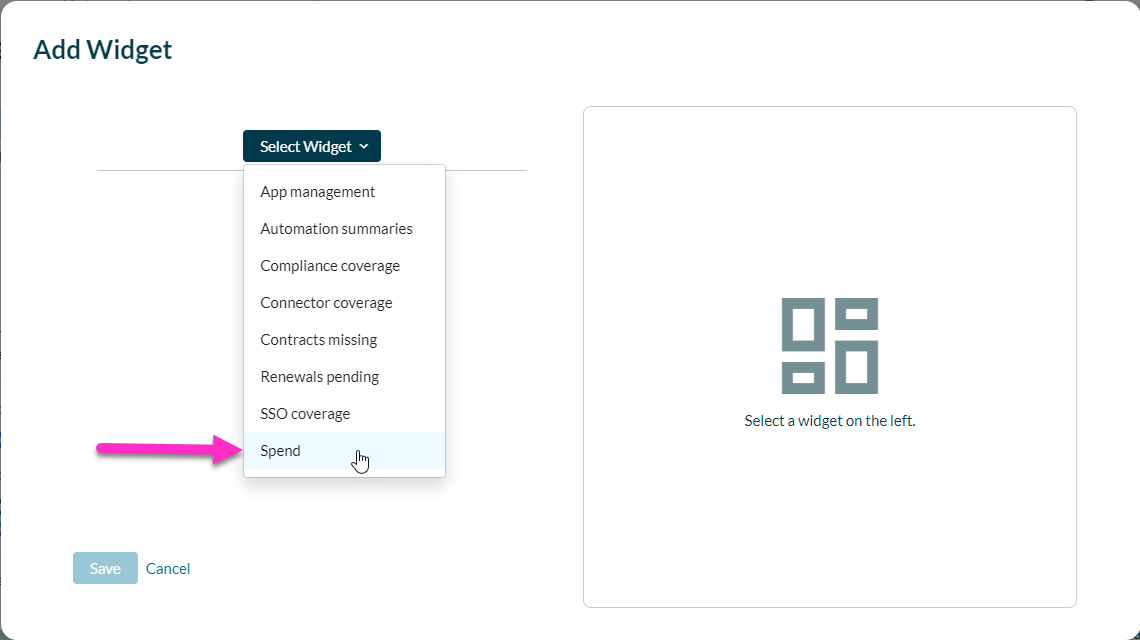
- Expand the Select Widget drop-down and select Spend. Productiv displays the Add Widget modal, with Spend selected. Use this modal to configure your widget as discussed above.