Productiv has simplified the App list, retiring Summary view, adding a new Discovered apps view, and making some other minor edits in the user interface.
This Release Note describes how to find all the information you are used to finding in Summary view in the new unified view, and more.
Retired Summary/Full view
Formerly Productiv provided two different views of your App list table.
- Summary view consisted of two separate tables: one for Managed apps and one for Discovered apps. Both tables appeared in the App List Overview page.
The Managed apps table offered 10 columns. The Discovered apps table, below, offered 8 columns. - Full view provided a full array of columns that users could rearrange to find information quickly, and powerful filtering support.
You could switch between Summary and Full view by clicking a toggle near the top of the App list.
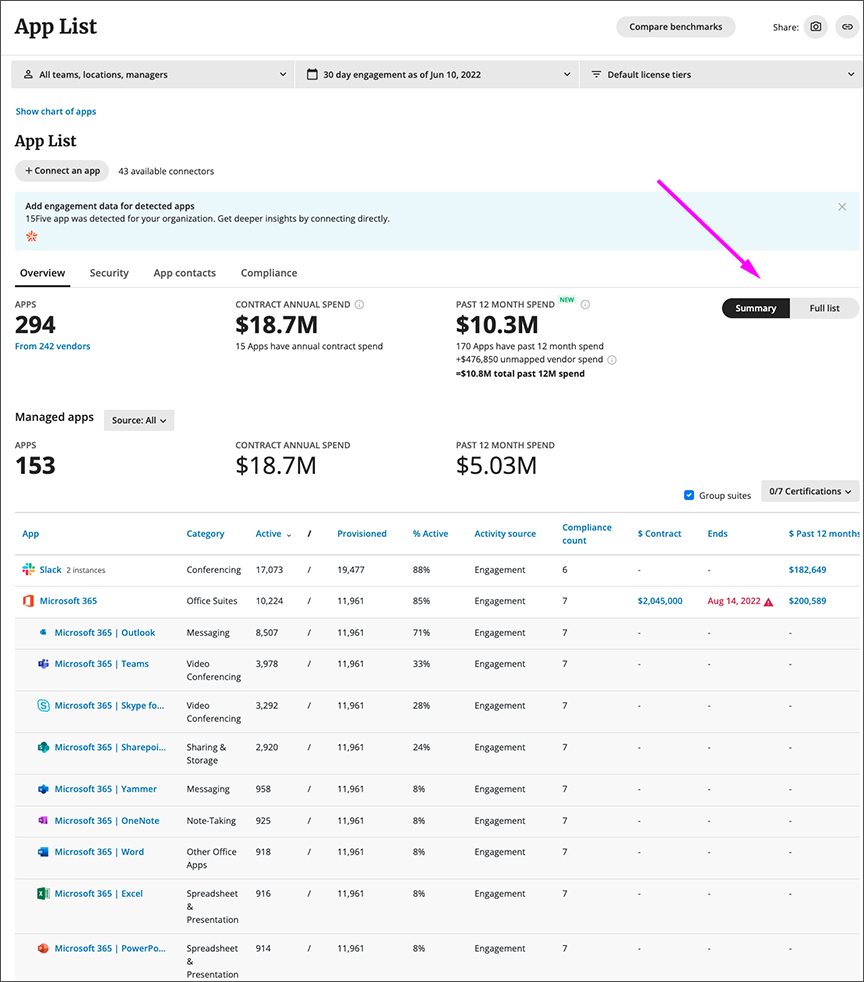
New unified App page view
The new unified App page view looks similar to what we used to call the Full view, with two exceptions:
- The App chart is gone from the top of the page
- There is a new page for Discovered apps.
The following subsections describe how to use the unified App page view to find all the data you were used to finding in Summary view.
Find all managed apps
To view all your managed apps:
- Start at the App List Overview page.
- At the column sorter just above the App list table, make sure the list of columns you are displaying includes the Discovered App column.
- Click Apply.
- In the Discovered app column, click No to display apps that are NOT discovered.
- Click Apply.
Filter Managed apps by type of data source
To sort managed apps by a particular data source, click the Data sources column to access the Data sources filter.
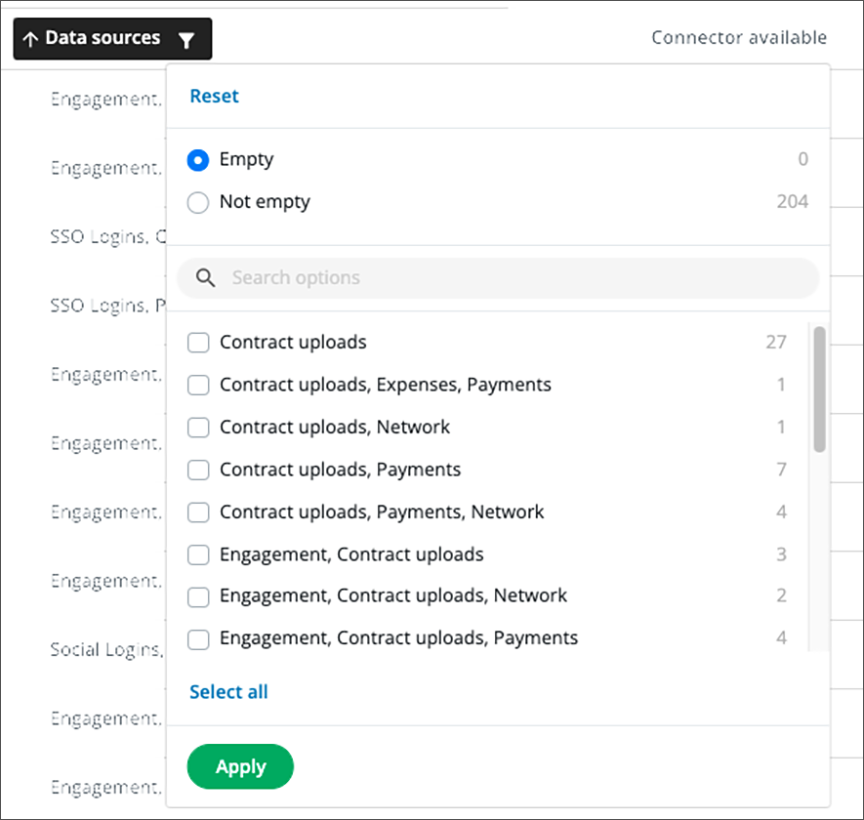
The Data sources filter enables you to display apps that have no listed data source, or apps that have a variety of data sources including one or more of:
- Data from contract uploads
- Data from engagement connectors
- Data from expenses
- Data from network sources
- Data from payments
- Data from SSO logins
- Data from Social logins
When you first display the filter, notice that it has already found how many apps there are in your App list that have particular types of data, or combinations of several types.
Scroll down to see the entire list.
To display the data source(s) of interest:
- Click the appropriate box,
- Click Select all, then
- Click Apply.
Find discovered apps
To find discovered apps, use the new Discovered apps page. See below.
New Discovered apps page
Among the pages that comprise the improved App List is a new page, Discovered apps. It’s visible near the top of the App List page.
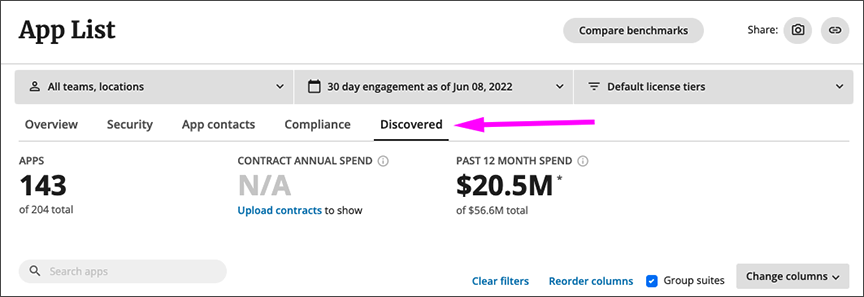
To view all Discovered apps, click the Discovered tab. Productiv displays a page with only discovered apps.
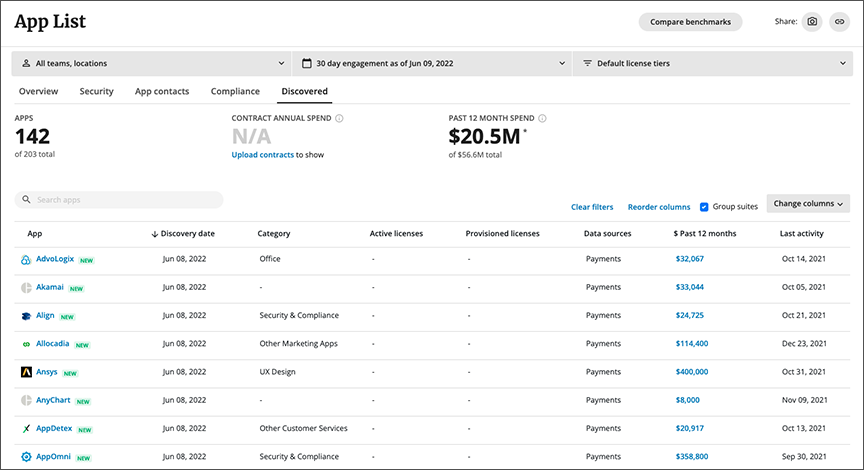
Read more
For more detailed information on how to customize App list views, see Sorting the App list.
Comments
0 comments
Please sign in to leave a comment.