Completing a step in a workflow
Accessing your assigned step
When you are assigned to a step in a workflow,
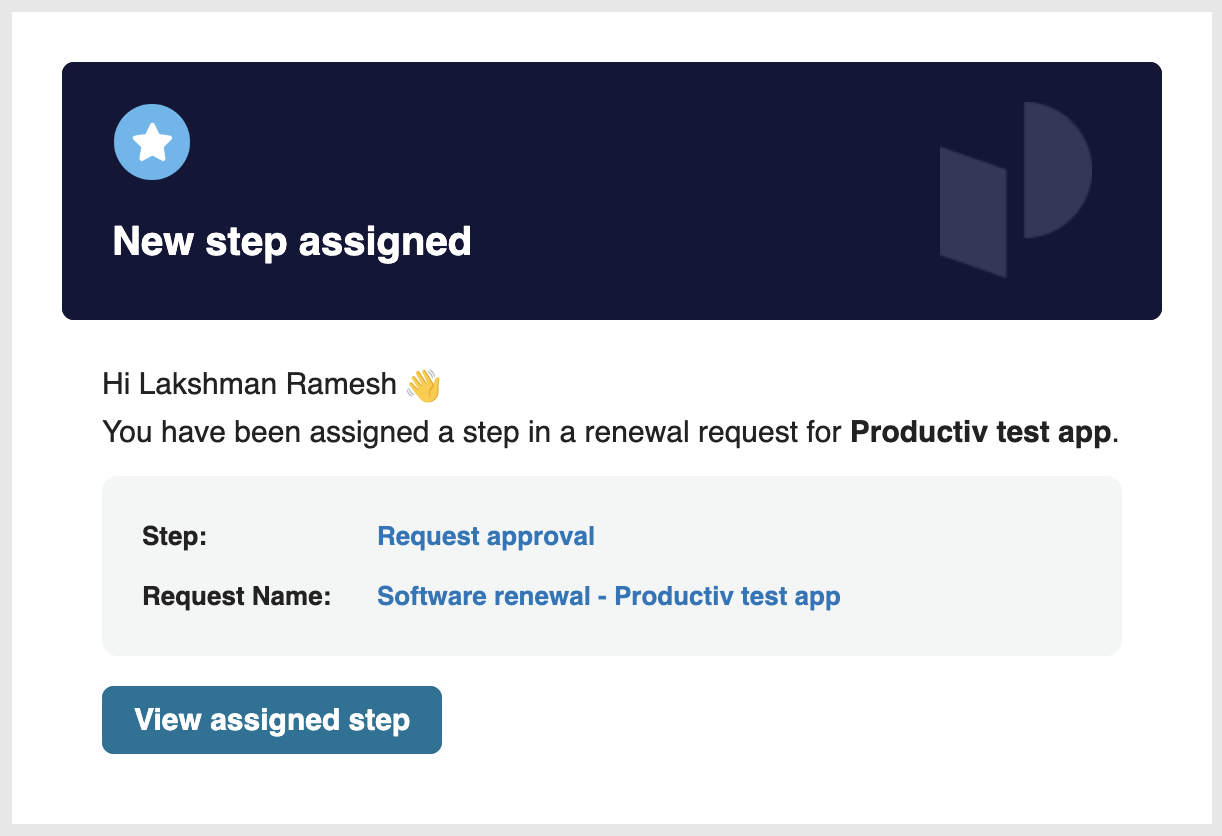
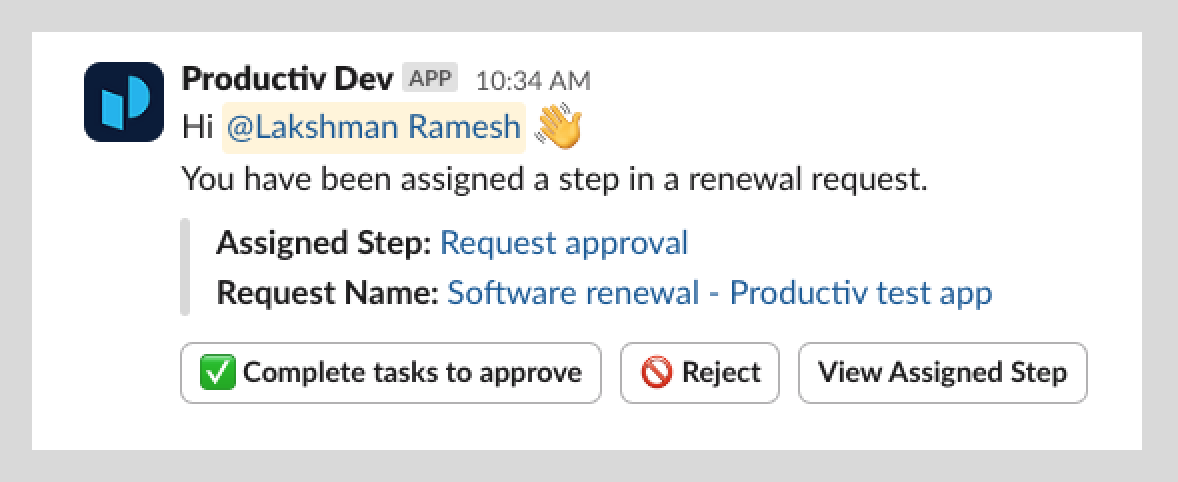
- You will receive notifications through both email and in your configured team messaging app (Slack or Microsoft Teams) where you will be able to see the name of step and associated information.
- You can also see the list of all steps you have been assigned within the product. You can access it from two locations:
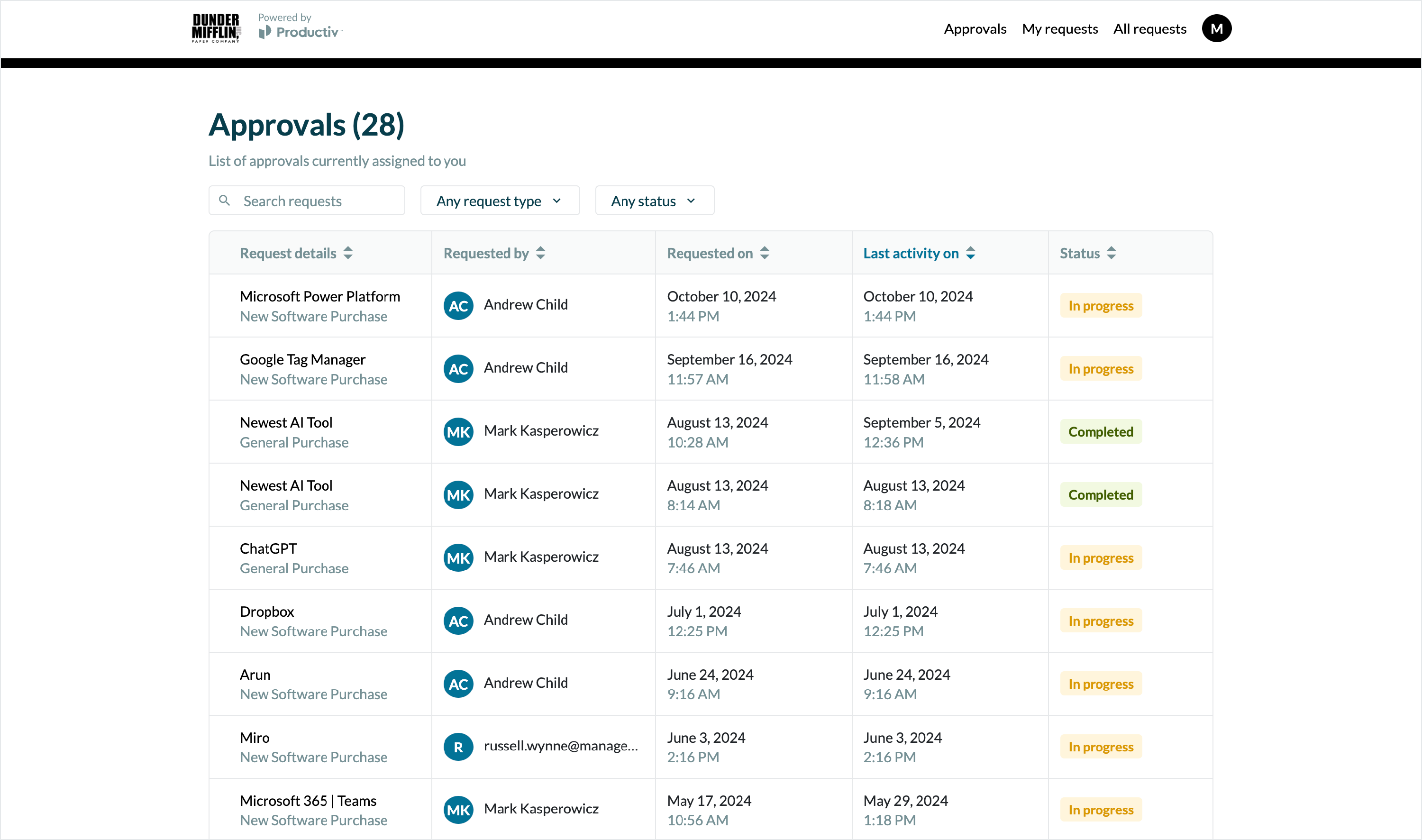
- Productiv Home, where you can access your assigned steps from the Approvals page
- Available to: All Productiv users
- Workflows: New Software Purchase and General Purchase workflows
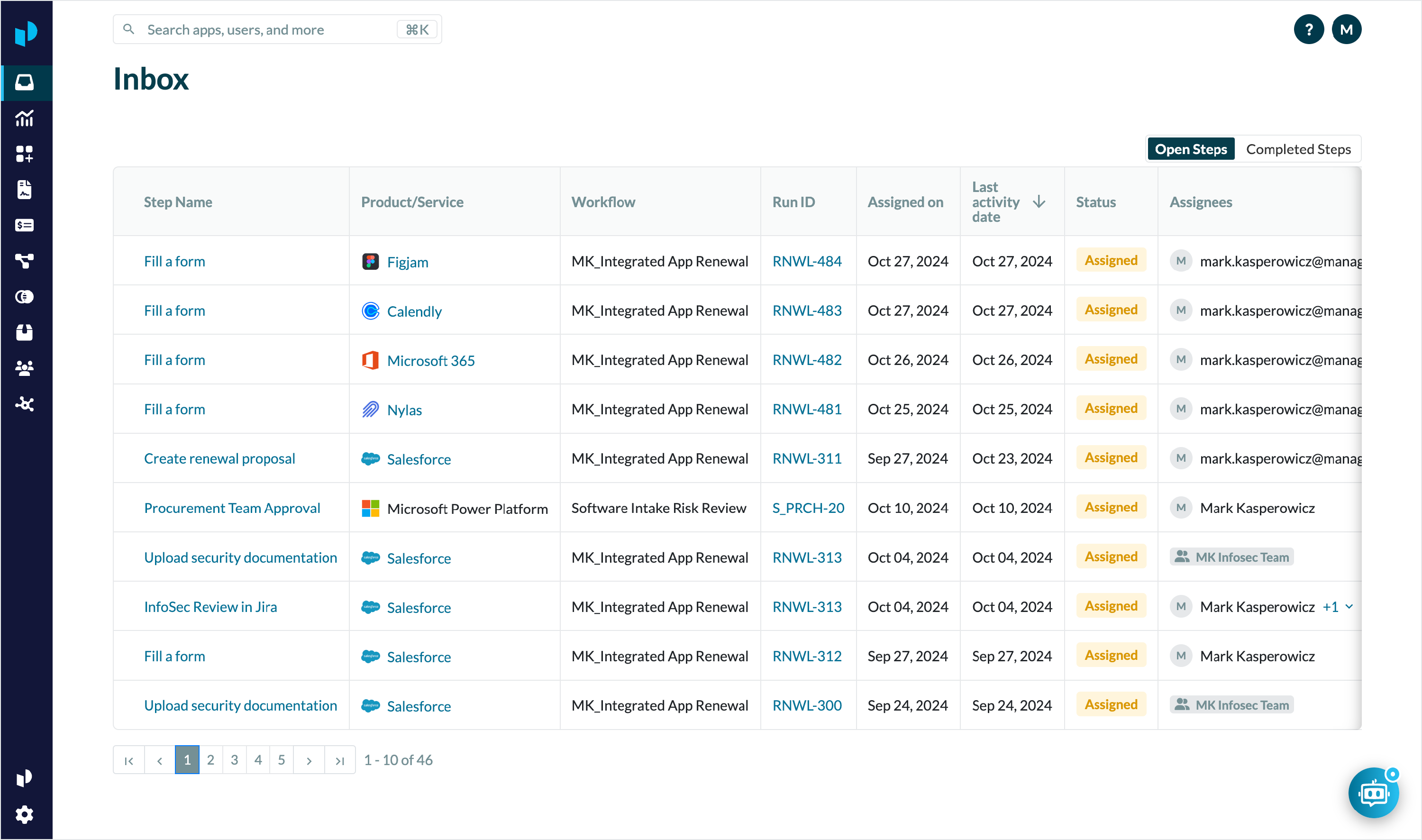
- Productiv Platform, on the Inbox page
- Available to: Limited Plus users and above.
- Workflows: New Software Purchase and General Purchase workflows
- Productiv Home, where you can access your assigned steps from the Approvals page
Refer here for more information about user roles and permissions.
Completing your assigned step
Once you open the assigned step, whether from a notification or within Productiv platform, you will land on the task details page. Here, you can view the request and related information.
Each step has a list of tasks that need to be completed before the workflow can move forward.
- To view the tasks associated with your step, click on the primary action on the page (1)
Note: the label of this action could change depending on the step you are assigned to. For more detailed information on steps click here.
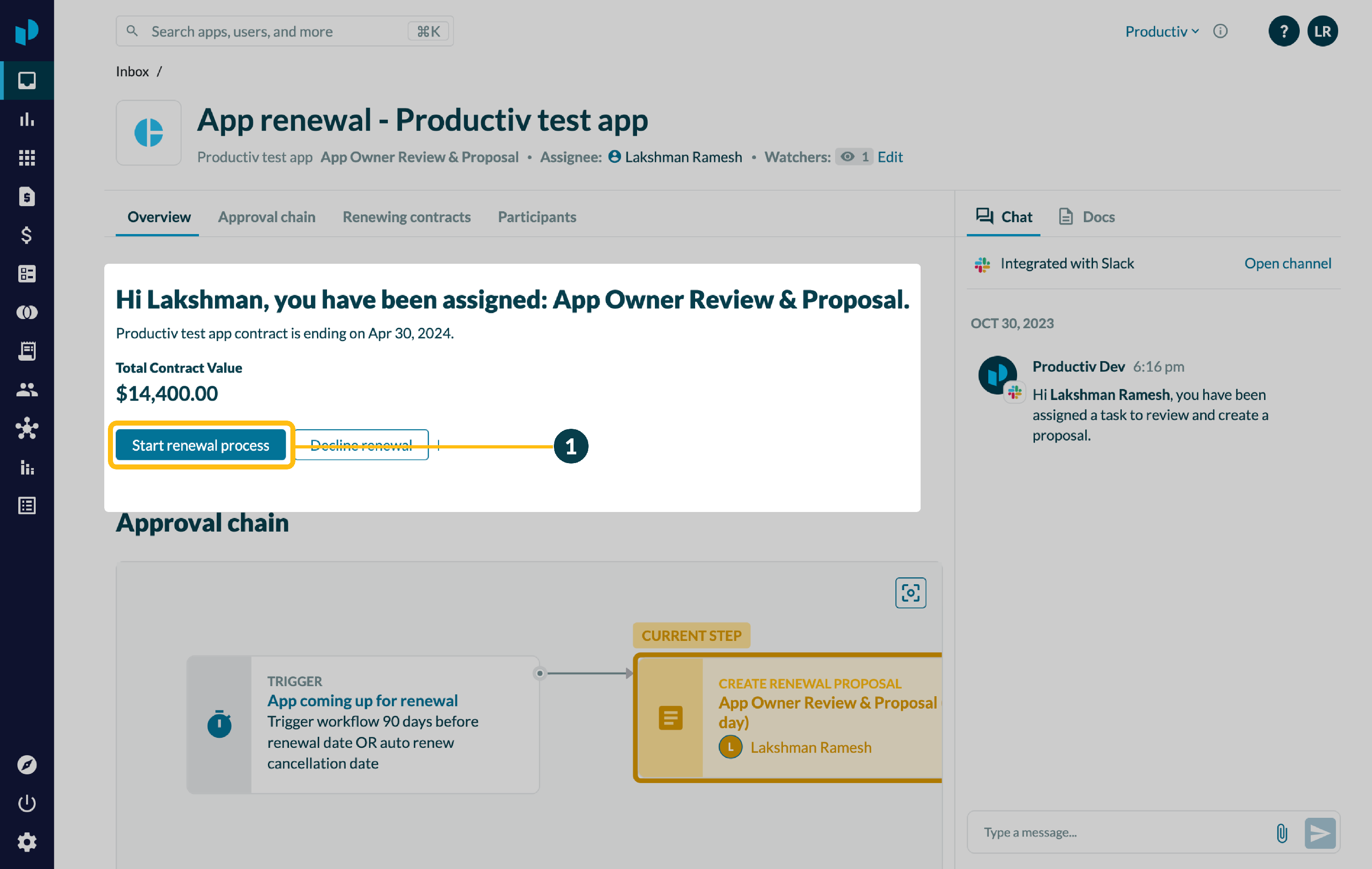
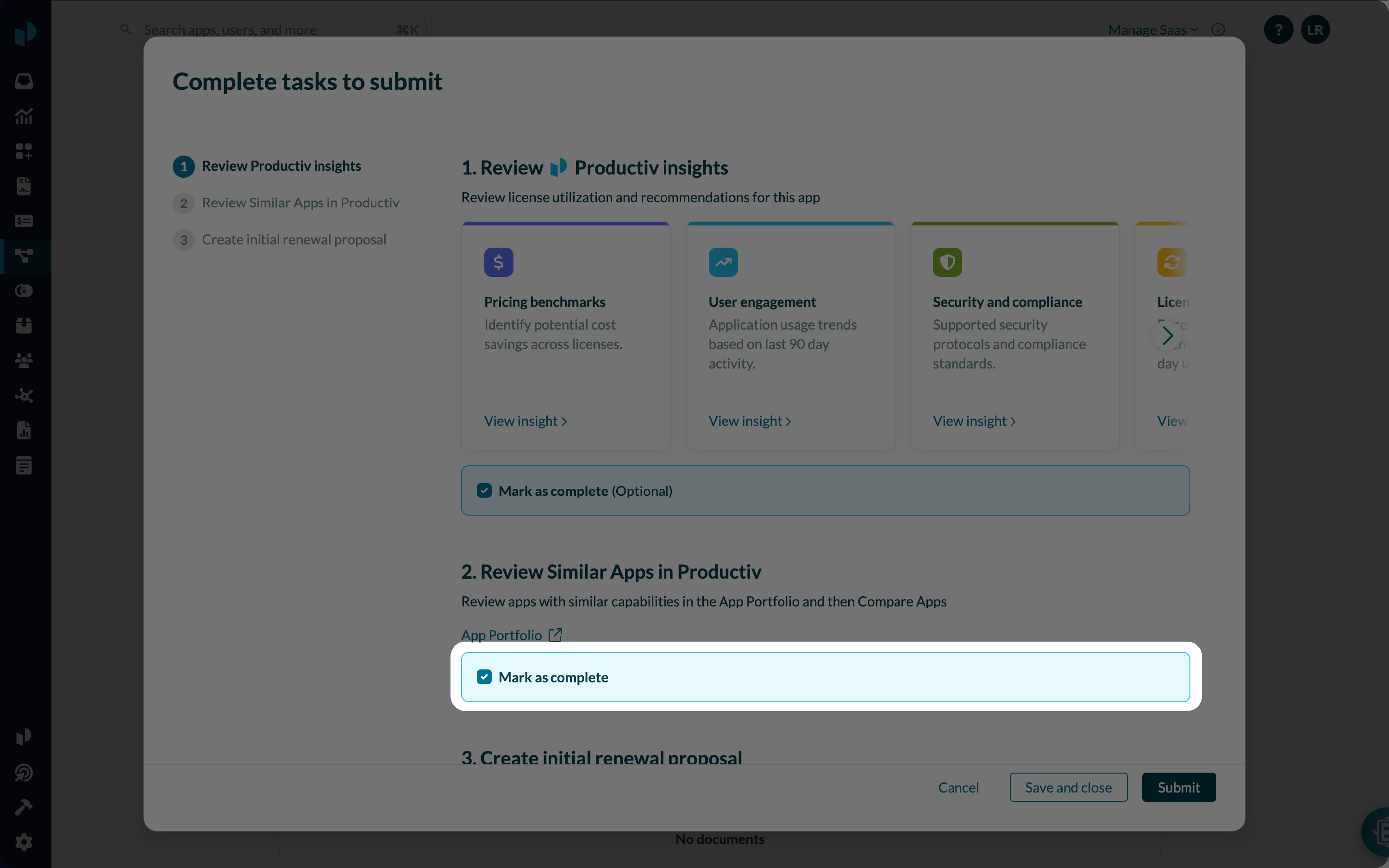
- Next, complete each task listed. Review the information provided and click the "Mark Complete" (2) checkbox when you are finished.
Note: you may have one more tasks to complete as a part of your step
- Once you are done completing all the tasks, click the submit button (3) .
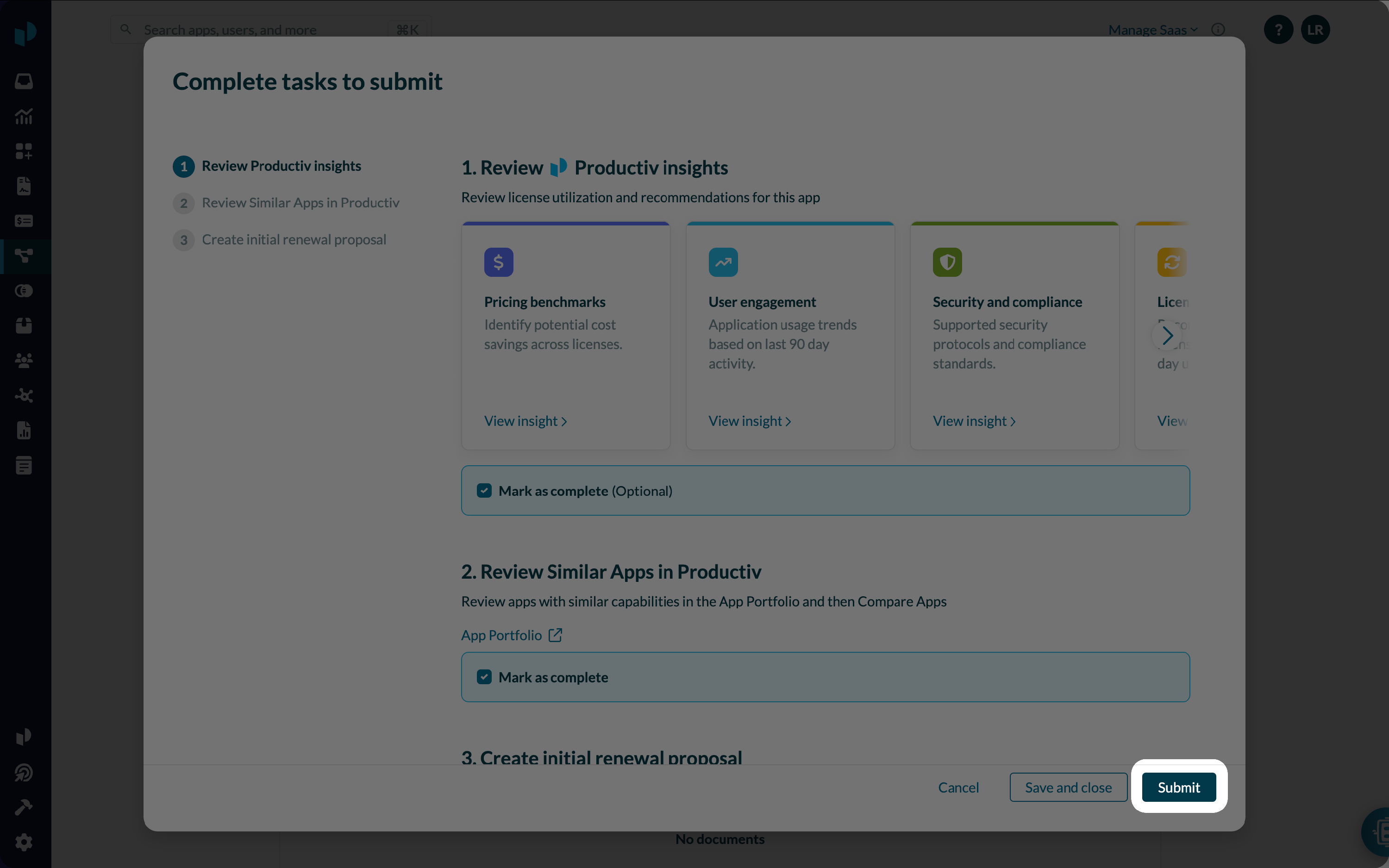
After you submit, the workflow will move to the next step and your decision will be shared with the rest of your team.