Share application portfolio visibility and insights with colleagues
Share application portfolio visibility and insights with your colleagues by inviting them to collaborate in Productiv.
Super Admin users can invite others to Productiv.
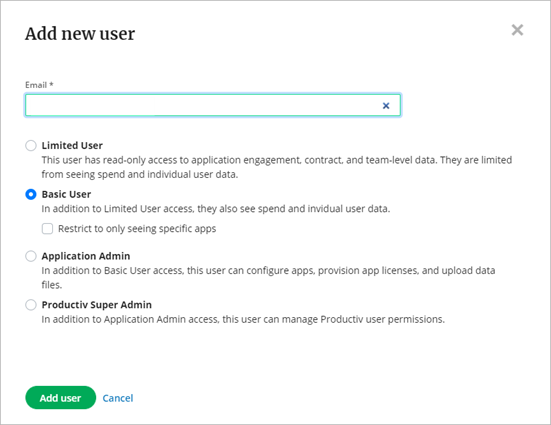
To invite a colleague to Productiv, complete the following steps:
- Select the Settings icon in the left navigation list.
- Select the Users tab.
- Select Add new user.
- In the Add new user popup, enter the person’s Email address.
- If applicable, set the permission level and app restrictions, as described below.
- Select Add user.
If your organization uses username/password authentication for Productiv, then any Productiv user can invite additional users. In that case, all new users will have Super Admin permissions.
If your organization uses SSO authentication for Productiv, you will select the new user’s permission when adding them. You can also restrict their access to selected apps.
To restrict access to selected apps:
- Check the Restrict to only seeing specific apps box.
- Select Choose apps.
- In the Search box, begin typing the name of an app you want the new user to be able to access.
- Select the matching app. You can repeat to allow this user to access multiple apps. You can also remove apps by clicking the X next to an app you’ve previously added for this user.
- When the list of restricted apps is complete, select Done.
Comments
0 comments
Article is closed for comments.