Identify apps for which user is a functional contact point
Review a user’s functional contact point assignments and add or remove responsibilities for that user from the Settings page. An app contact can also access their own responsibilities from the My Account page.
To open the App contact for popup for a selected user, complete the following steps:
- Select the Settings icon in the left navigation list.
- Select the Users tab.
- Locate the user you want to review and select the menu icon to the right of the user’s name.
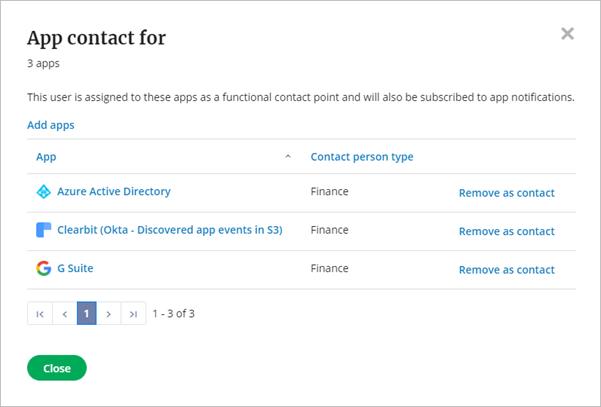
To add the selected user as a contact for a new app:
- Select Add apps.
- Select the type of contact from the Contact person type drop down list.
- Begin typing the name of the app you want to add. Select the app or specific instance from the list of matches. You can add multiple apps.
- Select Add apps.
By assigning a user as an app contact, that person will also automatically be subscribed to notifications about the app, unless the contact person type is Vendor or Other.
To remove the selected user as a contact from a listed app, select Remove as contact.
Comments
0 comments
Article is closed for comments.