Changing or reordering App List columns
This article describes how to use the App List Change columns and Reorder columns functions to customize any App List View.
See also App List views and filters.
____________
Productiv tracks a variety of data about each application in your organization’s portfolio. Access information about a particular type of project or investigation by choosing a View to explore, then fine-tune your View using the App List's change columns and reorder columns features.
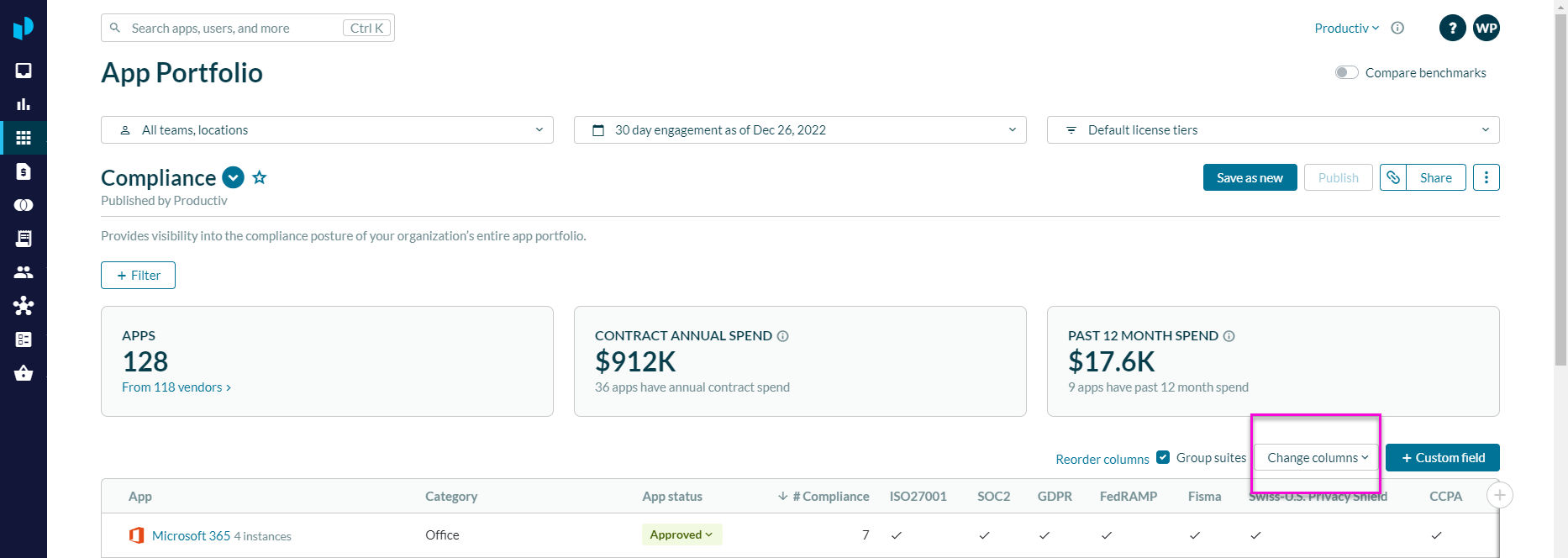
When you're finished, you can save your changes as a new view and share that view with others, or click All apps to reset the View to its starting point.
Change columns
The Change columns feature enables you to show or hide any of the 50+ possible columns in the App List table.
To customize which columns display in the current view:
- Select Change columns at the top right of the table on the App list page.
Productiv displays a pop-up with all the possible columns you can display in the chosen View. - In the list of columns, select the box(es) next to the fields you want to view, OR select a broad category of columns such as General, Contacts & spend, Engagement, Licenses, or Security & compliance. If there are any fields that you'd like to hide, de-select them.
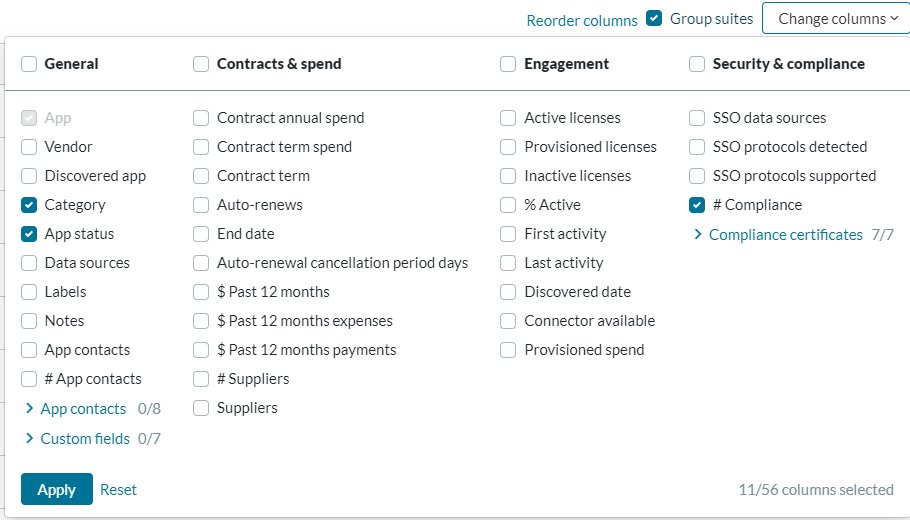
- Click Apply to apply the columns you just selected, Reset to return the view to the default columns for your selected preset view, OR click outside the list of columns to close it.
- If desired, save your new view.
Reorder columns
The Reorder columns feature lets you reorder or reorganize the columns in your View. Click Reorder columns at any time to see the columns in your current View, listed in the order in which they appear. (The left-most column is at the top, the second-left-most column is second, etc.)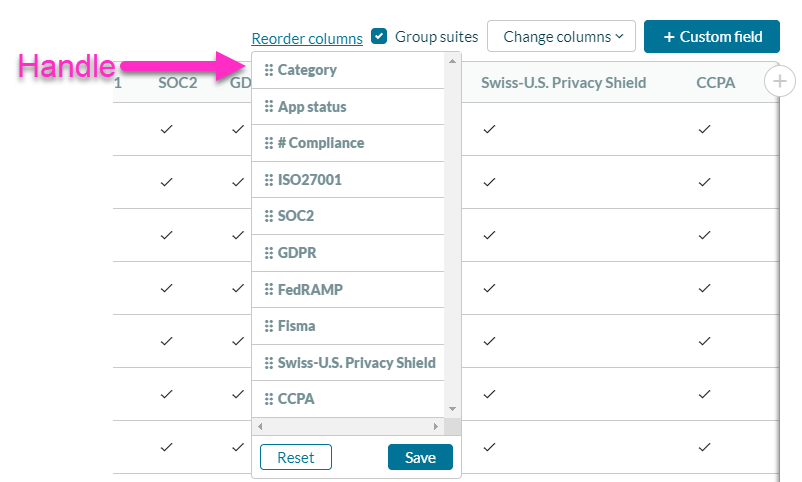
To reorder columns, drag them by their "handles" until they are in the order you prefer. To save, click Save.