The App list table gives users a view of their entire app catalog. The table can currently be sorted across up to 54 items, and new sorts are being added all the time. Since most computer screens aren't wide enough to accommodate more than 8 to 10 columns of app information at a time, making the best use of the table and available screen space can be challenging.
Productiv has introduced the ability to reorder columns in the App list table via a simple drag-and-drop interface, and save the reordered columns as simply as if they were a spreadsheet.
We have also enhanced App list filtering capabilities for columns that can have multiple values, such as Data Source (SSO, Social Logins, Engagement, etc.) With this change, you can now filter down to any combination of values.
Where can I see the change?
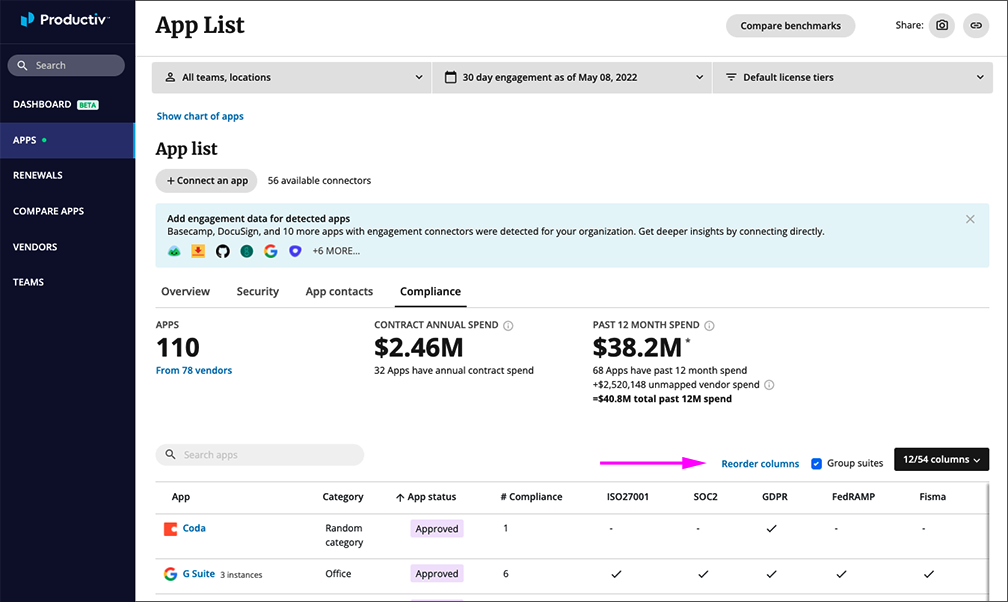
The change is visible at the top of the App list table as a new link, Reorder columns.
What is the main impact of this change?
This change makes it possible to create and save a customized view of your app portfolio for a particular purpose, without ever impacting the numbers you see above in the Apps by size activity table. The opportunities for new filters are endless.
The enhanced filtering makes it easier to search in columns that can have multiple values, such as Data Source. This makes it possible to locate a strict match. For example, you can filter down to Apps that only receive Social logins, to find Discovered apps.
How can I try it?
Start at the top of the App list table:
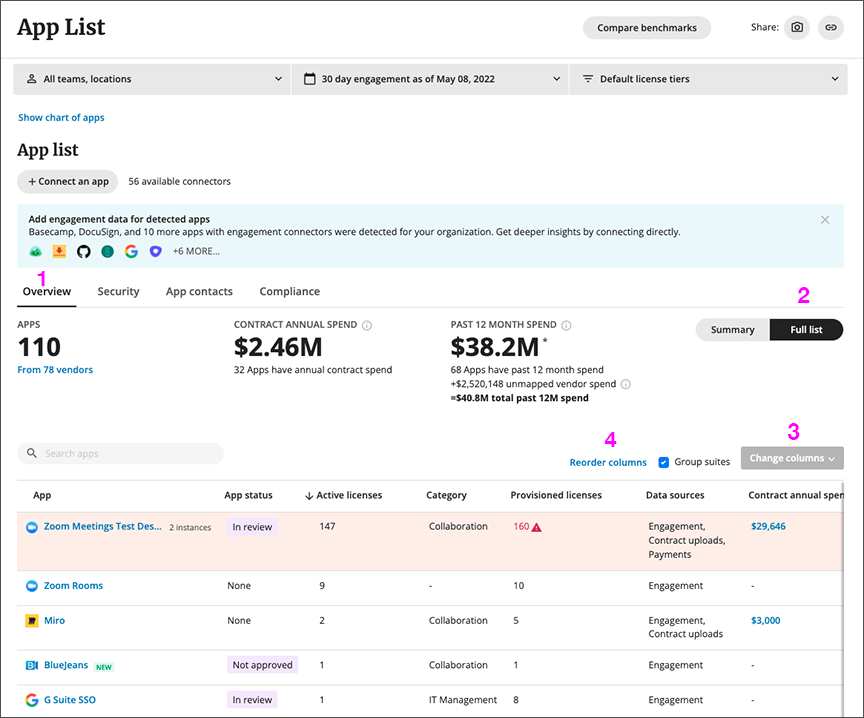
- Select the Overview tab, if it isn't selected already.
- Toggle the display of apps to show the Full list.
- Open the column sorter drop-down. The sorter will be labeled Change columns the first time you use it; afterwards it will change to display the number of columns you've selected.
Productiv displays all 54 possible columns to view.
Select the columns of interest for this custom filter.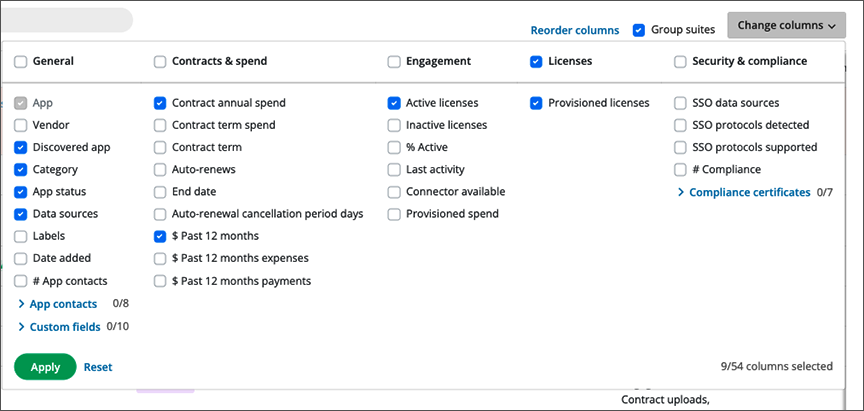
When you've chosen all the columns you need, click Apply. The App table columns you selected appear. - Click Reorder columns. Productiv displays a list of the columns you chose.
- Drag each column name up or down the list until they are in the order you prefer.
When you are satisfied with the order, click Save.
The headers and column order sticks until the next time you reorder columns.
Example filter sorts
An upcoming blog will provide in-depth examples of how to use the App list filters to perform comparisons and create your own diagnostics.
Comments
0 comments
Please sign in to leave a comment.