Below is a list of frequently asked questions when it comes to Apps and the App Portfolio in Productiv.
Let's get started!
- What is a Discovered App?
- What is a Managed App?
- Are all Discovered apps unknown?
- What are Birthright apps?
- Can we set up a workflow for multiple apps at the same time?
- Is there a way to download a CSV of app descriptions?
- What is an event?
- What are Actions?
- What are App category actions?
- Is there a reason why API refresh/update rates are different for applications?
- What is the "All License Tiers" filter on the App Portfolio page?
- Is it possible to select a 180-day engagement window?
- Can we customize the "app status" approval fields?
FAQs
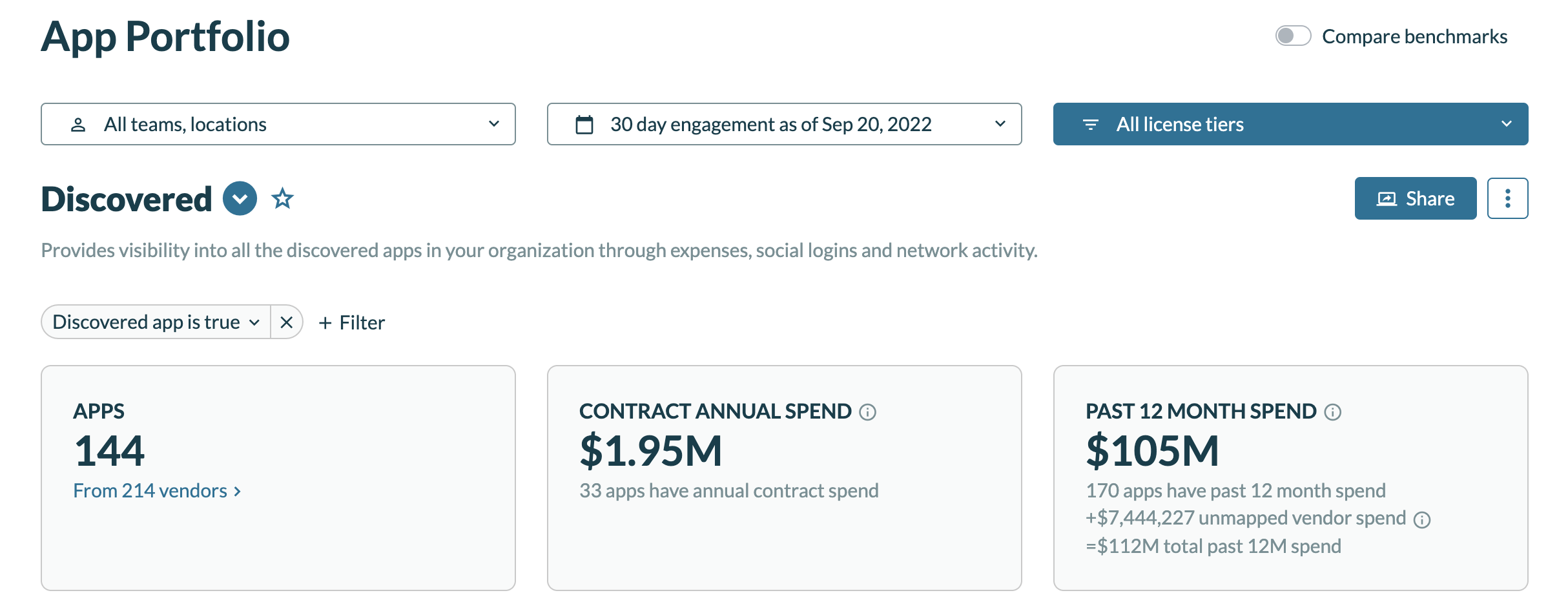
Q: What is a Discovered App?
A: These are apps that IT may not be aware of, discovered as a result of spend in the form of payments and expenses, network activity, or a Social Login (SSO) connection.
Sometimes, individual departments may set up tools or software that the IT department many not be aware of. This type of action, thus, can result in discovered apps in the portfolio.
Q: What is a Managed App?
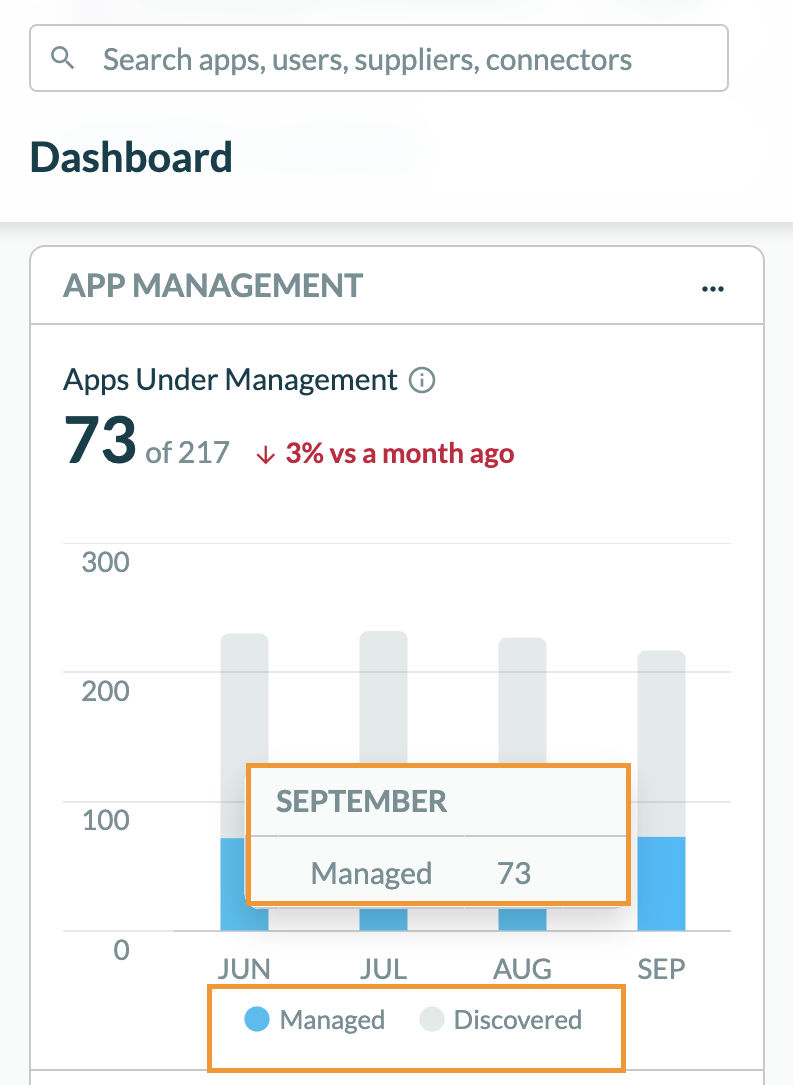
A: These are apps that are managed by the IT organization. They generally have an engagement connector, Single Sign On (SSO) connector, or contract data uploaded.
Q: Are all Discovered apps unknown?
A: No. IT may already know about a Discovered app and have reasons for it remaining in a non-managed capacity.
Q: What are Birthright apps?
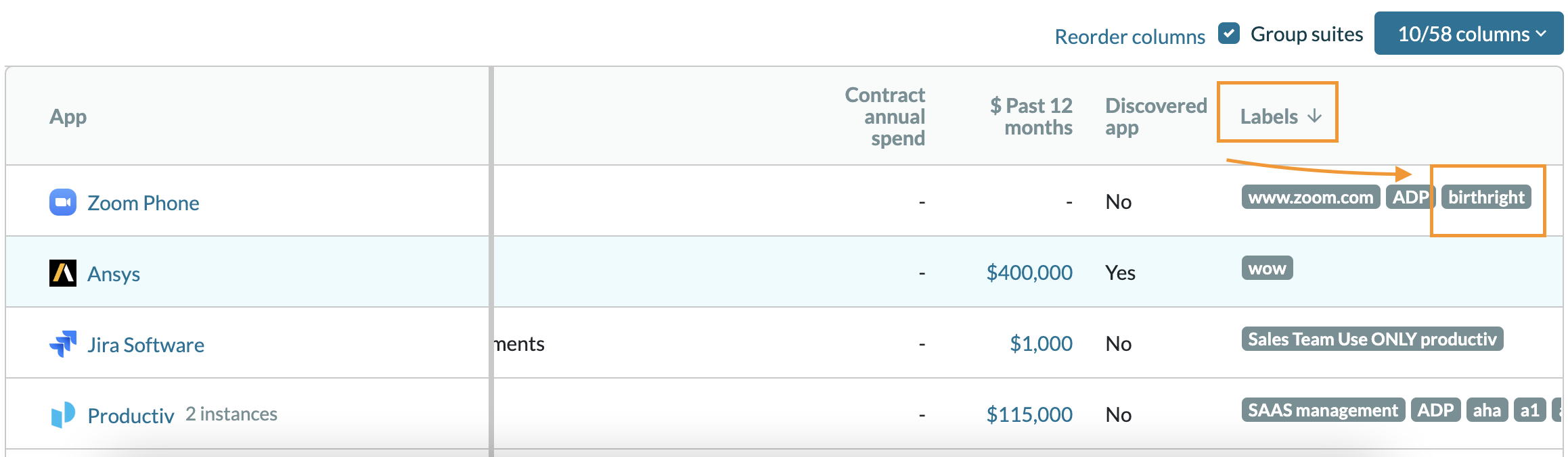
A: Birthright apps are those that are a "birthright" for all employees. This means that they are usually deployed to everyone at the company.
You can use the "Labels" features to set which apps are birthright apps in your environment and sort the data in your app portfolio with this filter/tag. Refer to the below link for more details:
Q: Can we set up or deprovision a workflow for multiple apps at the same time?
A: Currently, this is done on an app-per-app basis.
Q: Is there a way to download a CSV that has the description of each app?
A: Yes, this is possible by downloading and updating your app attributes, which also consist of your app descriptions. Follow these steps:
- Click Settings on the left sidebar when you log into the Productiv account.
- Select Manage data tab at the top.
- Scroll down to Update app attributes > click the start csv import.
- Under Template file, click the download current app attributes.csv button.
- Go to the downloaded file on your computer > update the description as well as other app attributes of your liking > save the changes.
- Go back to the Productiv account > click the Next button at the top-right.
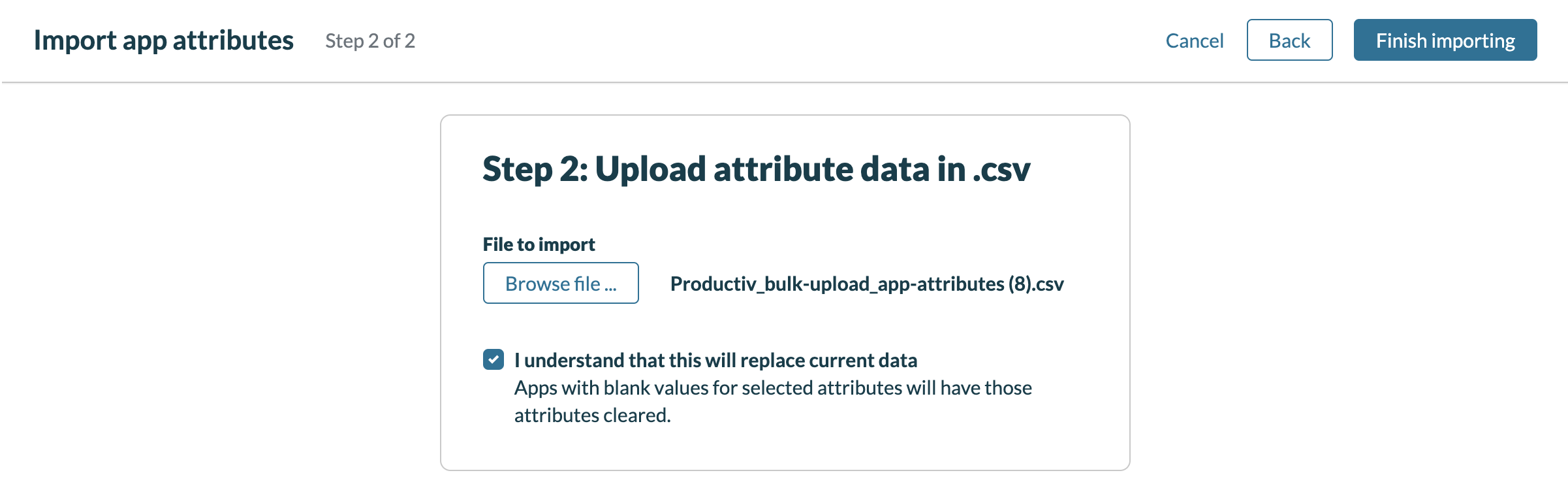
- Click the Upload app attributes .csv button to upload the file with the updated attributes.
- Click the checkbox next to the agreement below.
- Click Finish importing to begin the process.
Q: What is an event in Productiv?
A: Events are data points/activities that are mapped to Actions, specifically when user engagement and app usage are being tracked. Event metrics come from Connector APIs (when an application is configured with an engagement connector).
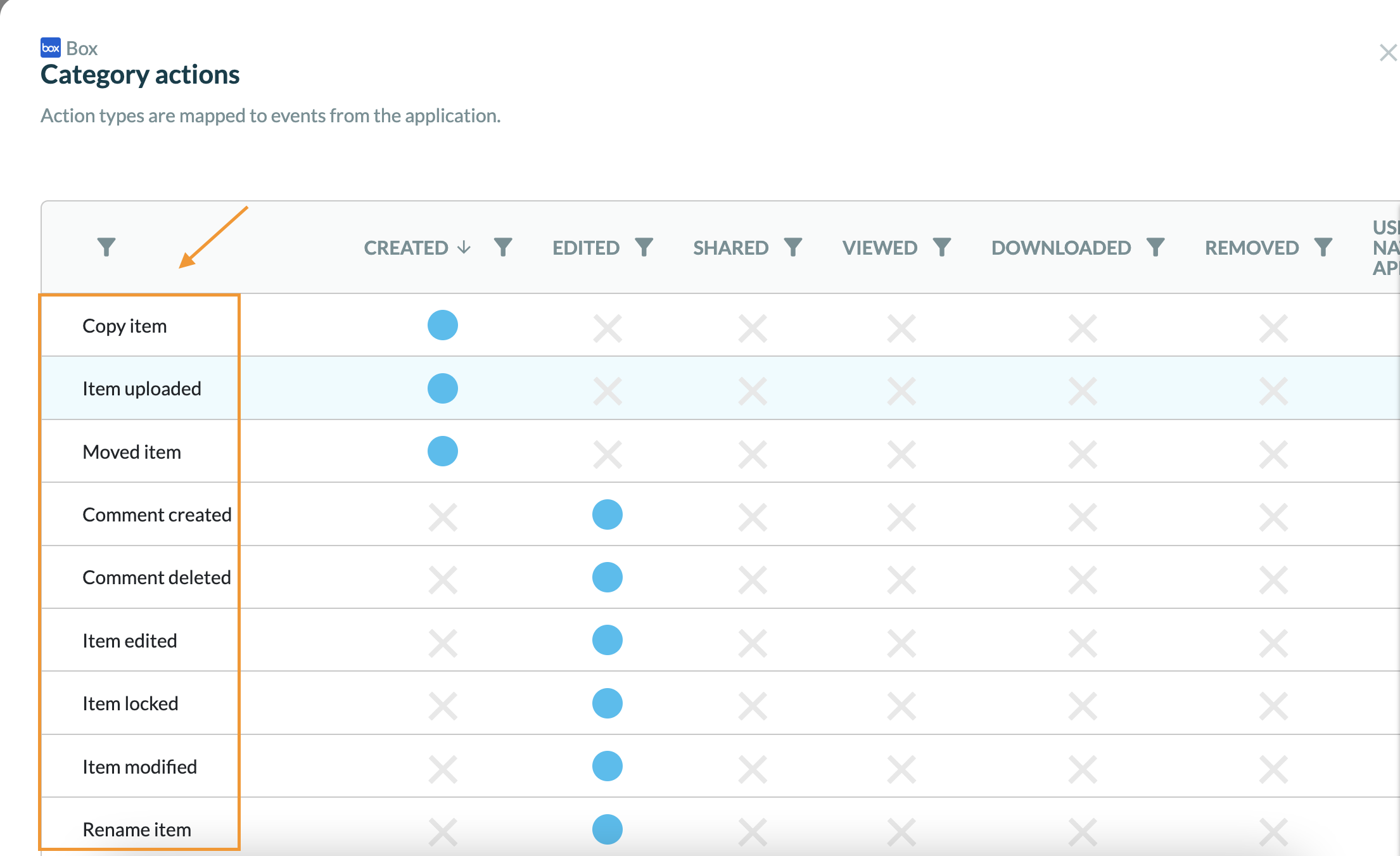
Q: What are Actions?
A: This refers to a group of related app events. "Shared" and "Edited" are examples of actions in Productiv.
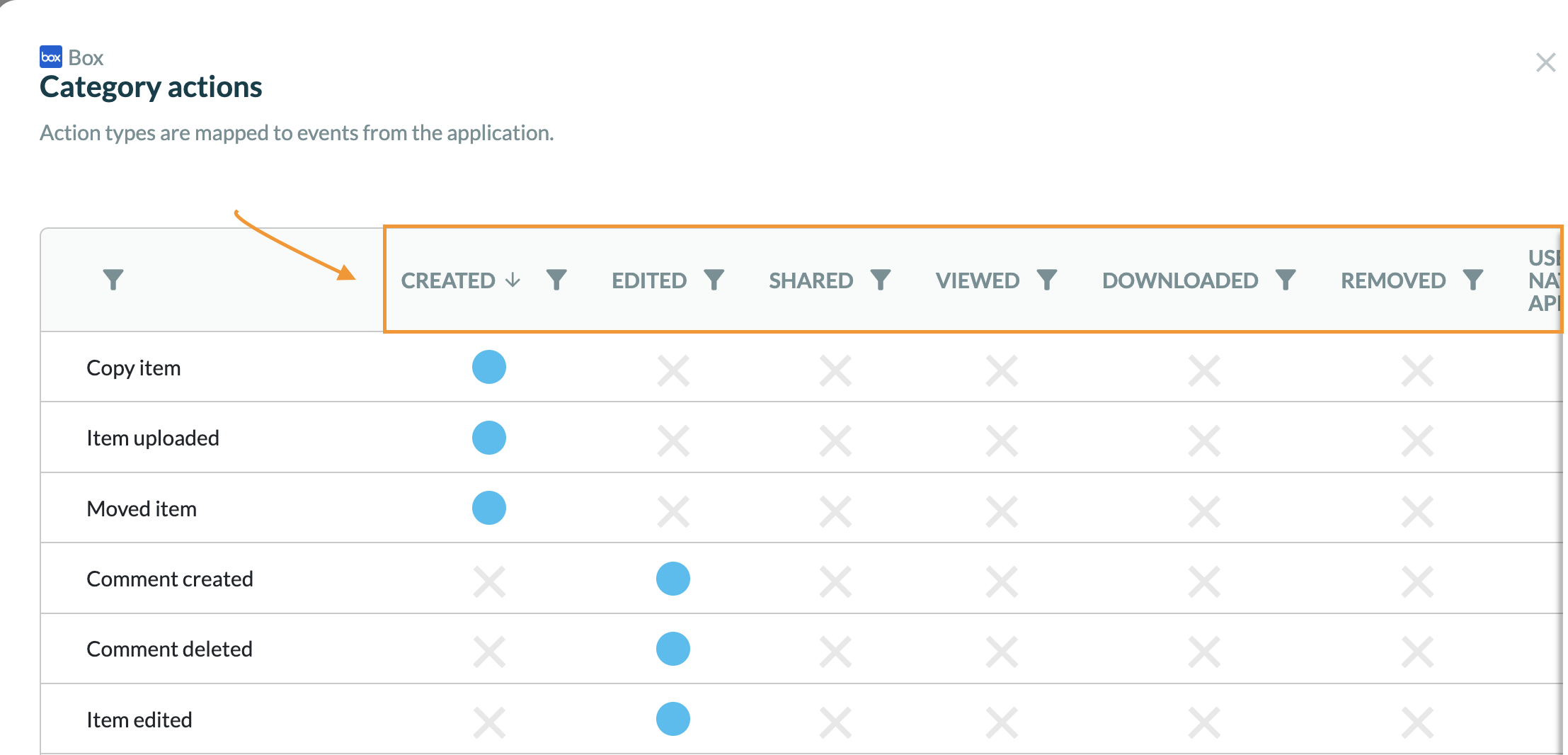
Q: What are App category actions?
A: This refers to actions specific to a category of apps. For example, apps assigned to the “document/storage” category can have the category-specific action “edited.”
Q: Is there a reason why API refresh/update rates are different for applications? For example, why does Microsoft Office 365 and Google Workspace have 4-5 day refresh windows?
A: Productiv is dependent on the Service Provider/API refresh. The SP may or may not update their api data on a daily basis, i.e. Office 365 and Google can take up to 4 days to update their API data. We recommend reaching out directly to the Service Provider for specific questions.
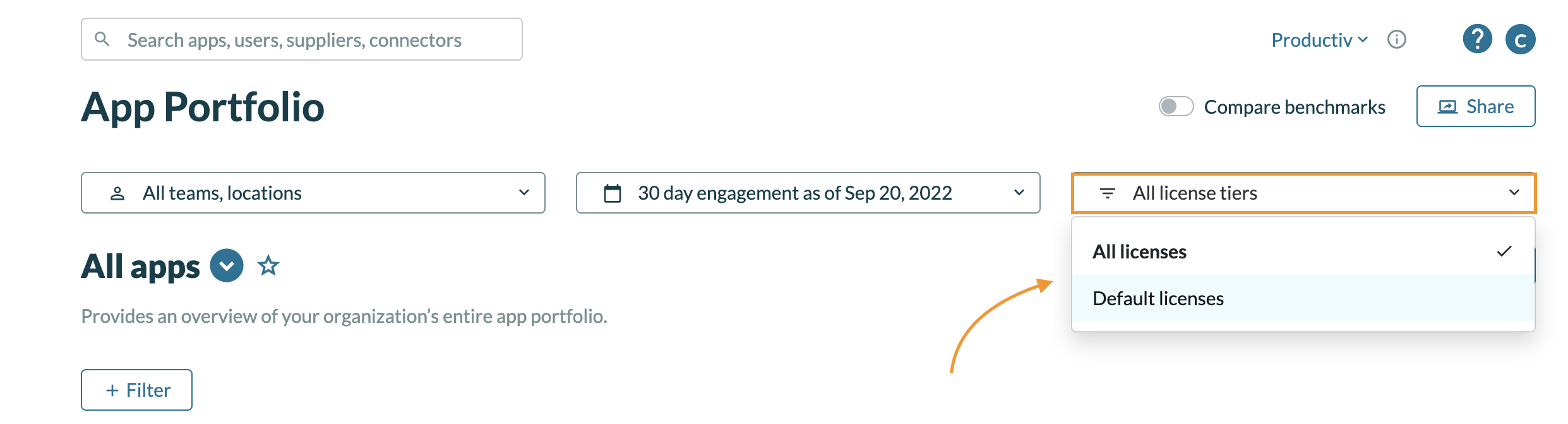
Q: What is the "All License Tiers" dropdown filter on the App Portfolio page?
A: License tiers allow you to focus on the most relevant information, depending on
different license tiers and data sources connected to applications.
The first step is setting a default license tier for the apps in question from the Settings page:
- Select Settings at the bottom-left of the screen.
- Select the Manage data tab at the top.
- Scroll down on the screen > choose an application you want to set a default tier for (ex. Zoom Meetings).
- Click the three dots on the right side > select App settings.
- Click the drop-down under Default License.
- Select the tier you want to set as a default license (for Zoom Meetings, you would see Pro and Basic since these are the tiers for this app) > select Save.
Now, from the Apps page, you will be able to filter the metrics/data by the default licenses you set for each app in Settings or you can filter the data to include all All Licenses tiers (select Apps on the left side panel > select All license tiers on the right side drop-down > select a tier of your choice).
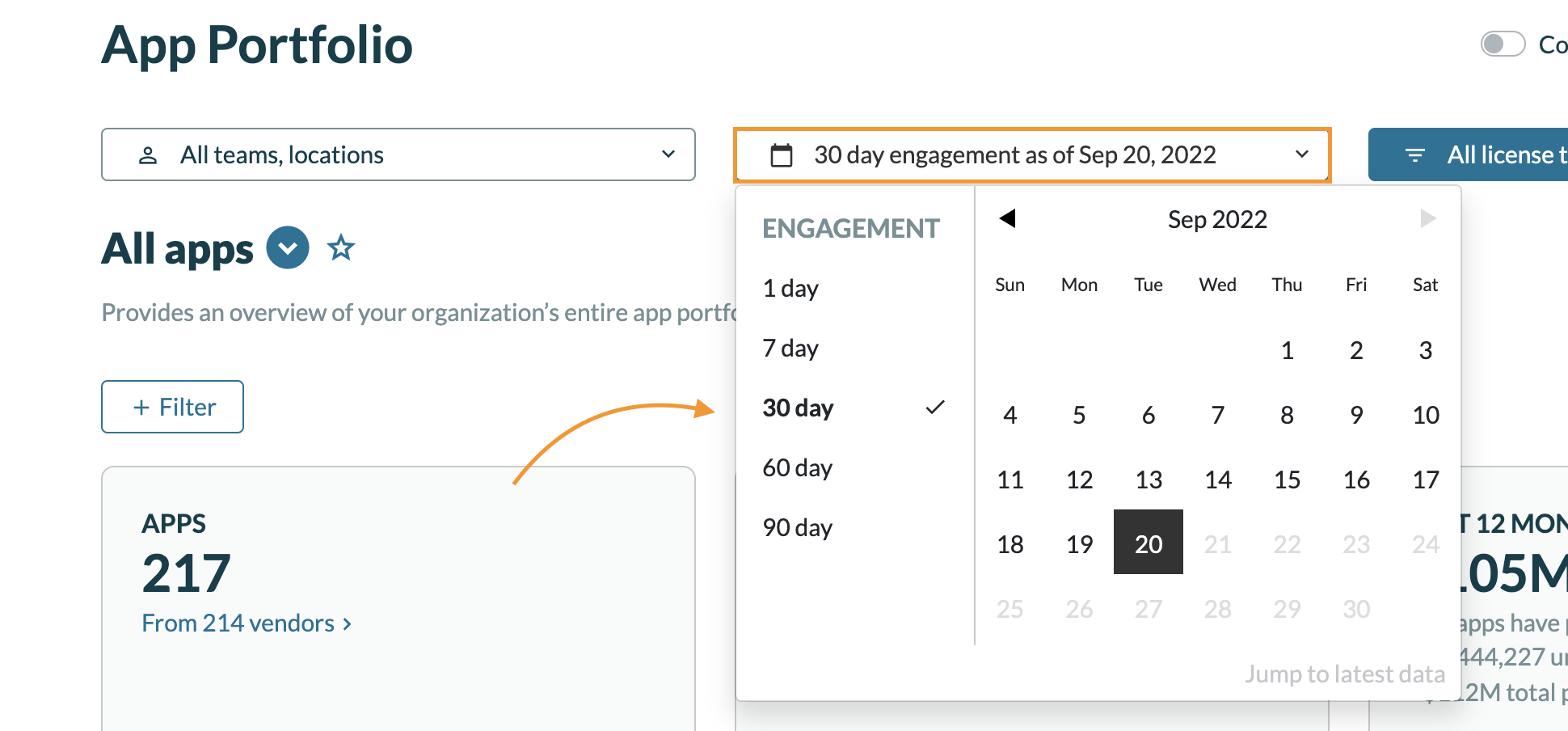
Q: Regarding the Engagement filter, is it possible to select a 180-day engagement window?
A: This has been logged as a feature request and has been put in the roadmap for the future. The largest window you can select at this time is 90 days.
As a workaround, you can select a specific date and engagement window. Then repeat this action for previous timeframes you want to view engagement data. You can also download these views to your computer.
Q: Can we customize the "app status" approval fields? At the moment, the options are "Approved," "Not Approved," and "In review."
A: Currently, you are not able to customize these specific fields. But, as a workaround, you can create a custom field and change the columns to a title/topic of your choice. This way, you'll be able to capture metrics specific to your organization.
Comments
0 comments
Please sign in to leave a comment.