Viewing team users
Identify apps for users in a team
The Users tab shows the total number of users in the selected team (based on your connected or uploaded org chart data), with the percentage that team represents of the entire organization.
To view a team of users, do the following:
- Select the Team from the Team Size v Apps each team uses chart or from the Teams table to see the details about the users in that team.
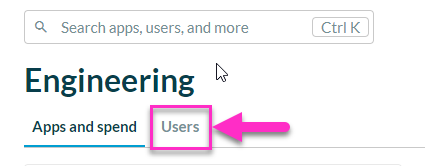
- Select the Users tab.
The Users table lists each user included in the selected team as of the selected date with the following information:
- ID: The email address or primary ID for the user
- Name: The user’s name
- Job title: The user’s job title
- Apps for this user: The number of apps for which this user has activity, provisioned licenses or allocated contract value
- Allocated contract value: The amount of contract value allocated for this user across their apps
- Cost center: The user's cost center
Select Download as .csv to send data to a .csv file.
Select the user ID to open the Users page for that user.